Implementing a Wicket UI Extension
This section describes how to implement an extension to the GeoServer Wicket user interface. The extension will be extremely simple and will be a basic page that is linked from the main menu and displays the message “Hello World”.
Prerequisites
Before being able to proceed, GeoServer must be built on the local system. See the Source Code and Quickstart sections for details.
Create a new module
Create a new module named hello_web somewhere on the file system
Add the following pom.xml to the root of the new module:
    <project xmlns="http://maven.apache.org/POM/4.0.0"
   xmlns:xsi="http://www.w3.org/2001/XMLSchema-instance"
   xsi:schemaLocation="http://maven.apache.org/POM/4.0.0 http://maven.apache.org/maven-v4_0_0.xsd ">
  <modelVersion>4.0.0</modelVersion>

  <parent>
        <groupId>org.geoserver</groupId>
        <artifactId>web2</artifactId>
        <version>2.0-SNAPSHOT</version>
      </parent>

  <groupId>org.geoserver</groupId>
  <artifactId>hello_web</artifactId>
  <packaging>jar</packaging>
  <version>1.0-SNAPSHOT</version>
  <name>hello_web</name>

  <dependencies>
    <dependency>
      <groupId>org.geoserver.web</groupId>
      <artifactId>web-core</artifactId>
      <version>2.0-SNAPSHOT</version>
    </dependency>
  </dependencies>

  <build>
    <plugins>
      <plugin>
        <artifactId>maven-compiler-plugin</artifactId>
        <configuration>
          <source>1.5</source>
          <target>1.5</target>
        </configuration>
     </plugin>
   </plugins>
  </build>

</project>
Create the directory src/main/java under the root of the new module:
[hello_web]% mkdir -p src/main/java
Create the page class
The class org.geoserver.web.GeoServerBasePage is the base class for all pages in GeoServer. Create a new class called HelloPage in the package org.geoserver.helloweb, which extends from GeoServerBasePage:
package org.geoserver.helloweb;

import org.geoserver.web.GeoServerBasePage;

public class HelloPage extends GeoServerBasePage {

}
The first task is to implement the constructor. In Wicket a page or component builds itself in its constructor. This page is basic and will simply create a label which has the value “Hello World!”:
import org.apache.wicket.markup.html.basic.Label;
...

   public HelloPage() {
       add( new Label( "hellolabel", "Hello World!") );
   }
In the above code, an instance of Label is created. The first argument to its constructor is the component id. In Wicket every component must have an id. In the next section this id will be used to bind the component to its HTML presentation. The second argument to the Label constructor is the value of the world, in this case the string “Hello World!”
Create the page presentation
With the page completed, the next step is to create the HTML presentation for the page. To do this create a file named HelloPage.html in the same directory as the HelloPagejava class:
<html>
  <body>
     <wicket:extend>
        <div wicket:id="hellolabel"></div>
     </wicket:extend>
  </body>
</html>
There are few things to note about the HTML. The first is the use of the <wicket:extend> element. This tells wicket that HelloPage is an extension of another page, in this case GeoServerBasePage, and it should inherit presentation from that page.
The second thing to note is the attribute wicket:id on the <div> element. This is what binds the <div> tag to the Label component created in the previous section. The value of wicket:id must match the id given to the component, in this case “hellolabel”.
Create the i18n file
With Wicket (and any web application framework), any string that appears in the web application should be interationalized. In GeoServer, this is performed by creating an internationalization (i18n) file named GeoServerApplication.properties.
Create the (i18n) file GeoServerApplication.properties in the src/main/java directory:
HelloPage.page.title=Hello
HelloPage.page.description=A page to say hello
The above i18n file declares two keys, one for the title of the page and one for the description of the page.
Create the application context
The final step is to create an application context which tells GeoServer about the page created in the previous section. Create the directory src/main/resources under the root of the hello_web module:
[hello_web]% mkdir src/main/resources
Add the following applicationContext.xml file to the src/main/resources directory, under the root of the hello_rest module:
 <!DOCTYPE beans PUBLIC "-//SPRING//DTD BEAN//EN" "http://www.springframework.org/dtd/spring-beans.dtd">

 <beans>
    <bean id="helloPage" class="org.geoserver.web.MenuPageInfo">
      <property name="id" value="helloPage"/>
      <property name="titleKey" value="HelloPage.page.title"/>
      <property name="descriptionKey" value="HelloPage.page.description"/>
      <property name="componentClass" value="org.geoserver.helloweb.HelloPage"/>
    </bean>
</beans>
The above bean declaration declares an instance of the MenuPageInfo class which is a descriptor for pages linked from the main page of the GeoServer web application. The property titleKey is the title of the page and it receives the value of the title i18n key created in the previous section. Similar for the the descriptionKey property.
Test the extension
At this point, the hello_web module should look like the following:
hello_web/
   pom.xml
   src/main/java
       applicationContext.xml
       GeoServerApplication.properties
       org/geoserver/helloweb/
            HelloPage.java
            HelloPage.html
Build the hello_web module:
[hello_web]% mvn install
Copy the hello_web-1.0-SNAPSHOT.jar file from the hello_web/target directory into the WEB-inf/lib directory of a GeoServer installation:
[hello_web]% cp target/hello-1.0-SNAPSHOT.jar /home/bob/geoserver-2.0/webapps/geoserver/WEB-INF/lib
Start or restart GeoServer
Navigate to http://localhost:8080/geoserver/web
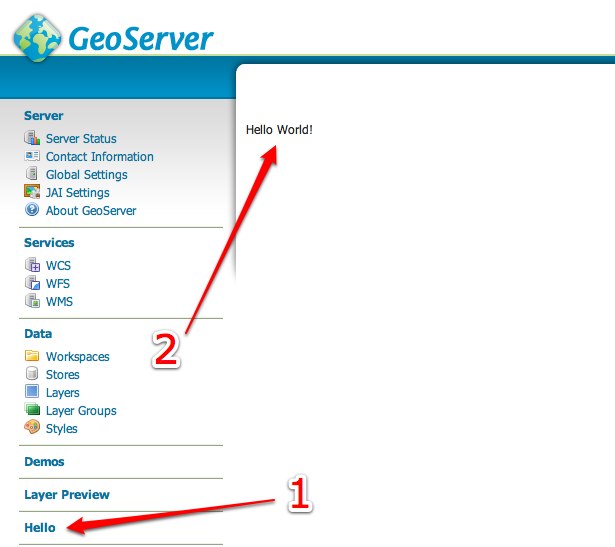
Upon success a link titled Hello should appear in the menu on the left side of the main GeoServer page. Following the link brings up the HelloPage