

|
|
|
When using Ingres in a cluster environment, it must be started and stopped through the cluster service.
If Ingres is shut down while under the control of the High Availability Option, the cluster service sees this as a failure and either tries to restart Ingres on the same node or fail over the service to the failover node.
|
|
|
To bring Ingres online in a cluster environment, use the Windows Cluster Administrator, and follow these steps:
The Cluster Administrator window is displayed.
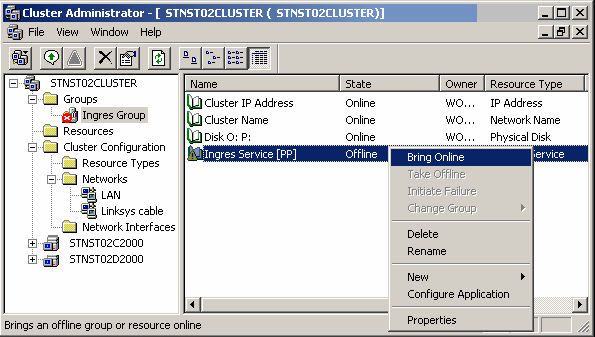
Alternatively, you can use the following Cluster command:
C:> cluster resource <ingres_resource_name> /online /wait:300
To bring the entire Ingres group online, use the following command:
C:> cluster group <ingres_resource_group> /online /wait:300
If you omit "/wait:300," you may see the following message, which indicates that the Ingres service did not reply within the default time period. However, the cluster command executed properly.
System error 997 has occurred.
Overlapped I/O operation is in progress.
Note: Do not use the ingstart command to start Ingres in a cluster environment.
|
|
|
To take Ingres offline in a cluster environment, use the Windows Cluster Administrator, as follows:
The Cluster Administrator window is displayed.
Alternatively, you can use the following Cluster command:
C:> cluster resource <ingres_resource_name> /offline /wait:300
To take the entire Ingres group offline, use the following command:
C:> cluster group <ingres_resource_group> /offline /wait:300
If you omit "/wait:300," you may see the following message, which indicates that the Ingres service did not reply within the default time period. However, the cluster command executed properly.
System error 997 has occurred.
Overlapped I/O operation is in progress.
Note: Do not use the ingstop command to stop Ingres in a cluster environment.
|
|
|
Follow these steps to remove the Ingres High Availability Option using the Windows Cluster Administrator to take the Ingres resource offline.
In the Cluster Administrator window, expand the Groups folder and select the Ingres Group.
In the Cluster Administrator window, expand the Groups folder and select the Ingres Group. Right-click the Ingres Service in the resources window, and choose Delete.
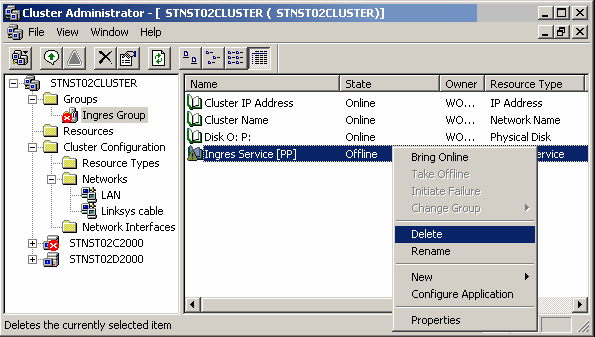
A message box appears, prompting you to delete the Ingres service from the cluster. Click Yes to continue or No to cancel.
Alternatively, follow these steps to remove the Ingres High Availability Option using the Cluster command:
C:> cluster resource <ingres_resource_name> /offline /wait:300
If you omit "/wait:300," you may see the following message, which indicates that the Ingres service did not reply within the default time period. However, the cluster command executed properly.
System error 997 has occurred.
Overlapped I/O operation is in progress.
C:> cluster group <ingres_group name> /move:<node name>
C:> cluster resource <ingres_resource_name> /delete