

Product SiteDocumentation Site

Apache CloudStack 4.1.0

CloudStack Developer's Guide

Edition

Apache CloudStack


Legal Notice

Licensed to the Apache Software Foundation (ASF) under one or more contributor license agreements. See the NOTICE file distributed with this work for additional information regarding copyright ownership. The ASF licenses this file to you under the Apache License, Version 2.0 (the "License"); you may not use this file except in compliance with the License. You may obtain a copy of the License at
http://www.apache.org/licenses/LICENSE-2.0
Unless required by applicable law or agreed to in writing, software distributed under the License is distributed on an "AS IS" BASIS, WITHOUT WARRANTIES OR CONDITIONS OF ANY KIND, either express or implied. See the License for the specific language governing permissions and limitations under the License.
Apache CloudStack is an effort undergoing incubation at The Apache Software Foundation (ASF).
Incubation is required of all newly accepted projects until a further review indicates that the infrastructure, communications, and decision making process have stabilized in a manner consistent with other successful ASF projects. While incubation status is not necessarily a reflection of the completeness or stability of the code, it does indicate that the project has yet to be fully endorsed by the ASF.
Abstract
This guide shows how to develop CloudStack, use the API for operation and integration, access the usage data and use CloudStack specific tools to ease development, testing and integration.

1. Concepts
1.1. What Is CloudStack?
1.2. What Can CloudStack Do?
1.3. Deployment Architecture Overview
1.3.1. Management Server Overview
1.3.2. Cloud Infrastructure Overview
1.3.3. Networking Overview
2. Using Maven to Build CloudStack
2.1. Building CloudStack from Source
2.2. Build Procedure Prerequisites
2.3. Building Steps
2.4. Deployment and Testing Steps
3. Introduction to the CloudStack API
3.1. Roles
3.2. API Reference Documentation
3.3. Getting Started
4. What's New in the API?
4.1. What's New in the API for 4.1
4.1.1. Reconfiguring Physical Networks in VMs
4.1.2. IPv6 Support in CloudStack
4.1.3. Additional VMX Settings
4.1.4. Resetting SSH Keys to Access VMs
4.1.5. Changed API Commands in 4.1
4.1.6. Added API Commands in 4.1-incubating
4.2. What's New in the API for 4.0
4.2.1. Changed API Commands in 4.0.0-incubating
4.2.2. Added API Commands in 4.0.0-incubating
4.3. What's New in the API for 3.0
4.3.1. Enabling Port 8096
4.3.2. Stopped VM
4.3.3. Change to Behavior of List Commands
4.3.4. Removed API commands
4.3.5. Added API commands in 3.0
4.3.6. Added CloudStack Error Codes
5. Calling the CloudStack API
5.1. Making API Requests
5.2. Signing API Requests
5.2.1. How to sign an API call with Python
5.3. Enabling API Call Expiration
5.4. Limiting the Rate of API Requests
5.4.1. Configuring the API Request Rate
5.4.2. Limitations on API Throttling
5.5. Responses
5.5.1. Response Formats: XML and JSON
5.5.2. Maximum Result Pages Returned
5.5.3. Error Handling
5.6. Asynchronous Commands
5.6.1. Job Status
5.6.2. Example
6. Working With Usage Data
6.1. Usage Record Format
6.1.1. Virtual Machine Usage Record Format
6.1.2. Network Usage Record Format
6.1.3. IP Address Usage Record Format
6.1.4. Disk Volume Usage Record Format
6.1.5. Template, ISO, and Snapshot Usage Record Format
6.1.6. Load Balancer Policy or Port Forwarding Rule Usage Record Format
6.1.7. Network Offering Usage Record Format
6.1.8. VPN User Usage Record Format
6.2. Usage Types
6.3. Example response from listUsageRecords
6.4. Dates in the Usage Record
6.5. Globally Configured Limits
7. Preparing and Building CloudStack Documentation
7.1. Installing Publican
7.2. Building CloudStack Documentation
7.3. Writing CloudStack Documentation
7.4. Translating CloudStack Documentation
7.4.1. Translating CloudStack Documentation
8. Tools
8.1. DevCloud
8.1.1. DevCloud Usage Mode
8.1.2. Building DevCloud
8.2. Marvin
8.2.1. Building and Installing Marvin
8.3. CloudMonkey
8.3.1. Installing CloudMonkey
8.3.2. Configuration
8.3.3. API Discovery
8.3.4. Tabular Output
8.3.5. Interactive Shell Usage
8.3.6. Starting a Virtual Machine instance with CloudMonkey
8.3.7. Scripting with CloudMonkey
8.4. Apache Libcloud
A. Event Types
B. Alerts
C. Time Zones
D. Revision History

Chapter 1. Concepts

1.1. What Is CloudStack?

CloudStack is an open source software platform that pools computing resources to build public, private, and hybrid Infrastructure as a Service (IaaS) clouds. CloudStack manages the network, storage, and compute nodes that make up a cloud infrastructure. Use CloudStack to deploy, manage, and configure cloud computing environments.
Typical users are service providers and enterprises. With CloudStack, you can:
  • Set up an on-demand, elastic cloud computing service. Service providers can sell self service virtual machine instances, storage volumes, and networking configurations over the Internet.
  • Set up an on-premise private cloud for use by employees. Rather than managing virtual machines in the same way as physical machines, with CloudStack an enterprise can offer self-service virtual machines to users without involving IT departments.
1000-foot-view.png: Overview of CloudStack

1.2. What Can CloudStack Do?

Multiple Hypervisor Support
CloudStack works with a variety of hypervisors, and a single cloud deployment can contain multiple hypervisor implementations. The current release of CloudStack supports pre-packaged enterprise solutions like Citrix XenServer and VMware vSphere, as well as KVM or Xen running on Ubuntu or CentOS.
Massively Scalable Infrastructure Management
CloudStack can manage tens of thousands of servers installed in multiple geographically distributed datacenters. The centralized management server scales linearly, eliminating the need for intermediate cluster-level management servers. No single component failure can cause cloud-wide outage. Periodic maintenance of the management server can be performed without affecting the functioning of virtual machines running in the cloud.
Automatic Configuration Management
CloudStack automatically configures each guest virtual machine’s networking and storage settings.
CloudStack internally manages a pool of virtual appliances to support the cloud itself. These appliances offer services such as firewalling, routing, DHCP, VPN access, console proxy, storage access, and storage replication. The extensive use of virtual appliances simplifies the installation, configuration, and ongoing management of a cloud deployment.
Graphical User Interface
CloudStack offers an administrator's Web interface, used for provisioning and managing the cloud, as well as an end-user's Web interface, used for running VMs and managing VM templates. The UI can be customized to reflect the desired service provider or enterprise look and feel.
API and Extensibility
CloudStack provides an API that gives programmatic access to all the management features available in the UI. The API is maintained and documented. This API enables the creation of command line tools and new user interfaces to suit particular needs. See the Developer’s Guide and API Reference, both available at Apache CloudStack Guides and Apache CloudStack API Reference respectively.
The CloudStack pluggable allocation architecture allows the creation of new types of allocators for the selection of storage and Hosts. See the Allocator Implementation Guide (http://docs.cloudstack.org/CloudStack_Documentation/Allocator_Implementation_Guide).
High Availability
CloudStack has a number of features to increase the availability of the system. The Management Server itself may be deployed in a multi-node installation where the servers are load balanced. MySQL may be configured to use replication to provide for a manual failover in the event of database loss. For the hosts, CloudStack supports NIC bonding and the use of separate networks for storage as well as iSCSI Multipath.

1.3. Deployment Architecture Overview

A CloudStack installation consists of two parts: the Management Server and the cloud infrastructure that it manages. When you set up and manage a CloudStack cloud, you provision resources such as hosts, storage devices, and IP addresses into the Management Server, and the Management Server manages those resources.
The minimum production installation consists of one machine running the CloudStack Management Server and another machine to act as the cloud infrastructure (in this case, a very simple infrastructure consisting of one host running hypervisor software). In its smallest deployment, a single machine can act as both the Management Server and the hypervisor host (using the KVM hypervisor).
basic-deployment.png: Basic two-machine deployment
A more full-featured installation consists of a highly-available multi-node Management Server installation and up to tens of thousands of hosts using any of several advanced networking setups. For information about deployment options, see the "Choosing a Deployment Architecture" section of the $PRODUCT; Installation Guide.

1.3.1. Management Server Overview

The Management Server is the CloudStack software that manages cloud resources. By interacting with the Management Server through its UI or API, you can configure and manage your cloud infrastructure.
The Management Server runs on a dedicated server or VM. It controls allocation of virtual machines to hosts and assigns storage and IP addresses to the virtual machine instances. The Management Server runs in a Tomcat container and requires a MySQL database for persistence.
The machine must meet the system requirements described in System Requirements.
The Management Server:
  • Provides the web user interface for the administrator and a reference user interface for end users.
  • Provides the APIs for CloudStack.
  • Manages the assignment of guest VMs to particular hosts.
  • Manages the assignment of public and private IP addresses to particular accounts.
  • Manages the allocation of storage to guests as virtual disks.
  • Manages snapshots, templates, and ISO images, possibly replicating them across data centers.
  • Provides a single point of configuration for the cloud.

1.3.2. Cloud Infrastructure Overview

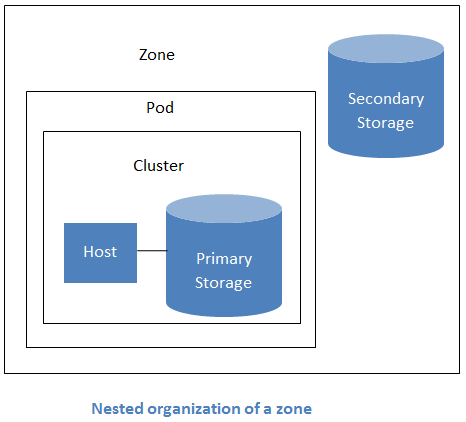
The Management Server manages one or more zones (typically, datacenters) containing host computers where guest virtual machines will run. The cloud infrastructure is organized as follows:
  • Zone: Typically, a zone is equivalent to a single datacenter. A zone consists of one or more pods and secondary storage.
  • Pod: A pod is usually one rack of hardware that includes a layer-2 switch and one or more clusters.
  • Cluster: A cluster consists of one or more hosts and primary storage.
  • Host: A single compute node within a cluster. The hosts are where the actual cloud services run in the form of guest virtual machines.
  • Primary storage is associated with a cluster, and it stores the disk volumes for all the VMs running on hosts in that cluster.
  • Secondary storage is associated with a zone, and it stores templates, ISO images, and disk volume snapshots.
infrastructure_overview.png: Nested organization of a zone
More Information
For more information, see documentation on cloud infrastructure concepts.

1.3.3. Networking Overview

CloudStack offers two types of networking scenario:
  • Basic. For AWS-style networking. Provides a single network where guest isolation can be provided through layer-3 means such as security groups (IP address source filtering).
  • Advanced. For more sophisticated network topologies. This network model provides the most flexibility in defining guest networks.
For more details, see Network Setup.

Chapter 2. Using Maven to Build CloudStack

2.1. Building CloudStack from Source

Note

Prior to the 4.0.0 incubating release, Ant was used to build CloudStack. A migration to Maven started in the 4.0.0 cycle, and has completed in 4.1.0.
The website and the wiki contain up to date information on the build procedure at:
The overarching steps to build CloudStack are:.
  • Install the prerequisites and setup your environment
  • Understand that various Maven profiles and build targets
  • Deploy and test your build
  • If needed, learn how to build binaries

Note

Learning Maven is outside the scope of this documentation.

2.2. Build Procedure Prerequisites

In this section we will assume that you are using the Ubuntu Linux distribution with the Advanced Packaging Tool (APT). If you are using a different distribution or OS and a different packaging tool, adapt the following instructions to your environment. To build CloudStack you will need:
  • sudo apt-get install git-core
  • sudo apt-get install maven
    Make sure that you installed maven 3
    $ mvn --version
    Apache Maven 3.0.4
    Maven home: /usr/share/maven
    Java version: 1.6.0_24, vendor: Sun Microsystems Inc.
    Java home: /usr/lib/jvm/java-6-openjdk-amd64/jre
    Default locale: en_US, platform encoding: UTF-8
    OS name: "linux", version: "3.2.0-33-generic", arch: "amd64", family: "unix"
  • java
    set the JAVA_HOME environment variable
    $ export JAVA_HOME=/usr/lib/jvm/java-6-openjdk
In addition, to deploy and run CloudStack in a development environment you will need:
  • Mysql
    sudo apt-get install mysql-server-5.5
    Start the mysqld service and create a cloud user with cloud as a password
  • Tomcat 6
    sudo apt-get install tomcat6

2.3. Building Steps

CloudStack uses git for source version control, first make sure you have the source code by pulling it:
git clone https://git-wip-us.apache.org/repos/asf/cloudstack.git
Several Project Object Models (POM) are defined to deal with the various build targets of CloudStack. Certain features require some packages that are not compatible with the Apache license and therefore need to be downloaded on your own. Check the wiki for additional information https://cwiki.apache.org/CLOUDSTACK/building-with-maven.html. In order to build all the open source targets of CloudStack do:
mvn clean install
The resulting jar files will be in the target directory of the subdirectory of the compiled module.

2.4. Deployment and Testing Steps

Deploying the CloudStack code that you compiled is a two step process:
  1. If you have not configured the database or modified its properties do:
    mvn -P developer -pl developer -Ddeploydb
  2. Then you need to run the CloudStack management server. To attach a debugger to it, do:
    export MAVEN_OPTS="-Xmx1024 -Xdebug -Xrunjdwp:transport=dt_socket,address=8787,server=y,suspend=n"
    mvn -pl :cloud-client-ui jetty:run

Warning

When dealing with the database, remember that you may wipe it entirely and lose any data center configuration that you may have set previously.

Chapter 3. Introduction to the CloudStack API

3.1. Roles

The CloudStack API supports three access roles:
  1. Root Admin. Access to all features of the cloud, including both virtual and physical resource management.
  2. Domain Admin. Access to only the virtual resources of the clouds that belong to the administrator’s domain.
  3. User. Access to only the features that allow management of the user’s virtual instances, storage, and network.

3.2. API Reference Documentation

You can find all the API reference documentation at the below site:

3.3. Getting Started

To get started using the CloudStack API, you should have the following:
  • URL of the CloudStack server you wish to integrate with.
  • Both the API Key and Secret Key for an account. This should have been generated by the administrator of the cloud instance and given to you.
  • Familiarity with HTTP GET/POST and query strings.
  • Knowledge of either XML or JSON.
  • Knowledge of a programming language that can generate HTTP requests; for example, Java or PHP.

Chapter 4. What's New in the API?

The following describes any new major features of each CloudStack version as it applies to API usage.

4.1. What's New in the API for 4.1

4.1.1. Reconfiguring Physical Networks in VMs

CloudStack provides the ability to move VMs between networks and reconfigure a VM's network. You can remove a VM from a physical network and add to a new physical network. You can also change the default physical network of a virtual machine. With this functionality, hybrid or traditional server loads can be accommodated with ease.
This feature is supported on XenServer and KVM hypervisors.
The following APIs have been added to support this feature. These API calls can function only while the VM is in running or stopped state.

4.1.1.1. addNicToVirtualMachine

The addNicToVirtualMachine API adds a new NIC to the specified VM on a selected network.
parameter
description
Value
virtualmachineid
The unique ID of the VM to which the NIC is to be added.
true
networkid
The unique ID of the network the NIC that you add should apply to.
true
ipaddress
The IP address of the VM on the network.
false
The network and VM must reside in the same zone. Two VMs with the same name cannot reside in the same network. Therefore, adding a second VM that duplicates a name on a network will fail.

4.1.1.2. removeNicFromVirtualMachine

The removeNicFromVirtualMachine API removes a NIC from the specified VM on a selected network.
parameter
description
Value
virtualmachineid
The unique ID of the VM from which the NIC is to be removed.
true
nicid
The unique ID of the NIC that you want to remove.
true
Removing the default NIC is not allowed.

4.1.1.3. updateDefaultNicForVirtualMachine

The updateDefaultNicForVirtualMachine API updates the specified NIC to be the default one for a selected VM.
parameter
description
Value
virtualmachineid
The unique ID of the VM for which you want to specify the default NIC.
true
nicid
The unique ID of the NIC that you want to set as the default one.
true

4.1.2. IPv6 Support in CloudStack

CloudStacksupports Internet Protocol version 6 (IPv6), the recent version of the Internet Protocol (IP) that defines routing the network traffic. IPv6 uses a 128-bit address that exponentially expands the current address space that is available to the users. IPv6 addresses consist of eight groups of four hexadecimal digits separated by colons, for example, 5001:0dt8:83a3:1012:1000:8s2e:0870:7454. CloudStack supports IPv6 for public IPs in shared networks. With IPv6 support, VMs in shared networks can obtain both IPv4 and IPv6 addresses from the DHCP server. You can deploy VMs either in a IPv6 or IPv4 network, or in a dual network environment. If IPv6 network is used, the VM generates a link-local IPv6 address by itself, and receives a stateful IPv6 address from the DHCPv6 server.
IPv6 is supported only on KVM and XenServer hypervisors. The IPv6 support is only an experimental feature.
Here's the sequence of events when IPv6 is used:
  1. The administrator creates an IPv6 shared network in an advanced zone.
  2. The user deploys a VM in an IPv6 shared network.
  3. The user VM generates an IPv6 link local address by itself, and gets an IPv6 global or site local address through DHCPv6.
    For information on API changes, see Section 4.1.5, “Changed API Commands in 4.1”.

4.1.2.1. Prerequisites and Guidelines

Consider the following:
  • CIDR size must be 64 for IPv6 networks.
  • The DHCP client of the guest VMs should support generating DUID based on Link-layer Address (DUID- LL). DUID-LL derives from the MAC address of guest VMs, and therefore the user VM can be identified by using DUID. See Dynamic Host Configuration Protocol for IPv6 for more information.
  • The gateway of the guest network generates Router Advisement and Response messages to Router Solicitation. The M (Managed Address Configuration) flag of Router Advisement should enable stateful IP address configuration. Set the M flag to where the end nodes receive their IPv6 addresses from the DHCPv6 server as opposed to the router or switch.

    Note

    The M flag is the 1-bit Managed Address Configuration flag for Router Advisement. When set, Dynamic Host Configuration Protocol (DHCPv6) is available for address configuration in addition to any IPs set by using stateless address auto-configuration.
  • Use the System VM template exclusively designed to support IPv6. Download the System VM template from http://cloudstack.apt-get.eu/systemvm/.
  • The concept of Default Network applies to IPv6 networks. However, unlike IPv4 CloudStack does not control the routing information of IPv6 in shared network; the choice of Default Network will not affect the routing in the user VM.
  • In a multiple shared network, the default route is set by the rack router, rather than the DHCP server, which is out of CloudStack control. Therefore, in order for the user VM to get only the default route from the default NIC, modify the configuration of the user VM, and set non-default NIC's accept_ra to 0 explicitly. The accept_ra parameter accepts Router Advertisements and auto-configure /proc/sys/net/ipv6/conf/interface with received data.

4.1.2.2. Limitations of IPv6 in CloudStack

The following are not yet supported:
  1. Security groups
  2. Userdata and metadata
  3. Passwords

4.1.2.3. Guest VM Configuration for DHCPv6

For the guest VMs to get IPv6 address, run dhclient command manually on each of the VMs. Use DUID-LL to set up dhclient.

Note

The IPv6 address is lost when a VM is stopped and started. Therefore, use the same procedure to get an IPv6 address when a VM is stopped and started.
  1. Set up dhclient by using DUID-LL.
    Perform the following for DHCP Client 4.2 and above:
    1. Run the following command on the selected VM to get the dhcpv6 offer from VR:
      dhclient -6 -D LL <dev>
    Perform the following for DHCP Client 4.1:
    1. Open the following to the dhclient configuration file:
      vi /etc/dhcp/dhclient.conf
    2. Add the following to the dhclient configuration file:
      send dhcp6.client-id = concat(00:03:00, hardware);
  2. Get IPv6 address from DHCP server as part of the system or network restart.
    Based on the operating systems, perform the following:
    On CentOS 6.2:
    1. Open the Ethernet interface configuration file:
      vi /etc/sysconfig/network-scripts/ifcfg-eth0
      The ifcfg-eth0 file controls the first NIC in a system.
    2. Make the necessary configuration changes, as given below:
      DEVICE=eth0
      HWADDR=06:A0:F0:00:00:38
      NM_CONTROLLED=no
      ONBOOT=yes
      BOOTPROTO=dhcp6
      TYPE=Ethernet
      USERCTL=no
      PEERDNS=yes
      IPV6INIT=yes
      DHCPV6C=yes
    3. Open the following:
      vi /etc/sysconfig/network
    4. Make the necessary configuration changes, as given below:
      NETWORKING=yes
      HOSTNAME=centos62mgmt.lab.vmops.com
      NETWORKING_IPV6=yes
      IPV6_AUTOCONF=no
    On Ubuntu 12.10
    1. Open the following:
      etc/network/interfaces:
    2. Make the necessary configuration changes, as given below:
      iface eth0 inet6 dhcp
      autoconf 0
      accept_ra 1

4.1.3. Additional VMX Settings

A VMX (.vmx) file is the primary configuration file for a virtual machine. When a new VM is created, information on the operating system, disk sizes, and networking is stored in this file. The VM actively writes to its .vmx file for all the configuration changes. The VMX file is typically located in the directory where the VM is created. In Windows Vista / Windows 7 / Windows Server 2008, the default location is C:\Users\<your_user_name>\My Documents\Virtual Machines\<virtual_machine_name>.vmx. In Linux, vmware-cmd -l lists the full path to all the registered VMX files. Any manual additions to the .vmx file from ESX/ESXi are overwritten by the entries stored in the vCenter Server database. Therefore, before you edit a .vmx file, first remove the VM from the vCenter server's inventory and register the VM again after editing.
The CloudStack API that supports passing some of the VMX settings is registerTemplate. The supported parameters are rootDiskController, nicAdapter, and keyboard. In addition to these existing VMX parameters, you can now use the keyboard.typematicMinDelay parameter in the registerTemplate API call. This parameter controls the amount of delay for the repeated key strokes on remote consoles. For more information on keyboard.typematicMinDelay, see keyboard.typematicMinDelay.

4.1.4. Resetting SSH Keys to Access VMs

Use the resetSSHKeyForVirtualMachine API to set or reset the SSH keypair assigned to a virtual machine. With the addition of this feature, a lost or compromised SSH keypair can be changed, and the user can access the VM by using the new keypair. Just create or register a new keypair, then call resetSSHKeyForVirtualMachine.

4.1.5. Changed API Commands in 4.1

API Commands
Description
createNetworkOffering
The following request parameters have been added:
  • isPersistent
  • startipv6
  • endipv6
  • ip6gateway
  • ip6cidr
listNetworkOfferings
listNetworks
The following request parameters have been added:
  • isPersistent
    This parameter determines if the network or network offering listed are persistent or not.
  • ip6gateway
  • ip6cidr
createVlanIpRange
The following request parameters have been added:
  • startipv6
  • endipv6
  • ip6gateway
  • ip6cidr
deployVirtualMachine
The following parameter has been added: ip6Address.
The following parameter is updated to accept the IPv6 address: iptonetworklist.
CreateZoneCmd
The following parameter have been added: ip6dns1, ip6dns2.
listRouters
listVirtualMachines
For nic responses, the following fields have been added.
  • ip6address
  • ip6gateway
  • ip6cidr
listVlanIpRanges
For nic responses, the following fields have been added.
  • startipv6
  • endipv6
  • ip6gateway
  • ip6cidr
listRouters
listZones
For DomainRouter and DataCenter response, the following fields have been added.
  • ip6dns1
  • ip6dns2
addF5LoadBalancer
configureNetscalerLoadBalancer
addNetscalerLoadBalancer
listF5LoadBalancers
configureF5LoadBalancer
listNetscalerLoadBalancers
The following response parameter is removed: inline.
listFirewallRules
createFirewallRule
The following request parameter is added: traffictype (optional).
listUsageRecords
The following response parameter is added: virtualsize.
deleteIso
The following request parameter is added: forced (optional).
createStoragePool
The following request parameters are made mandatory:
  • podid
  • clusterid
createAccount
The following new request parameters are added: accountid, userid
createUser
The following new request parameter is added: userid
createDomain
The following new request parameter is added: domainid
listZones
The following request parameters is added: securitygroupenabled

4.1.6. Added API Commands in 4.1-incubating

  • createEgressFirewallRules (creates an egress firewall rule on the guest network.)
  • deleteEgressFirewallRules (deletes a egress firewall rule on the guest network.)
  • listEgressFirewallRules (lists the egress firewall rules configured for a guest network.)
  • resetSSHKeyForVirtualMachine (Resets the SSHkey for virtual machine.)
  • addBaremetalHost (Adds a new host.)
  • addNicToVirtualMachine (Adds a new NIC to the specified VM on a selected network.)
  • removeNicFromVirtualMachine (Removes the specified NIC from a selected VM.)
  • updateDefaultNicForVirtualMachine (Updates the specified NIC to be the default one for a selected VM.)
  • addRegion (Registers a Region into another Region.)
  • updateRegion (Updates Region details: ID, Name, Endpoint, User API Key, and User Secret Key.)
  • removeRegion (Removes a Region from current Region.)
  • listRegions (List all the Regions. Filter them by using the ID or Name.)
  • getUser (This API can only be used by the Admin. Get user details by using the API Key.)

4.2. What's New in the API for 4.0

4.2.1. Changed API Commands in 4.0.0-incubating

API Commands
Description
copyTemplate
prepareTemplate
registerTemplate
updateTemplate
createProject
activateProject
suspendProject
updateProject
listProjectAccounts
createVolume
migrateVolume
attachVolume
detachVolume
uploadVolume
createSecurityGroup
registerIso
copyIso
updateIso
createIpForwardingRule
listIpForwardingRules
createLoadBalancerRule
updateLoadBalancerRule
createSnapshot
The commands in this list have a single new response parameter, and no other changes.
New response parameter: tags(*)

Note

Many other commands also have the new tags(*) parameter in addition to other changes; those commands are listed separately.
rebootVirtualMachine
attachIso
detachIso
listLoadBalancerRuleInstances
resetPasswordForVirtualMachine
changeServiceForVirtualMachine
recoverVirtualMachine
startVirtualMachine
migrateVirtualMachine
deployVirtualMachine
assignVirtualMachine
updateVirtualMachine
restoreVirtualMachine
stopVirtualMachine
destroyVirtualMachine
The commands in this list have two new response parameters, and no other changes.
New response parameters: keypair, tags(*)
listSecurityGroups
listFirewallRules
listPortForwardingRules
listSnapshots
listIsos
listProjects
listTemplates
listLoadBalancerRules
The commands in this list have the following new parameters, and no other changes.
New request parameter: tags (optional)
New response parameter: tags(*)
listF5LoadBalancerNetworks
listNetscalerLoadBalancerNetworks
listSrxFirewallNetworks
updateNetwork
The commands in this list have three new response parameters, and no other changes.
New response parameters: canusefordeploy, vpcid, tags(*)
createZone
updateZone
The commands in this list have the following new parameters, and no other changes.
New request parameter: localstorageenabled (optional)
New response parameter: localstorageenabled
listZones
New response parameter: localstorageenabled
rebootRouter
changeServiceForRouter
startRouter
destroyRouter
stopRouter
The commands in this list have two new response parameters, and no other changes.
New response parameters: vpcid, nic(*)
updateAccount
disableAccount
listAccounts
markDefaultZoneForAccount
enableAccount
The commands in this list have three new response parameters, and no other changes.
New response parameters: vpcavailable, vpclimit, vpctotal
listRouters
New request parameters: forvpc (optional), vpcid (optional)
New response parameters: vpcid, nic(*)
listNetworkOfferings
New request parameters: forvpc (optional)
New response parameters: forvpc
listVolumes
New request parameters: details (optional), tags (optional)
New response parameters: tags(*)
addTrafficMonitor
New request parameters: excludezones (optional), includezones (optional)
createNetwork
New request parameters: vpcid (optional)
New response parameters: canusefordeploy, vpcid, tags(*)
listPublicIpAddresses
New request parameters: tags (optional), vpcid (optional)
New response parameters: vpcid, tags(*)
listNetworks
New request parameters: canusefordeploy (optional), forvpc (optional), tags (optional), vpcid (optional)
New response parameters: canusefordeploy, vpcid, tags(*)
restartNetwork
New response parameters: vpcid, tags(*)
enableStaticNat
New request parameter: networkid (optional)
createDiskOffering
New request parameter: storagetype (optional)
New response parameter: storagetype
listDiskOfferings
New response parameter: storagetype
updateDiskOffering
New response parameter: storagetype
createFirewallRule
Changed request parameters: ipaddressid (old version - optional, new version - required)
New response parameter: tags(*)
listVirtualMachines
New request parameters: isoid (optional), tags (optional), templateid (optional)
New response parameters: keypair, tags(*)
updateStorageNetworkIpRange
New response parameters: id, endip, gateway, netmask, networkid, podid, startip, vlan, zoneid

4.2.2. Added API Commands in 4.0.0-incubating

  • createCounter (Adds metric counter)
  • deleteCounter (Deletes a counter)
  • listCounters (List the counters)
  • createCondition (Creates a condition)
  • deleteCondition (Removes a condition)
  • listConditions (List Conditions for the specific user)
  • createTags. Add tags to one or more resources. Example:
    command=createTags
    &resourceIds=1,10,12
    &resourceType=userVm
    &tags[0].key=region
    &tags[0].value=canada
    &tags[1].key=city
    &tags[1].value=Toronto
  • deleteTags. Remove tags from one or more resources. Example:
    command=deleteTags
    &resourceIds=1,12
    &resourceType=Snapshot
    &tags[0].key=city
  • listTags (Show currently defined resource tags)
  • createVPC (Creates a VPC)
  • listVPCs (Lists VPCs)
  • deleteVPC (Deletes a VPC)
  • updateVPC (Updates a VPC)
  • restartVPC (Restarts a VPC)
  • createVPCOffering (Creates VPC offering)
  • updateVPCOffering (Updates VPC offering)
  • deleteVPCOffering (Deletes VPC offering)
  • listVPCOfferings (Lists VPC offerings)
  • createPrivateGateway (Creates a private gateway)
  • listPrivateGateways (List private gateways)
  • deletePrivateGateway (Deletes a Private gateway)
  • createNetworkACL (Creates a ACL rule the given network (the network has to belong to VPC))
  • deleteNetworkACL (Deletes a Network ACL)
  • listNetworkACLs (Lists all network ACLs)
  • createStaticRoute (Creates a static route)
  • deleteStaticRoute (Deletes a static route)
  • listStaticRoutes (Lists all static routes)
  • createVpnCustomerGateway (Creates site to site vpn customer gateway)
  • createVpnGateway (Creates site to site vpn local gateway)
  • createVpnConnection (Create site to site vpn connection)
  • deleteVpnCustomerGateway (Delete site to site vpn customer gateway)
  • deleteVpnGateway (Delete site to site vpn gateway)
  • deleteVpnConnection (Delete site to site vpn connection)
  • updateVpnCustomerGateway (Update site to site vpn customer gateway)
  • resetVpnConnection (Reset site to site vpn connection)
  • listVpnCustomerGateways (Lists site to site vpn customer gateways)
  • listVpnGateways (Lists site 2 site vpn gateways)
  • listVpnConnections (Lists site to site vpn connection gateways)
  • enableCiscoNexusVSM (Enables Nexus 1000v dvSwitch in CloudStack.)
  • disableCiscoNexusVSM (Disables Nexus 1000v dvSwitch in CloudStack.)
  • deleteCiscoNexusVSM (Deletes Nexus 1000v dvSwitch in CloudStack.)
  • listCiscoNexusVSMs (Lists the control VLAN ID, packet VLAN ID, and data VLAN ID, as well as the IP address of the Nexus 1000v dvSwitch.)

4.3. What's New in the API for 3.0

4.3.1. Enabling Port 8096

Port 8096, which allows API calls without authentication, is closed and disabled by default on any fresh 3.0.1 installations. You can enable 8096 (or another port) for this purpose as follows:
  1. Ensure that the first Management Server is installed and running.
  2. Set the global configuration parameter integration.api.port to the desired port.
  3. Restart the Management Server.
  4. On the Management Server host machine, create an iptables rule allowing access to that port.

4.3.2. Stopped VM

CloudStack now supports creating a VM without starting it. You can determine whether the VM needs to be started as part of the VM deployment. A VM can now be deployed in two ways: create and start a VM (the default method); or create a VM and leave it in the stopped state.
A new request parameter, startVM, is introduced in the deployVm API to support the stopped VM feature.
The possible values are:
  • true - The VM starts as a part of the VM deployment.
  • false - The VM is left in the stopped state at the end of the VM deployment.
The default value is true.

4.3.3. Change to Behavior of List Commands

There was a major change in how our List* API commands work in CloudStack 3.0 compared to 2.2.x. The rules below apply only for managed resources – those that belong to an account, domain, or project. They are irrelevant for the List* commands displaying unmanaged (system) resources, such as hosts, clusters, and external network resources.
When no parameters are passed in to the call, the caller sees only resources owned by the caller (even when the caller is the administrator). Previously, the administrator saw everyone else's resources by default.
When accountName and domainId are passed in:
  • The caller sees the resources dedicated to the account specified.
  • If the call is executed by a regular user, the user is authorized to specify only the user's own account and domainId.
  • If the caller is a domain administrator, CloudStack performs an authorization check to see whether the caller is permitted to view resources for the given account and domainId.
When projectId is passed in, only resources belonging to that project are listed.
When domainId is passed in, the call returns only resources belonging to the domain specified. To see the resources of subdomains, use the parameter isRecursive=true. Again, the regular user can see only resources owned by that user, the root administrator can list anything, and a domain administrator is authorized to see only resources of the administrator's own domain and subdomains.
To see all resources the caller is authorized to see, except for Project resources, use the parameter listAll=true.
To see all Project resources the caller is authorized to see, use the parameter projectId=-1.
There is one API command that doesn't fall under the rules above completely: the listTemplates command. This command has its own flags defining the list rules:
listTemplates Flag
Description
featured
Returns templates that have been marked as featured and public.
self
Returns templates that have been registered or created by the calling user.
selfexecutable
Same as self, but only returns templates that are ready to be deployed with.
sharedexecutable
Ready templates that have been granted to the calling user by another user.
executable
Templates that are owned by the calling user, or public templates, that can be used to deploy a new VM.
community
Returns templates that have been marked as public but not featured.
all
Returns all templates (only usable by admins).
The CloudStack UI on a general view will display all resources that the logged-in user is authorized to see, except for project resources. To see the project resources, select the project view.

4.3.4. Removed API commands

  • createConfiguration (Adds configuration value)
  • configureSimulator (Configures simulator)

4.3.5. Added API commands in 3.0

4.3.5.1. Added in 3.0.2

  • changeServiceForSystemVm
    Changes the service offering for a system VM (console proxy or secondary storage). The system VM must be in a "Stopped" state for this command to take effect.

4.3.5.2. Added in 3.0.1

  • changeServiceForSystemVm
    Changes the service offering for a system VM (console proxy or secondary storage). The system VM must be in a "Stopped" state for this command to take effect.

4.3.5.3. Added in 3.0.0

assignVirtualMachine (Move a user VM to another user under same domain.)
restoreVirtualMachine (Restore a VM to original template or specific snapshot)
createLBStickinessPolicy (Creates a Load Balancer stickiness policy )
deleteLBStickinessPolicy (Deletes a LB stickiness policy.)
listLBStickinessPolicies (Lists LBStickiness policies.)
ldapConfig (Configure the LDAP context for this site.)
addSwift (Adds Swift.)
listSwifts (List Swift.)
migrateVolume (Migrate volume)
updateStoragePool (Updates a storage pool.)
authorizeSecurityGroupEgress (Authorizes a particular egress rule for this security group)
revokeSecurityGroupEgress (Deletes a particular egress rule from this security group)
createNetworkOffering (Creates a network offering.)
deleteNetworkOffering (Deletes a network offering.)
createProject (Creates a project)
deleteProject (Deletes a project)
updateProject (Updates a project)
activateProject (Activates a project)
suspendProject (Suspends a project)
listProjects (Lists projects and provides detailed information for listed projects)
addAccountToProject (Adds account to a project)
deleteAccountFromProject (Deletes account from the project)
listProjectAccounts (Lists project's accounts)
listProjectInvitations (Lists an account's invitations to join projects)
updateProjectInvitation (Accepts or declines project invitation)
deleteProjectInvitation (Deletes a project invitation)
updateHypervisorCapabilities (Updates a hypervisor capabilities.)
listHypervisorCapabilities (Lists all hypervisor capabilities.)
createPhysicalNetwork (Creates a physical network)
deletePhysicalNetwork (Deletes a Physical Network.)
listPhysicalNetworks (Lists physical networks)
updatePhysicalNetwork (Updates a physical network)
listSupportedNetworkServices (Lists all network services provided by CloudStack or for the given Provider.)
addNetworkServiceProvider (Adds a network serviceProvider to a physical network)
deleteNetworkServiceProvider (Deletes a Network Service Provider.)
listNetworkServiceProviders (Lists network serviceproviders for a given physical network.)
updateNetworkServiceProvider (Updates a network serviceProvider of a physical network)
addTrafficType (Adds traffic type to a physical network)
deleteTrafficType (Deletes traffic type of a physical network)
listTrafficTypes (Lists traffic types of a given physical network.)
updateTrafficType (Updates traffic type of a physical network)
listTrafficTypeImplementors (Lists implementors of implementor of a network traffic type or implementors of all network traffic types)
createStorageNetworkIpRange (Creates a Storage network IP range.)
deleteStorageNetworkIpRange (Deletes a storage network IP Range.)
listStorageNetworkIpRange (List a storage network IP range.)
updateStorageNetworkIpRange (Update a Storage network IP range, only allowed when no IPs in this range have been allocated.)
listUsageTypes (List Usage Types)
addF5LoadBalancer (Adds a F5 BigIP load balancer device)
configureF5LoadBalancer (configures a F5 load balancer device)
deleteF5LoadBalancer ( delete a F5 load balancer device)
listF5LoadBalancers (lists F5 load balancer devices)
listF5LoadBalancerNetworks (lists network that are using a F5 load balancer device)
addSrxFirewall (Adds a SRX firewall device)
deleteSrxFirewall ( delete a SRX firewall device)
listSrxFirewalls (lists SRX firewall devices in a physical network)
listSrxFirewallNetworks (lists network that are using SRX firewall device)
addNetscalerLoadBalancer (Adds a netscaler load balancer device)
deleteNetscalerLoadBalancer ( delete a netscaler load balancer device)
configureNetscalerLoadBalancer (configures a netscaler load balancer device)
listNetscalerLoadBalancers (lists netscaler load balancer devices)
listNetscalerLoadBalancerNetworks (lists network that are using a netscaler load balancer device)
createVirtualRouterElement (Create a virtual router element.)
configureVirtualRouterElement (Configures a virtual router element.)
listVirtualRouterElements (Lists all available virtual router elements.)

4.3.6. Added CloudStack Error Codes

You can now find the CloudStack-specific error code in the exception response for each type of exception. The following list of error codes is added to the new class named CSExceptionErrorCode.
4250 : "com.cloud.utils.exception.CloudRuntimeException"
4255 : "com.cloud.utils.exception.ExceptionUtil"
4260 : "com.cloud.utils.exception.ExecutionException"
4265 : "com.cloud.utils.exception.HypervisorVersionChangedException"
4270 : "com.cloud.utils.exception.RuntimeCloudException"
4275 : "com.cloud.exception.CloudException"
4280 : "com.cloud.exception.AccountLimitException"
4285 : "com.cloud.exception.AgentUnavailableException"
4290 : "com.cloud.exception.CloudAuthenticationException"
4295 : "com.cloud.exception.CloudExecutionException"
4300 : "com.cloud.exception.ConcurrentOperationException"
4305 : "com.cloud.exception.ConflictingNetworkSettingsException"
4310 : "com.cloud.exception.DiscoveredWithErrorException"
4315 : "com.cloud.exception.HAStateException"
4320 : "com.cloud.exception.InsufficientAddressCapacityException"
4325 : "com.cloud.exception.InsufficientCapacityException"
4330 : "com.cloud.exception.InsufficientNetworkCapacityException"
4335 : "com.cloud.exception.InsufficientServerCapacityException"
4340 : "com.cloud.exception.InsufficientStorageCapacityException"
4345 : "com.cloud.exception.InternalErrorException"
4350 : "com.cloud.exception.InvalidParameterValueException"
4355 : "com.cloud.exception.ManagementServerException"
4360 : "com.cloud.exception.NetworkRuleConflictException"
4365 : "com.cloud.exception.PermissionDeniedException"
4370 : "com.cloud.exception.ResourceAllocationException"
4375 : "com.cloud.exception.ResourceInUseException"
4380 : "com.cloud.exception.ResourceUnavailableException"
4385 : "com.cloud.exception.StorageUnavailableException"
4390 : "com.cloud.exception.UnsupportedServiceException"
4395 : "com.cloud.exception.VirtualMachineMigrationException"
4400 : "com.cloud.exception.AccountLimitException"
4405 : "com.cloud.exception.AgentUnavailableException"
4410 : "com.cloud.exception.CloudAuthenticationException"
4415 : "com.cloud.exception.CloudException"
4420 : "com.cloud.exception.CloudExecutionException"
4425 : "com.cloud.exception.ConcurrentOperationException"
4430 : "com.cloud.exception.ConflictingNetworkSettingsException"
4435 : "com.cloud.exception.ConnectionException"
4440 : "com.cloud.exception.DiscoveredWithErrorException"
4445 : "com.cloud.exception.DiscoveryException"
4450 : "com.cloud.exception.HAStateException"
4455 : "com.cloud.exception.InsufficientAddressCapacityException"
4460 : "com.cloud.exception.InsufficientCapacityException"
4465 : "com.cloud.exception.InsufficientNetworkCapacityException"
4470 : "com.cloud.exception.InsufficientServerCapacityException"
4475 : "com.cloud.exception.InsufficientStorageCapacityException"
4480 : "com.cloud.exception.InsufficientVirtualNetworkCapcityException"
4485 : "com.cloud.exception.InternalErrorException"
4490 : "com.cloud.exception.InvalidParameterValueException"
4495 : "com.cloud.exception.ManagementServerException"
4500 : "com.cloud.exception.NetworkRuleConflictException"
4505 : "com.cloud.exception.PermissionDeniedException"
4510 : "com.cloud.exception.ResourceAllocationException"
4515 : "com.cloud.exception.ResourceInUseException"
4520 : "com.cloud.exception.ResourceUnavailableException"
4525 : "com.cloud.exception.StorageUnavailableException"
4530 : "com.cloud.exception.UnsupportedServiceException"
4535 : "com.cloud.exception.VirtualMachineMigrationException"
9999 : "org.apache.cloudstack.api.ServerApiException"

Chapter 5. Calling the CloudStack API

5.1. Making API Requests

All CloudStack API requests are submitted in the form of a HTTP GET/POST with an associated command and any parameters. A request is composed of the following whether in HTTP or HTTPS:
  • CloudStack API URL: This is the web services API entry point(for example, http://www.cloud.com:8080/client/api)
  • Command: The web services command you wish to execute, such as start a virtual machine or create a disk volume
  • Parameters: Any additional required or optional parameters for the command
A sample API GET request looks like the following:
http://localhost:8080/client/api?command=deployVirtualMachine&serviceOfferingId=1&diskOfferingId=1&templateId=2&zoneId=4&apiKey=miVr6X7u6bN_sdahOBpjNejPgEsT35eXq-jB8CG20YI3yaxXcgpyuaIRmFI_EJTVwZ0nUkkJbPmY3y2bciKwFQ&signature=Lxx1DM40AjcXU%2FcaiK8RAP0O1hU%3D
Or in a more readable format:
1. http://localhost:8080/client/api
2. ?command=deployVirtualMachine
3. &serviceOfferingId=1
4. &diskOfferingId=1
5. &templateId=2
6. &zoneId=4
7. &apiKey=miVr6X7u6bN_sdahOBpjNejPgEsT35eXqjB8CG20YI3yaxXcgpyuaIRmFI_EJTVwZ0nUkkJbPmY3y2bciKwFQ
8. &signature=Lxx1DM40AjcXU%2FcaiK8RAP0O1hU%3D
The first line is the CloudStack API URL. This is the Cloud instance you wish to interact with.
The second line refers to the command you wish to execute. In our example, we are attempting to deploy a fresh new virtual machine. It is preceded by a (?) to separate itself from the CloudStack API URL.
Lines 3-6 are the parameters for this given command. To see the command and its request parameters, please refer to the appropriate section in the CloudStack API documentation. Each parameter field-value pair (field=value) is preceded by an ampersand character (&).
Line 7 is the user API Key that uniquely identifies the account. See Signing API Requests on page 7.
Line 8 is the signature hash created to authenticate the user account executing the API command. See Signing API Requests on page 7.

5.2. Signing API Requests

Whether you access the CloudStack API with HTTP or HTTPS, it must still be signed so that CloudStack can verify the caller has been authenticated and authorized to execute the command. Make sure that you have both the API Key and Secret Key provided by the CloudStack administrator for your account before proceeding with the signing process.
To show how to sign a request, we will re-use the previous example.
http://http://localhost:8080/client/api?command=deployVirtualMachine&serviceOfferingId=1&diskOfferingId=1&templateId=2&zoneId=4&apiKey=miVr6X7u6bN_sdahOBpjNejPgEsT35eXq-jB8CG20YI3yaxXcgpyuaIRmFI_EJTVwZ0nUkkJbPmY3y2bciKwFQ&signature=Lxx1DM40AjcXU%2FcaiK8RAP0O1hU%3D
Breaking this down, we have several distinct parts to this URL.
  • Base URL: This is the base URL to the CloudStack Management Server.
    http://localhost:8080
  • API Path: This is the path to the API Servlet that processes the incoming requests.
    /client/api?
  • Command String: This part of the query string comprises of the command, its parameters, and the API Key that identifies the account.

    Note

    As with all query string parameters of field-value pairs, the "field" component is case insensitive while all "value" values are case sensitive.
    command=deployVirtualMachine&serviceOfferingId=1&diskOfferingId=1&templateId=2&zoneId=4&apiKey=miVr6X7u6bN_sdahOBpjNejPgEsT35eXq-jB8CG20YI3yaxXcgpyuaIRmFI_EJTVwZ0nUkkJbPmY3y2bciKwFQ
  • Signature: This is the hashed signature of the Base URL that is generated using a combination of the user’s Secret Key and the HMAC SHA-1 hashing algorithm.
    &signature=Lxx1DM40AjcXU%2FcaiK8RAP0O1hU%3D
Every API request has the format Base URL+API Path+Command String+Signature.
To generate the signature.
  1. For each field-value pair (as separated by a '&') in the Command String, URL encode each value so that it can be safely sent via HTTP GET.

    Note

    Make sure all spaces are encoded as "%20" rather than "+".
  2. Lower case the entire Command String and sort it alphabetically via the field for each field-value pair. The result of this step would look like the following.
    apikey=mivr6x7u6bn_sdahobpjnejpgest35exq-jb8cg20yi3yaxxcgpyuairmfi_ejtvwz0nukkjbpmy3y2bcikwfq&command=deployvirtualmachine&diskofferingid=1&serviceofferingid=1&templateid=2&zoneid=4
  3. Take the sorted Command String and run it through the HMAC SHA-1 hashing algorithm (most programming languages offer a utility method to do this) with the user’s Secret Key. Base64 encode the resulting byte array in UTF-8 so that it can be safely transmitted via HTTP. The final string produced after Base64 encoding should be "Lxx1DM40AjcXU%2FcaiK8RAP0O1hU%3D".
    By reconstructing the final URL in the format Base URL+API Path+Command String+Signature, the final URL should look like:
    http://localhost:8080/client/api?command=deployVirtualMachine&serviceOfferingId=1&diskOfferingId=1&templateId=2&zoneId=4&apiKey=miVr6X7u6bN_sdahOBpjNejPgEsT35eXq-jB8CG20YI3yaxXcgpyuaIRmFI_EJTVwZ0nUkkJbPmY3y2bciKwFQ&signature=Lxx1DM40AjcXU%2FcaiK8RAP0O1hU%3D

5.2.1. How to sign an API call with Python

To illustrate the procedure used to sign API calls we present a step by step interactive session using Python.
First import the required modules:

 
$python
Python 2.7.3 (default, Nov 17 2012, 19:54:34) 
[GCC 4.2.1 Compatible Apple Clang 4.1 ((tags/Apple/clang-421.11.66))] on darwin
Type "help", "copyright", "credits" or "license" for more information.
>>> import urllib2
>>> import urllib
>>> import hashlib
>>> import hmac
>>> import base64
 
Define the endpoint of the Cloud, the command that you want to execute and the keys of the user.
 

>>> baseurl='http://localhost:8080/client/api?'
>>> request={}
>>> request['command']='listUsers'
>>> request['response']='json'
>>> request['apikey']='plgWJfZK4gyS3mOMTVmjUVg-X-jlWlnfaUJ9GAbBbf9EdM-kAYMmAiLqzzq1ElZLYq_u38zCm0bewzGUdP66mg'
>>> secretkey='VDaACYb0LV9eNjTetIOElcVQkvJck_J_QljX_FcHRj87ZKiy0z0ty0ZsYBkoXkY9b7eq1EhwJaw7FF3akA3KBQ'
  
Build the request string:
 
>>> request_str='&'.join(['='.join([k,urllib.quote_plus(request[k])]) for k in request.keys()])
>>> request_str
'apikey=plgWJfZK4gyS3mOMTVmjUVg-X-jlWlnfaUJ9GAbBbf9EdM-kAYMmAiLqzzq1ElZLYq_u38zCm0bewzGUdP66mg&command=listUsers&response=json'
  
Compute the signature with hmac, do a 64 bit encoding and a url encoding:
  
>>> sig_str='&'.join(['='.join([k.lower(),urllib.quote_plus(request[k].lower().replace('+','%20'))])for k in sorted(request.iterkeys())]) 
>>> sig_str
'apikey=plgwjfzk4gys3momtvmjuvg-x-jlwlnfauj9gabbbf9edm-kaymmailqzzq1elzlyq_u38zcm0bewzgudp66mg&command=listusers&response=json'
>>> sig=hmac.new(secretkey,sig_str,hashlib.sha1)
>>> sig
<hmac.HMAC instance at 0x10d91d680>
>>> sig=hmac.new(secretkey,sig_str,hashlib.sha1).digest()
>>> sig
'M:]\x0e\xaf\xfb\x8f\xf2y\xf1p\x91\x1e\x89\x8a\xa1\x05\xc4A\xdb'
>>> sig=base64.encodestring(hmac.new(secretkey,sig_str,hashlib.sha1).digest())
>>> sig
'TTpdDq/7j/J58XCRHomKoQXEQds=\n'
>>> sig=base64.encodestring(hmac.new(secretkey,sig_str,hashlib.sha1).digest()).strip()
>>> sig
'TTpdDq/7j/J58XCRHomKoQXEQds='
>>> sig=urllib.quote_plus(base64.encodestring(hmac.new(secretkey,sig_str,hashlib.sha1).digest()).strip())
  
Finally, build the entire string and do an http GET:
  
>>> req=baseurl+request_str+'&signature='+sig
>>> req
'http://localhost:8080/client/api?apikey=plgWJfZK4gyS3mOMTVmjUVg-X-jlWlnfaUJ9GAbBbf9EdM-kAYMmAiLqzzq1ElZLYq_u38zCm0bewzGUdP66mg&command=listUsers&response=json&signature=TTpdDq%2F7j%2FJ58XCRHomKoQXEQds%3D'
>>> res=urllib2.urlopen(req)
>>> res.read()
'{ "listusersresponse" : { "count":3 ,"user" : [  {"id":"7ed6d5da-93b2-4545-a502-23d20b48ef2a","username":"admin","firstname":"admin","lastname":"cloud","created":"2012-07-05T12:18:27-0700","state":"enabled","account":"admin","accounttype":1,"domainid":"8a111e58-e155-4482-93ce-84efff3c7c77","domain":"ROOT","apikey":"plgWJfZK4gyS3mOMTVmjUVg-X-jlWlnfaUJ9GAbBbf9EdM-kAYMmAiLqzzq1ElZLYq_u38zCm0bewzGUdP66mg","secretkey":"VDaACYb0LV9eNjTetIOElcVQkvJck_J_QljX_FcHRj87ZKiy0z0ty0ZsYBkoXkY9b7eq1EhwJaw7FF3akA3KBQ","accountid":"7548ac03-af1d-4c1c-9064-2f3e2c0eda0d"}, {"id":"1fea6418-5576-4989-a21e-4790787bbee3","username":"runseb","firstname":"foobar","lastname":"goa","email":"[email protected]","created":"2013-04-10T16:52:06-0700","state":"enabled","account":"admin","accounttype":1,"domainid":"8a111e58-e155-4482-93ce-84efff3c7c77","domain":"ROOT","apikey":"Xhsb3MewjJQaXXMszRcLvQI9_NPy_UcbDj1QXikkVbDC9MDSPwWdtZ1bUY1H7JBEYTtDDLY3yuchCeW778GkBA","secretkey":"gIsgmi8C5YwxMHjX5o51pSe0kqs6JnKriw0jJBLceY5bgnfzKjL4aM6ctJX-i1ddQIHJLbLJDK9MRzsKk6xZ_w","accountid":"7548ac03-af1d-4c1c-9064-2f3e2c0eda0d"}, {"id":"52f65396-183c-4473-883f-a37e7bb93967","username":"toto","firstname":"john","lastname":"smith","email":"[email protected]","created":"2013-04-23T04:27:22-0700","state":"enabled","account":"admin","accounttype":1,"domainid":"8a111e58-e155-4482-93ce-84efff3c7c77","domain":"ROOT","apikey":"THaA6fFWS_OmvU8od201omxFC8yKNL_Hc5ZCS77LFCJsRzSx48JyZucbUul6XYbEg-ZyXMl_wuEpECzK-wKnow","secretkey":"O5ywpqJorAsEBKR_5jEvrtGHfWL1Y_j1E4Z_iCr8OKCYcsPIOdVcfzjJQ8YqK0a5EzSpoRrjOFiLsG0hQrYnDA","accountid":"7548ac03-af1d-4c1c-9064-2f3e2c0eda0d"} ] } }'
  

5.3. Enabling API Call Expiration

You can set an expiry timestamp on API calls to prevent replay attacks over non-secure channels, such as HTTP. The server tracks the expiry timestamp you have specified and rejects all the subsequent API requests that come in after this validity period.
To enable this feature, add the following parameters to the API request:
  • signatureVersion=3: If the signatureVersion parameter is missing or is not equal to 3, the expires parameter is ignored in the API request.
  • expires=YYYY-MM-DDThh:mm:ssZ: Specifies the date and time at which the signature included in the request is expired. The timestamp is expressed in the YYYY-MM-DDThh:mm:ssZ format, as specified in the ISO 8601 standard.
For example:
expires=2011-10-10T12:00:00+0530
A sample API request with expiration is given below:
http://<IPAddress>:8080/client/api?command=listZones&signatureVersion=3&expires=2011-10-10T12:00:00+0530&apiKey=miVr6X7u6bN_sdahOBpjNejPgEsT35eXq-jB8CG20YI3yaxXcgpyuaIRmFI_EJTVwZ0nUkkJbPmY3y2bciKwFQ&signature=Lxx1DM40AjcXU%2FcaiK8RAP0O1hU%3D

5.4. Limiting the Rate of API Requests

You can limit the rate at which API requests can be placed for each account. This is useful to avoid malicious attacks on the Management Server, prevent performance degradation, and provide fairness to all accounts.
If the number of API calls exceeds the threshold, an error message is returned for any additional API calls. The caller will have to retry these API calls at another time.

5.4.1. Configuring the API Request Rate

To control the API request rate, use the following global configuration settings:
  • api.throttling.enabled - Enable/Disable API throttling. By default, this setting is false, so API throttling is not enabled.
  • api.throttling.interval (in seconds) - Time interval during which the number of API requests is to be counted. When the interval has passed, the API count is reset to 0.
  • api.throttling.max - Maximum number of APIs that can be placed within the api.throttling.interval period.
  • api.throttling.cachesize - Cache size for storing API counters. Use a value higher than the total number of accounts managed by the cloud. One cache entry is needed for each account, to store the running API total for that account.

5.4.2. Limitations on API Throttling

The following limitations exist in the current implementation of this feature.

Note

Even with these limitations, CloudStack is still able to effectively use API throttling to avoid malicious attacks causing denial of service.
  • In a deployment with multiple Management Servers, the cache is not synchronized across them. In this case, CloudStack might not be able to ensure that only the exact desired number of API requests are allowed. In the worst case, the number of API calls that might be allowed is (number of Management Servers) * (api.throttling.max).
  • The API commands resetApiLimit and getApiLimit are limited to the Management Server where the API is invoked.

5.5. Responses

5.5.1. Response Formats: XML and JSON

CloudStack supports two formats as the response to an API call. The default response is XML. If you would like the response to be in JSON, add &response=json to the Command String.
The two response formats differ in how they handle blank fields. In JSON, if there is no value for a response field, it will not appear in the response. If all the fields were empty, there might be no response at all. In XML, even if there is no value to be returned, an empty field will be returned as a placeholder XML element.
Sample XML Response:
     <listipaddressesresponse> 
        <allocatedipaddress>
        <ipaddress>192.168.10.141</ipaddress> 
        <allocated>2009-09-18T13:16:10-0700</allocated> 
        <zoneid>4</zoneid> 
            <zonename>WC</zonename> 
            <issourcenat>true</issourcenat> 
        </allocatedipaddress>
     </listipaddressesresponse>
Sample JSON Response:
        { "listipaddressesresponse" : 
          { "allocatedipaddress" :
            [ 
              { 
                "ipaddress" : "192.168.10.141", 
                "allocated" : "2009-09-18T13:16:10-0700",
                "zoneid" : "4", 
                "zonename" : "WC", 
                "issourcenat" : "true" 
              } 
            ]
          } 
        } 

5.5.2. Maximum Result Pages Returned

For each cloud, there is a default upper limit on the number of results that any API command will return in a single page. This is to help prevent overloading the cloud servers and prevent DOS attacks. For example, if the page size limit is 500 and a command returns 10,000 results, the command will return 20 pages.
The default page size limit can be different for each cloud. It is set in the global configuration parameter default.page.size. If your cloud has many users with lots of VMs, you might need to increase the value of this parameter. At the same time, be careful not to set it so high that your site can be taken down by an enormous return from an API call. For more information about how to set global configuration parameters, see "Describe Your Deployment" in the Installation Guide.
To decrease the page size limit for an individual API command, override the global setting with the page and pagesize parameters, which are available in any list* command (listCapabilities, listDiskOfferings, etc.).
  • Both parameters must be specified together.
  • The value of the pagesize parameter must be smaller than the value of default.page.size. That is, you can not increase the number of possible items in a result page, only decrease it.
For syntax information on the list* commands, see the API Reference.

5.5.3. Error Handling

If an error occurs while processing an API request, the appropriate response in the format specified is returned. Each error response consists of an error code and an error text describing what possibly can go wrong. For an example error response, see page 12.
An HTTP error code of 401 is always returned if API request was rejected due to bad signatures, missing API Keys, or the user simply did not have the permissions to execute the command.

5.6. Asynchronous Commands

Asynchronous commands were introduced in CloudStack 2.x. Commands are designated as asynchronous when they can potentially take a long period of time to complete such as creating a snapshot or disk volume. They differ from synchronous commands by the following:
  • They are identified in the API Reference by an (A).
  • They will immediately return a job ID to refer to the job that will be responsible in processing the command.
  • If executed as a "create" resource command, it will return the resource ID as well as the job ID.
    You can periodically check the status of the job by making a simple API call to the command, queryAsyncJobResult and passing in the job ID.

5.6.1. Job Status

The key to using an asynchronous command is the job ID that is returned immediately once the command has been executed. With the job ID, you can periodically check the job status by making calls to queryAsyncJobResult command. The command will return three possible job status integer values:
  • 0 - Job is still in progress. Continue to periodically poll for any status changes.
  • 1 - Job has successfully completed. The job will return any successful response values associated with command that was originally executed.
  • 2 - Job has failed to complete. Please check the "jobresultcode" tag for failure reason code and "jobresult" for the failure reason.

5.6.2. Example

The following shows an example of using an asynchronous command. Assume the API command:
command=deployVirtualMachine&zoneId=1&serviceOfferingId=1&diskOfferingId=1&templateId=1
CloudStack will immediately return a job ID and any other additional data.
         <deployvirtualmachineresponse> 
              <jobid>1</jobid>
             <id>100</id>
         </deployvirtualmachineresponse>
Using the job ID, you can periodically poll for the results by using the queryAsyncJobResult command.
command=queryAsyncJobResult&jobId=1
Three possible results could come from this query.
Job is still pending:
         <queryasyncjobresult> 
              <jobid>1</jobid>
              <jobstatus>0</jobstatus>
              <jobprocstatus>1</jobprocstatus>
         </queryasyncjobresult>
Job has succeeded:
            <queryasyncjobresultresponse cloud-stack-version="3.0.1.6">
                  <jobid>1</jobid>
                  <jobstatus>1</jobstatus>
                  <jobprocstatus>0</jobprocstatus>
                 <jobresultcode>0</jobresultcode>
                  <jobresulttype>object</jobresulttype>
                  <jobresult>
                    <virtualmachine>
                    <id>450</id>
                    <name>i-2-450-VM</name>
                    <displayname>i-2-450-VM</displayname>
                    <account>admin</account>
                    <domainid>1</domainid>
                    <domain>ROOT</domain>
                    <created>2011-03-10T18:20:25-0800</created>
                    <state>Running</state>
                    <haenable>false</haenable>
                    <zoneid>1</zoneid>
                    <zonename>San Jose 1</zonename>
                    <hostid>2</hostid>
                    <hostname>905-13.sjc.lab.vmops.com</hostname>
                    <templateid>1</templateid>
                    <templatename>CentOS 5.3 64bit LAMP</templatename>
                    <templatedisplaytext>CentOS 5.3 64bit LAMP</templatedisplaytext>
                    <passwordenabled>false</passwordenabled>
                    <serviceofferingid>1</serviceofferingid>
                    <serviceofferingname>Small Instance</serviceofferingname>
                    <cpunumber>1</cpunumber>
                    <cpuspeed>500</cpuspeed>
                    <memory>512</memory>
                    <guestosid>12</guestosid>
                    <rootdeviceid>0</rootdeviceid>
                    <rootdevicetype>NetworkFilesystem</rootdevicetype>
                    <nic>
                      <id>561</id>
                      <networkid>205</networkid>
                      <netmask>255.255.255.0</netmask>
                      <gateway>10.1.1.1</gateway>
                      <ipaddress>10.1.1.225</ipaddress>
                      <isolationuri>vlan://295</isolationuri>
                      <broadcasturi>vlan://295</broadcasturi>
                      <traffictype>Guest</traffictype>
                      <type>Virtual</type>
                      <isdefault>true</isdefault>
                    </nic>
                    <hypervisor>XenServer</hypervisor>
                   </virtualmachine>
                 </jobresult>
            </queryasyncjobresultresponse>
Job has failed:
            <queryasyncjobresult>
                  <jobid>1</jobid> 
                  <jobstatus>2</jobstatus> 
                  <jobprocstatus>0</jobprocstatus>
                  <jobresultcode>551</jobresultcode>
                  <jobresulttype>text</jobresulttype>
                  <jobresult>Unable to deploy virtual machine id = 100 due to not enough capacity</jobresult> 
            </queryasyncjobresult>

Chapter 6. Working With Usage Data

The Usage Server provides aggregated usage records which you can use to create billing integration for the CloudStack platform. The Usage Server works by taking data from the events log and creating summary usage records that you can access using the listUsageRecords API call.
The usage records show the amount of resources, such as VM run time or template storage space, consumed by guest instances. In the special case of bare metal instances, no template storage resources are consumed, but records showing zero usage are still included in the Usage Server's output.
The Usage Server runs at least once per day. It can be configured to run multiple times per day. Its behavior is controlled by configuration settings as described in the CloudStack Administration Guide.

6.1. Usage Record Format

6.1.1. Virtual Machine Usage Record Format

For running and allocated virtual machine usage, the following fields exist in a usage record:
  • account – name of the account
  • accountid – ID of the account
  • domainid – ID of the domain in which this account resides
  • zoneid – Zone where the usage occurred
  • description – A string describing what the usage record is tracking
  • usage – String representation of the usage, including the units of usage (e.g. 'Hrs' for VM running time)
  • usagetype – A number representing the usage type (see Usage Types)
  • rawusage – A number representing the actual usage in hours
  • virtualMachineId – The ID of the virtual machine
  • name – The name of the virtual machine
  • offeringid – The ID of the service offering
  • templateid – The ID of the template or the ID of the parent template. The parent template value is present when the current template was created from a volume.
  • usageid – Virtual machine
  • type – Hypervisor
  • startdate, enddate – The range of time for which the usage is aggregated; see Dates in the Usage Record

6.1.2. Network Usage Record Format

For network usage (bytes sent/received), the following fields exist in a usage record.
  • account – name of the account
  • accountid – ID of the account
  • domainid – ID of the domain in which this account resides
  • zoneid – Zone where the usage occurred
  • description – A string describing what the usage record is tracking
  • usagetype – A number representing the usage type (see Usage Types)
  • rawusage – A number representing the actual usage in hours
  • usageid – Device ID (virtual router ID or external device ID)
  • type – Device type (domain router, external load balancer, etc.)
  • startdate, enddate – The range of time for which the usage is aggregated; see Dates in the Usage Record

6.1.3. IP Address Usage Record Format

For IP address usage the following fields exist in a usage record.
  • account - name of the account
  • accountid - ID of the account
  • domainid - ID of the domain in which this account resides
  • zoneid - Zone where the usage occurred
  • description - A string describing what the usage record is tracking
  • usage - String representation of the usage, including the units of usage
  • usagetype - A number representing the usage type (see Usage Types)
  • rawusage - A number representing the actual usage in hours
  • usageid - IP address ID
  • startdate, enddate - The range of time for which the usage is aggregated; see Dates in the Usage Record
  • issourcenat - Whether source NAT is enabled for the IP address
  • iselastic - True if the IP address is elastic.

6.1.4. Disk Volume Usage Record Format

For disk volumes, the following fields exist in a usage record.
  • account – name of the account
  • accountid – ID of the account
  • domainid – ID of the domain in which this account resides
  • zoneid – Zone where the usage occurred
  • description – A string describing what the usage record is tracking
  • usage – String representation of the usage, including the units of usage (e.g. 'Hrs' for hours)
  • usagetype – A number representing the usage type (see Usage Types)
  • rawusage – A number representing the actual usage in hours
  • usageid – The volume ID
  • offeringid – The ID of the disk offering
  • type – Hypervisor
  • templateid – ROOT template ID
  • size – The amount of storage allocated
  • startdate, enddate – The range of time for which the usage is aggregated; see Dates in the Usage Record

6.1.5. Template, ISO, and Snapshot Usage Record Format

  • account – name of the account
  • accountid – ID of the account
  • domainid – ID of the domain in which this account resides
  • zoneid – Zone where the usage occurred
  • description – A string describing what the usage record is tracking
  • usage – String representation of the usage, including the units of usage (e.g. 'Hrs' for hours)
  • usagetype – A number representing the usage type (see Usage Types)
  • rawusage – A number representing the actual usage in hours
  • usageid – The ID of the the template, ISO, or snapshot
  • offeringid – The ID of the disk offering
  • templateid – – Included only for templates (usage type 7). Source template ID.
  • size – Size of the template, ISO, or snapshot
  • startdate, enddate – The range of time for which the usage is aggregated; see Dates in the Usage Record

6.1.6. Load Balancer Policy or Port Forwarding Rule Usage Record Format

  • account - name of the account
  • accountid - ID of the account
  • domainid - ID of the domain in which this account resides
  • zoneid - Zone where the usage occurred
  • description - A string describing what the usage record is tracking
  • usage - String representation of the usage, including the units of usage (e.g. 'Hrs' for hours)
  • usagetype - A number representing the usage type (see Usage Types)
  • rawusage - A number representing the actual usage in hours
  • usageid - ID of the load balancer policy or port forwarding rule
  • usagetype - A number representing the usage type (see Usage Types)
  • startdate, enddate - The range of time for which the usage is aggregated; see Dates in the Usage Record

6.1.7. Network Offering Usage Record Format

  • account – name of the account
  • accountid – ID of the account
  • domainid – ID of the domain in which this account resides
  • zoneid – Zone where the usage occurred
  • description – A string describing what the usage record is tracking
  • usage – String representation of the usage, including the units of usage (e.g. 'Hrs' for hours)
  • usagetype – A number representing the usage type (see Usage Types)
  • rawusage – A number representing the actual usage in hours
  • usageid – ID of the network offering
  • usagetype – A number representing the usage type (see Usage Types)
  • offeringid – Network offering ID
  • virtualMachineId – The ID of the virtual machine
  • virtualMachineId – The ID of the virtual machine
  • startdate, enddate – The range of time for which the usage is aggregated; see Dates in the Usage Record

6.1.8. VPN User Usage Record Format

  • account – name of the account
  • accountid – ID of the account
  • domainid – ID of the domain in which this account resides
  • zoneid – Zone where the usage occurred
  • description – A string describing what the usage record is tracking
  • usage – String representation of the usage, including the units of usage (e.g. 'Hrs' for hours)
  • usagetype – A number representing the usage type (see Usage Types)
  • rawusage – A number representing the actual usage in hours
  • usageid – VPN user ID
  • usagetype – A number representing the usage type (see Usage Types)
  • startdate, enddate – The range of time for which the usage is aggregated; see Dates in the Usage Record

6.2. Usage Types

The following table shows all usage types.
Type ID Type Name Description
1 RUNNING_VM Tracks the total running time of a VM per usage record period. If the VM is upgraded during the usage period, you will get a separate Usage Record for the new upgraded VM.
2
ALLOCATED_VM
Tracks the total time the VM has been created to the time when it has been destroyed. This usage type is also useful in determining usage for specific templates such as Windows-based templates.
3
IP_ADDRESS
Tracks the public IP address owned by the account.
4
NETWORK_BYTES_SENT
Tracks the total number of bytes sent by all the VMs for an account. Cloud.com does not currently track network traffic per VM.
5
NETWORK_BYTES_RECEIVED
Tracks the total number of bytes received by all the VMs for an account. Cloud.com does not currently track network traffic per VM.
6
VOLUME
Tracks the total time a disk volume has been created to the time when it has been destroyed.
7
TEMPLATE
Tracks the total time a template (either created from a snapshot or uploaded to the cloud) has been created to the time it has been destroyed. The size of the template is also returned.
8
ISO
Tracks the total time an ISO has been uploaded to the time it has been removed from the cloud. The size of the ISO is also returned.
9
SNAPSHOT
Tracks the total time from when a snapshot has been created to the time it have been destroyed.
11
LOAD_BALANCER_POLICY
Tracks the total time a load balancer policy has been created to the time it has been removed. Cloud.com does not track whether a VM has been assigned to a policy.
12
PORT_FORWARDING_RULE
Tracks the time from when a port forwarding rule was created until the time it was removed.
13
NETWORK_OFFERING
The time from when a network offering was assigned to a VM until it is removed.
14
VPN_USERS
The time from when a VPN user is created until it is removed.

6.3. Example response from listUsageRecords

All CloudStack API requests are submitted in the form of a HTTP GET/POST with an associated command and any parameters. A request is composed of the following whether in HTTP or HTTPS:
            <listusagerecordsresponse>
                  <count>1816</count>
                 <usagerecord>
                    <account>user5</account>
                    <accountid>10004</accountid>
                    <domainid>1</domainid>
                    <zoneid>1</zoneid>
                        <description>i-3-4-WC running time (ServiceOffering: 1) (Template: 3)</description>
                    <usage>2.95288 Hrs</usage>
                       <usagetype>1</usagetype>
                    <rawusage>2.95288</rawusage>
                       <virtualmachineid>4</virtualmachineid>
                    <name>i-3-4-WC</name>
                       <offeringid>1</offeringid>
                    <templateid>3</templateid>
                    <usageid>245554</usageid>
                    <type>XenServer</type>
                    <startdate>2009-09-15T00:00:00-0700</startdate>
                    <enddate>2009-09-18T16:14:26-0700</enddate>
                  </usagerecord>

               … (1,815 more usage records)
            </listusagerecordsresponse>

6.4. Dates in the Usage Record

Usage records include a start date and an end date. These dates define the period of time for which the raw usage number was calculated. If daily aggregation is used, the start date is midnight on the day in question and the end date is 23:59:59 on the day in question (with one exception; see below). A virtual machine could have been deployed at noon on that day, stopped at 6pm on that day, then started up again at 11pm. When usage is calculated on that day, there will be 7 hours of running VM usage (usage type 1) and 12 hours of allocated VM usage (usage type 2). If the same virtual machine runs for the entire next day, there will 24 hours of both running VM usage (type 1) and allocated VM usage (type 2).
Note: The start date is not the time a virtual machine was started, and the end date is not the time when a virtual machine was stopped. The start and end dates give the time range within which usage was calculated.
For network usage, the start date and end date again define the range in which the number of bytes transferred was calculated. If a user downloads 10 MB and uploads 1 MB in one day, there will be two records, one showing the 10 megabytes received and one showing the 1 megabyte sent.
There is one case where the start date and end date do not correspond to midnight and 11:59:59pm when daily aggregation is used. This occurs only for network usage records. When the usage server has more than one day's worth of unprocessed data, the old data will be included in the aggregation period. The start date in the usage record will show the date and time of the earliest event. For other types of usage, such as IP addresses and VMs, the old unprocessed data is not included in daily aggregation.

6.5. Globally Configured Limits

In a zone, the guest virtual network has a 24 bit CIDR by default. This limits the guest virtual network to 254 running instances. It can be adjusted as needed, but this must be done before any instances are created in the zone. For example, 10.1.1.0/22 would provide for ~1000 addresses.
The following table lists limits set in the Global Configuration:
Parameter Name
Definition
max.account.public.ips
Number of public IP addresses that can be owned by an account
max.account.snapshots
Number of snapshots that can exist for an account
max.account.templates
Number of templates that can exist for an account
max.account.user.vms
Number of virtual machine instances that can exist for an account
max.account.volumes
Number of disk volumes that can exist for an account
max.template.iso.size
Maximum size for a downloaded template or ISO in GB
max.volume.size.gb
Maximum size for a volume in GB
network.throttling.rate
Default data transfer rate in megabits per second allowed per user (supported on XenServer)
snapshot.max.hourly
Maximum recurring hourly snapshots to be retained for a volume. If the limit is reached, early snapshots from the start of the hour are deleted so that newer ones can be saved. This limit does not apply to manual snapshots. If set to 0, recurring hourly snapshots can not be scheduled
snapshot.max.daily
Maximum recurring daily snapshots to be retained for a volume. If the limit is reached, snapshots from the start of the day are deleted so that newer ones can be saved. This limit does not apply to manual snapshots. If set to 0, recurring daily snapshots can not be scheduled
snapshot.max.weekly
Maximum recurring weekly snapshots to be retained for a volume. If the limit is reached, snapshots from the beginning of the week are deleted so that newer ones can be saved. This limit does not apply to manual snapshots. If set to 0, recurring weekly snapshots can not be scheduled
snapshot.max.monthly
Maximum recurring monthly snapshots to be retained for a volume. If the limit is reached, snapshots from the beginning of the month are deleted so that newer ones can be saved. This limit does not apply to manual snapshots. If set to 0, recurring monthly snapshots can not be scheduled.
To modify global configuration parameters, use the global configuration screen in the CloudStack UI. See Setting Global Configuration Parameters

Chapter 7. Preparing and Building CloudStack Documentation

This chapter describes how to install publican, how to write new documentation and build a guide as well as how to build a translated version of the documentation using transifex

7.1. Installing Publican

CloudStack documentation is built using publican. This section describes how to install publican on your own machine so that you can build the documentation guides.

Note

The CloudStack documentation source code is located under /docs
Publican documentation itself is also very useful.
On RHEL and RHEL derivatives, install publican with the following command:
yum install publican publican-doc
On Ubuntu, install publican with the following command:
apt-get install publican publican-doc
For other distribution refer to the publican documentation listed above. For latest versions of OSX you may have to install from source and tweak it to your own setup.
Once publican is installed, you need to setup the so-called CloudStack brand defined in the docs/publican-CloudStack directory.
To do so, enter the following commands:
        sudo cp -R publican-cloudstack /usr/share/publican/Common_Content/cloudstack
If this fails or you later face errors related to the brand files, see the publican documentation.
With publican installed and the CloudStack brand files in place, you should be able to build any documentation guide.

7.2. Building CloudStack Documentation

To build a specific guide, go to the source tree of the documentation in /docs and identify the guide you want to build.
Currently there are four guides plus the release notes, all defined in publican configuration files:
        publican-adminguide.cfg
        publican-devguide.cfg
        publican-installation.cfg
        publican-plugin-niciranvp.cfg
        publican-release-notes.cfg
To build the Developer guide for example, do the following:
publican build --config=publican-devguide.cfg --formats=pdf --langs=en-US
A pdf file will be created in tmp/en-US/pdf, you may choose to build the guide in a different format like html. In that case just replace the format value.

7.3. Writing CloudStack Documentation

CloudStack documentation is written in DocBook xml format. Each guide defined with a publican configuration file refers to a DocBook book.
These books are defined in xml files in docs/en-US, for instance if we look at the Developers guide, its configuration file contains:
        xml_lang: en-US
        type: Book
        docname: Developers_Guide
        brand: cloudstack
        chunk_first: 1
        chunk_section_depth: 1
The docname key gives you the basename of the DocBook file located in the en-US directory that contains the description of the book.
Looking closely at Developers_Guide.xml we see that it contains book tags and several references to other xml files. These are the chapters of the book, currently they are:
    
        <xi:include href="concepts.xml" xmlns:xi="http://www.w3.org/2001/XInclude" />
        <xi:include href="building-with-maven.xml" xmlns:xi="http://www.w3.org/2001/XInclude" />
        <xi:include href="developer-introduction.xml" xmlns:xi="http://www.w3.org/2001/XInclude" />
        <xi:include href="whats-new.xml" xmlns:xi="http://www.w3.org/2001/XInclude" />
        <xi:include href="api-calls.xml" xmlns:xi="http://www.w3.org/2001/XInclude" />
        <xi:include href="working-with-usage-data.xml" xmlns:xi="http://www.w3.org/2001/XInclude" />
        <xi:include href="working-with-documentation.xml" xmlns:xi="http://www.w3.org/2001/XInclude" />
        <xi:include href="tools.xml" xmlns:xi="http://www.w3.org/2001/XInclude" />
        <xi:include href="event-types.xml" xmlns:xi="http://www.w3.org/2001/XInclude" />
        <xi:include href="alerts.xml" xmlns:xi="http://www.w3.org/2001/XInclude" />
        <xi:include href="time-zones.xml" xmlns:xi="http://www.w3.org/2001/XInclude" />
        <xi:include href="Revision_History.xml" xmlns:xi="http://www.w3.org/2001/XInclude" />
    
All these xml files are written in DocBook format.

Note

DocBook format is well documented, refer to the documentation for any questions about DocBook tags
When writing documentation, you therefore need to located the book,chapter and section of the content you want to write/correct. Or create a new book,chapter,section.
You will then learn much more about DocBook tagging. In order to write this chapter about documentation, I added the working-with-documentation.xmlfile describing a chapter in the Developer book and I created several sections within that chapter like so:
    
        <chapter id="working-with-documentation">
            <title>Preparing and Building CloudStack Documentation</title>
            <para>This chapter describes how to install publican, how to write new documentation and build a guide as well as how to build a translated version of the documentation using transifex</para>
            <xi:include href="installing-publican.xml" xmlns:xi="http://www.w3.org/2001/XInclude" />
            <xi:include href="building-documentation.xml" xmlns:xi="http://www.w3.org/2001/XInclude" />
            <xi:include href="writing-new-documentation.xml" xmlns:xi="http://www.w3.org/2001/XInclude" />
            <xi:include href="building-translation.xml" xmlns:xi="http://www.w3.org/2001/XInclude" />
        </chapter>
    
Note the id witin the chapter tag, it represents the basename of the xml file describing the chapter.
For translation purposes it is important that this basename be less than 50 characters long.
This chapter also refers to xml files which contains each section. While you could embed the sections directly in the chapter file and as a matter of fact also write the chapters within a single book file. Breaking things up in smaller files at the granularity of the section, allows us to re-use any section to build different books.
For completeness here is an example of a section:
    
        <section id="building-documentation">
            <title>Building CloudStack Documentation</title>
            <para>To build a specific guide, go to the source tree of the documentation in /docs and identify the guide you want to build.</para>
            <para>Currently there are four guides plus the release notes, all defined in publican configuration files:</para>
            <programlisting>
               publican-adminguide.cfg
               publican-devguide.cfg
               publican-installation.cfg
               publican-plugin-niciranvp.cfg
               publican-release-notes.cfg
            </programlisting>
            <para>To build the Developer guide for example, do the following:</para>
            <programlisting>publican build --config=publican-devguide.cfg --formats=pdf --langs=en-US</programlisting>
            <para>A pdf file will be created in tmp/en-US/pdf, you may choose to build the guide in a different format like html. In that case just replace the format value.</para>
        </section>
    
Happy Publicating and DocBooking.

7.4. Translating CloudStack Documentation

Now that you know how to build the documentation with Publican, let's move on to building it in different languages. Publican helps us build the documentation in various languages by using Portable Object Template (POT) files and Portable Objects (PO) files for each language.
The POT files are generated by parsing all the DocBook files in the language of origin, en-US for us, and creating a long list of strings for each file that needs to be translated. The translation can be done by hand directly in the PO files of each target language or via the transifex service.

Note

Transifex is a free service to help translate documents and organize distributed teams of translators. Anyone interested in helping with the translation should get an account on Transifex
Three CloudStack projects exist on Transifex. It is recommended to tour those projects to become familiar with Transifex:

Warning

The pot directory should already exist in the source tree. If you want to build an up to date translation, you might have to update it to include any pot file that was not previously generated.
To register new resources on transifex, you will need to be an admin of the transifex CloudStack site. Send an email to the developer list if you want access.
First we need to generate the .pot files for all the DocBook xml files needed for a particular guide. This is well explained at the publican website in a section on how to prepare a document for translation.
The basic command to execute to build the pot files for the developer guide is:
publican update_pot --config=publican-devguide.cfg
This will create a pot directory with pot files in it, one for each corresponding xml files needed to build the guide. Once generated, all pots files need to be configured for translation using transifex this is best done by using the transifex client that you can install with the following command (For RHEL and its derivatives):
yum install transifex-client
The transifex client is also available via PyPi and you can install it like this:
easy_install transifex-client
Once you have installed the transifex client you can run the settx.sh script in the docs directory. This will create the .tx/config file used by transifex to push and pull all translation strings.
All the resource files need to be uploaded to transifex, this is done with the transifex client like so:
tx push -s
Once the translators have completed translation of the documentation, the translated strings can be pulled from transifex like so:
tx pull -a
If you wish to push specific resource files or pull specific languages translation strings, you can do so with the transifex client. A complete documentation of the client is available on the client website
When you pull new translation strings a directory will be created corresponding to the language of the translation. This directory will contain PO files that will be used by Publican to create the documentation in that specific language. For example assuming that you pull the French translation whose language code is fr-FR, you will build the documentation with publican:
publican build --config=publican-devguide.cfg --formats=html --langs=fr-FR

Warning

Some languages like Chinese or Japanese will not render well in pdf format and html should be used.

7.4.1. Translating CloudStack Documentation

There are two ways to translate the documentation:
  • Directly using the Transifex website and using their user interface.
  • Using the Transifex client and pushing your translated strings to the website.
Once a translation is complete, a site admin will pull the translated strings within the CloudStack repository, build the documentation and publish it.
For instructions on how to use the Transifex website see http://sebgoa.blogspot.ch/2012/11/translating-apache-cloudstack-docs-with.html
For instructions on how to use the Transifex client to translate from the command line see http://sebgoa.blogspot.ch/2012/12/using-transifex-client-to-translate.html

Chapter 8. Tools

8.1. DevCloud

DevCloud is the CloudStack sandbox. It is provided as a Virtual Box appliance. It is meant to be used as a development environment to easily test new CloudStack development. It has also been used for training and CloudStack demos since it provides a Cloud in a box.

Note

DevCloud is provided as a convenience by community members. It is not an official CloudStack release artifact.
The CloudStack source code however, contains tools to build your own DevCloud.

Warning

DevCloud is under development and should be considered a Work In Progress (WIP), the wiki is the most up to date documentation:

8.1.1. DevCloud Usage Mode

DevCloud can be used in several different ways:
  1. Full sandbox. Where CloudStack is run within the DevCloud instance started in Virtual Box.
    In this mode, the CloudStack management server runs within the instance and nested virtualization allows instantiation of tiny VMs within DevCloud itself. CloudStack code modifications are done within DevCloud.
    The following diagram shows the architecture of the SandBox mode.
    DevCloud.png: Schematic of the DevCloud SandBox architecture
  2. A deployment environment. Where CloudStack code is developed in the localhost of the developer and the resulting build is deployed within DevCloud
    This mode was used in the testing procedure of CloudStack 4.0.0 incubating release. See the following screencast to see how: http://vimeo.com/54621457
  3. A host-only mode. Where DevCloud is used only as a host. CloudStack management server is run in the localhost of the developer
    This mode makes use of a host-only interface defined in the Virtual Box preferences. Check the following screencast to see how: http://vimeo.com/54610161
    The following schematic shows the architecture of the Host-Only mode.
    DevCloud-hostonly.png: Schematic of the DevCloud host-only architecture

8.1.2. Building DevCloud

The DevCloud appliance can be downloaded from the wiki at https://cwiki.apache.org/confluence/display/CLOUDSTACK/DevCloud. It can also be built from scratch. Code is being developed to provide this alternative build. It is based on veewee, Vagrant and Puppet.
The goal is to automate the DevCloud build and make this automation capability available to all within the source release of CloudStack

Warning

This is under heavy development. The code is located in the source tree under tools/devcloud
A preliminary wiki page describes the build at https://cwiki.pache.org/CLOUDSTACK/building-devcloud.html

8.2. Marvin

Marvin is the CloudStack automation framework. It originated as a tool for integration testing but is now also used to build DevCloud as well as to provide a Python CloudStack API binding.

Note

Marvin's complete documenation is on the wiki at https://cwiki.apache.org/CLOUDSTACK/testing-with-python.html
The source code is located at tools/marvin

8.2.1. Building and Installing Marvin

Marvin is built with Maven and is dependent on APIdoc. To build it do the following in the root tree of CloudStack:
mvn -P developer -pl :cloud-apidoc
mvn -P developer -pl :cloud-marvin
If successful the build will have created the cloudstackAPI Python package under tools/marvin/marvin/cloudstackAPI as well as a gziped Marvin package under tools/marvin dist. To install the Python Marvin module do the following in tools/marvin:
sudo python ./setup.py install
The dependencies will be downloaded the Python module installed and you should be able to use Marvin in Python. Check that you can import the module before starting to use it.
$ python
Python 2.7.3 (default, Nov 17 2012, 19:54:34) 
[GCC 4.2.1 Compatible Apple Clang 4.1 ((tags/Apple/clang-421.11.66))] on darwin
Type "help", "copyright", "credits" or "license" for more information.
>>> import marvin
>>> from marvin.cloudstackAPI import *
>>>
You could also install it using pip or easy_install using the local distribution package in tools/marvin/dist :
pip install tools/marvin/dist/Marvin-0.1.0.tar.gz
Or:
easy_install tools/marvin/dist/Marvin-0.1.0.tar.gz

8.3. CloudMonkey

CloudMonkey is the CloudStack Command Line Interface (CLI). It is written in Python. CloudMonkey can be used both as an interactive shell and as a command line tool which simplifies CloudStack configuration and management. It can be used with CloudStack releases since the 4.0.x branch.

Warning

CloudMonkey is still under development and should be considered a Work In Progress (WIP), the wiki is the most up to date documentation:

8.3.1. Installing CloudMonkey

CloudMonkey is dependent on readline, pygments, prettytable, when installing from source you will need to resolve those dependencies. Using the cheese shop, the dependencies will be automatically installed.
There are three ways to get CloudMonkey. Via the official CloudStack source releases or via a community maintained distribution at the cheese shop. Developers can also get it directly from the git repository in tools/cli/.
  • Via the official Apache CloudStack releases as well as the git repository.
        
    $ git clone https://git-wip-us.apache.org/repos/asf/cloudstack.git # (optional if using a release download)
    $ mvn clean install -P developer
    $ cd tools/cli # cloudmonkey-x.x.x.tar.gz will be built in dist
    $ python setup.py build
    $ python setup.py install
        
    
  • Via a community maintained package on Cheese Shop
    pip install cloudmonkey

8.3.2. Configuration

To configure CloudMonkey you can edit the ~/.cloudmonkey/config file in the user's home directory as shown below. The values can also be set interactively at the cloudmonkey prompt. Logs are kept in ~/.cloudmonkey/log, and history is stored in ~/.cloudmonkey/history. Discovered apis are listed in ~/.cloudmonkey/cache. Only the log and history files can be custom paths and can be configured by setting appropriate file paths in ~/.cloudmonkey/config
$ cat ~/.cloudmonkey/config 
[core]
log_file = /Users/sebastiengoasguen/.cloudmonkey/log
asyncblock = true
paramcompletion = false
history_file = /Users/sebastiengoasguen/.cloudmonkey/history

[ui]
color = true
prompt = > 
tabularize = false

[user]
secretkey =VDaACYb0LV9eNjTetIOElcVQkvJck_J_QljX_FcHRj87ZKiy0z0ty0ZsYBkoXkY9b7eq1EhwJaw7FF3akA3KBQ 
apikey = plgWJfZK4gyS3mOMTVmjUVg-X-jlWlnfaUJ9GAbBbf9EdMkAYMmAiLqzzq1ElZLYq_u38zCm0bewzGUdP66mg

[server]
path = /client/api
host = localhost
protocol = http
port = 8080
timeout = 3600
The values can also be set at the CloudMonkey prompt. The API and secret keys are obtained via the CloudStack UI or via a raw api call.

$ cloudmonkey
☁ Apache CloudStack cloudmonkey 4.1.0-snapshot. Type help or ? to list commands.

> set prompt myprompt>
myprompt> set host localhost
myprompt> set port 8080
myprompt> set apikey <your api key>
myprompt> set secretkey <your secret key>

You can use CloudMonkey to interact with a local cloud, and even with a remote public cloud. You just need to set the host value properly and obtain the keys from the cloud administrator.

8.3.3. API Discovery

Note

In CloudStack 4.0.* releases, the list of api calls available will be pre-cached, while starting with CloudStack 4.1 releases and above an API discovery service is enabled. CloudMonkey will discover automatically the api calls available on the management server. The sync command in CloudMonkey pulls a list of apis which are accessible to your user role, along with help docs etc. and stores them in ~/.cloudmonkey/cache. This allows cloudmonkey to be adaptable to changes in mgmt server, so in case the sysadmin enables a plugin such as Nicira NVP for that user role, the users can get those changes. New verbs and grammar (DSL) rules are created on the fly.
To discover the APIs available do:
 > sync
324 APIs discovered and cached

8.3.4. Tabular Output

The number of key/value pairs returned by the api calls can be large resulting in a very long output. To enable easier viewing of the output, a tabular formatting can be setup. You may enable tabular listing and even choose set of column fields, this allows you to create your own field using the filter param which takes in comma separated argument. If argument has a space, put them under double quotes. The create table will have the same sequence of field filters provided
To enable it, use the set function and create filters like so:
> set tabularize true
> list users filter=id,domain,account
count = 1
user:
+--------------------------------------+--------+---------+
|                  id                  | domain | account |
+--------------------------------------+--------+---------+
| 7ed6d5da-93b2-4545-a502-23d20b48ef2a |  ROOT  |  admin  |
+--------------------------------------+--------+---------+

8.3.5. Interactive Shell Usage

To start learning CloudMonkey, the best is to use the interactive shell. Simply type CloudMonkey at the prompt and you should get the interactive shell.
At the CloudMonkey prompt press the tab key twice, you will see all potential verbs available. Pick on, enter a space and then press tab twice. You will see all actions available for that verb

cloudmonkey>
EOF        assign     cancel     create     detach     extract    ldap       prepare    reconnect  restart    shell      update     
activate   associate  change     delete     disable    generate   list       query      register   restore    start      upload     
add        attach     configure  deploy     enable     get        mark       quit       remove     revoke     stop       
api        authorize  copy       destroy    exit       help       migrate    reboot     reset      set        suspend    
cloudmonkey>create 
account                diskoffering           loadbalancerrule       portforwardingrule     snapshot               tags                   vpc
autoscalepolicy        domain                 network                privategateway         snapshotpolicy         template               vpcoffering
autoscalevmgroup       firewallrule           networkacl             project                sshkeypair             user                   vpnconnection
autoscalevmprofile     instancegroup          networkoffering        remoteaccessvpn        staticroute            virtualrouterelement   vpncustomergateway
condition              ipforwardingrule       physicalnetwork        securitygroup          storagenetworkiprange  vlaniprange            vpngateway
counter                lbstickinesspolicy     pod                    serviceoffering        storagepool            volume                 zone

Picking one action and entering a space plus the tab key, you will obtain the list of parameters for that specific api call.

cloudmonkey>create network 
account=            domainid=           isAsync=            networkdomain=      projectid=          vlan=               
acltype=            endip=              name=               networkofferingid=  startip=            vpcid=              
displaytext=        gateway=            netmask=            physicalnetworkid=  subdomainaccess=    zoneid=             

To get additional help on that specific api call you can use the following:

cloudmonkey>create network -h
Creates a network
Required args: displaytext name networkofferingid zoneid
Args: account acltype displaytext domainid endip gateway isAsync name netmask networkdomain networkofferingid physicalnetworkid projectid startip subdomainaccess vlan vpcid zoneid

cloudmonkey>create network -help
Creates a network
Required args: displaytext name networkofferingid zoneid
Args: account acltype displaytext domainid endip gateway isAsync name netmask networkdomain networkofferingid physicalnetworkid projectid startip subdomainaccess vlan vpcid zoneid

cloudmonkey>create network --help
Creates a network
Required args: displaytext name networkofferingid zoneid
Args: account acltype displaytext domainid endip gateway isAsync name netmask networkdomain networkofferingid physicalnetworkid projectid startip subdomainaccess vlan vpcid zoneid
cloudmonkey>    

Note the required arguments necessary for the calls.

Note

To find out the required parameters value, using a debugger console on the CloudStack UI might be very useful. For instance using Firebug on Firefox, you can navigate the UI and check the parameters values for each call you are making as you navigate the UI.

8.3.6. Starting a Virtual Machine instance with CloudMonkey

To start a virtual machine instance we will use the deploy virtualmachine call.

cloudmonkey>deploy virtualmachine -h
Creates and automatically starts a virtual machine based on a service offering, disk offering, and template.
Required args: serviceofferingid templateid zoneid
Args: account diskofferingid displayname domainid group hostid hypervisor ipaddress iptonetworklist isAsync keyboard keypair name networkids projectid securitygroupids securitygroupnames serviceofferingid size startvm templateid userdata zoneid

The required arguments are serviceofferingid, templateid and zoneid
In order to specify the template that we want to use, we can list all available templates with the following call:

cloudmonkey>list templates templatefilter=all
count = 2
template:
========
domain = ROOT
domainid = 8a111e58-e155-4482-93ce-84efff3c7c77
zoneid = e1bfdfaf-3d9b-43d4-9aea-2c9f173a1ae7
displaytext = SystemVM Template (XenServer)
ostypeid = 849d7d0a-9fbe-452a-85aa-70e0a0cbc688
passwordenabled = False
id = 6d360f79-4de9-468c-82f8-a348135d298e
size = 2101252608
isready = True
templatetype = SYSTEM
zonename = devcloud
...<snipped>

In this snippet, I used DevCloud and only showed the beginning output of the first template, the SystemVM template
Similarly to get the serviceofferingid you would do:

cloudmonkey>list serviceofferings | grep id
id = ef2537ad-c70f-11e1-821b-0800277e749c
id = c66c2557-12a7-4b32-94f4-48837da3fa84
id = 3d8b82e5-d8e7-48d5-a554-cf853111bc50

Note that we can use the linux pipe as well as standard linux commands within the interactive shell. Finally we would start an instance with the following call:

cloudmonkey>deploy virtualmachine templateid=13ccff62-132b-4caf-b456-e8ef20cbff0e zoneid=e1bfdfaf-3d9b-43d4-9aea-2c9f173a1ae7 serviceofferingid=ef2537ad-c70f-11e1-821b-0800277e749c
jobprocstatus = 0
created = 2013-03-05T13:04:51-0800
cmd = com.cloud.api.commands.DeployVMCmd
userid = 7ed6d5da-93b2-4545-a502-23d20b48ef2a
jobstatus = 1
jobid = c441d894-e116-402d-aa36-fdb45adb16b7
jobresultcode = 0
jobresulttype = object
jobresult:
=========
virtualmachine:
==============
domain = ROOT
domainid = 8a111e58-e155-4482-93ce-84efff3c7c77
haenable = False
templatename = tiny Linux
...<snipped>

The instance would be stopped with:
cloudmonkey>stop virtualmachine id=7efe0377-4102-4193-bff8-c706909cc2d2

Note

The ids that you will use will differ from this example. Make sure you use the ones that corresponds to your CloudStack cloud.

8.3.7. Scripting with CloudMonkey

All previous examples use CloudMonkey via the interactive shell, however it can be used as a straightfoward CLI, passing the commands to the cloudmonkey command like shown below.
$cloudmonkey list users
As such it can be used in shell scripts, it can received commands via stdin and its output can be parsed like any other unix commands as mentioned before.

8.4. Apache Libcloud

There are many tools available to interface with the CloudStack API. Apache Libcloud is one of those. In this section we provide a basic example of how to use Libcloud with CloudStack. It assumes that you have access to a CloudStack endpoint and that you have the API access key and secret key of a user.
To install Libcloud refer to the libcloud website. If you are familiar with Pypi simply do:
pip install apache-libcloud
You should see the following output:
pip install apache-libcloud
Downloading/unpacking apache-libcloud
  Downloading apache-libcloud-0.12.4.tar.bz2 (376kB): 376kB downloaded
  Running setup.py egg_info for package apache-libcloud
    
Installing collected packages: apache-libcloud
  Running setup.py install for apache-libcloud
    
Successfully installed apache-libcloud
Cleaning up...
You can then open a Python interactive shell, create an instance of a CloudStack driver and call the available methods via the libcloud API.
 
>>> from libcloud.compute.types import Provider
>>> from libcloud.compute.providers import get_driver
>>> Driver = get_driver(Provider.CLOUDSTACK)
>>> apikey='plgWJfZK4gyS3mOMTVmjUVg-X-jlWlnfaUJ9GAbBbf9EdM-kAYMmAiLqzzq1ElZLYq_u38zCm0bewzGUdP66mg'
>>> secretkey='VDaACYb0LV9eNjTetIOElcVQkvJck_J_QljX_FcHRj87ZKiy0z0ty0ZsYBkoXkY9b7eq1EhwJaw7FF3akA3KBQ'
>>> host='http://localhost:8080'
>>> path='/client/api'
>>> conn=Driver(apikey,secretkey,secure='False',host='localhost:8080',path=path)
>>> conn=Driver(key=apikey,secret=secretkey,secure=False,host='localhost',port='8080',path=path)
>>> conn.list_images()
[<NodeImage: id=13ccff62-132b-4caf-b456-e8ef20cbff0e, name=tiny Linux, driver=CloudStack  ...>]
>>> conn.list_sizes()
[<NodeSize: id=ef2537ad-c70f-11e1-821b-0800277e749c, name=tinyOffering, ram=100 disk=0 bandwidth=0 price=0 driver=CloudStack ...>, <NodeSize: id=c66c2557-12a7-4b32-94f4-48837da3fa84, name=Small Instance, ram=512 disk=0 bandwidth=0 price=0 driver=CloudStack ...>, <NodeSize: id=3d8b82e5-d8e7-48d5-a554-cf853111bc50, name=Medium Instance, ram=1024 disk=0 bandwidth=0 price=0 driver=CloudStack ...>]
>>> images=conn.list_images()
>>> offerings=conn.list_sizes()
>>> node=conn.create_node(name='toto',image=images[0],size=offerings[0])
>>> help(node)
>>> node.get_uuid()
'b1aa381ba1de7f2d5048e248848993d5a900984f'
>>> node.name
u'toto'

One of the interesting use cases of Libcloud is that you can use multiple Cloud Providers, such as AWS, Rackspace, OpenNebula, vCloud and so on. You can then create Driver instances to each of these clouds and create your own multi cloud application.

Event Types

VM.CREATE
TEMPLATE.EXTRACT
SG.REVOKE.INGRESS
VM.DESTROY
TEMPLATE.UPLOAD
HOST.RECONNECT
VM.START
TEMPLATE.CLEANUP
MAINT.CANCEL
VM.STOP
VOLUME.CREATE
MAINT.CANCEL.PS
VM.REBOOT
VOLUME.DELETE
MAINT.PREPARE
VM.UPGRADE
VOLUME.ATTACH
MAINT.PREPARE.PS
VM.RESETPASSWORD
VOLUME.DETACH
VPN.REMOTE.ACCESS.CREATE
ROUTER.CREATE
VOLUME.UPLOAD
VPN.USER.ADD
ROUTER.DESTROY
SERVICEOFFERING.CREATE
VPN.USER.REMOVE
ROUTER.START
SERVICEOFFERING.UPDATE
NETWORK.RESTART
ROUTER.STOP
SERVICEOFFERING.DELETE
UPLOAD.CUSTOM.CERTIFICATE
ROUTER.REBOOT
DOMAIN.CREATE
UPLOAD.CUSTOM.CERTIFICATE
ROUTER.HA
DOMAIN.DELETE
STATICNAT.DISABLE
PROXY.CREATE
DOMAIN.UPDATE
SSVM.CREATE
PROXY.DESTROY
SNAPSHOT.CREATE
SSVM.DESTROY
PROXY.START
SNAPSHOT.DELETE
SSVM.START
PROXY.STOP
SNAPSHOTPOLICY.CREATE
SSVM.STOP
PROXY.REBOOT
SNAPSHOTPOLICY.UPDATE
SSVM.REBOOT
PROXY.HA
SNAPSHOTPOLICY.DELETE
SSVM.H
VNC.CONNECT
VNC.DISCONNECT
NET.IPASSIGN
NET.IPRELEASE
NET.RULEADD
NET.RULEDELETE
NET.RULEMODIFY
NETWORK.CREATE
NETWORK.DELETE
LB.ASSIGN.TO.RULE
LB.REMOVE.FROM.RULE
LB.CREATE
LB.DELETE
LB.UPDATE
USER.LOGIN
USER.LOGOUT
USER.CREATE
USER.DELETE
USER.UPDATE
USER.DISABLE
TEMPLATE.CREATE
TEMPLATE.DELETE
TEMPLATE.UPDATE
TEMPLATE.COPY
TEMPLATE.DOWNLOAD.START
TEMPLATE.DOWNLOAD.SUCCESS
TEMPLATE.DOWNLOAD.FAILED
ISO.CREATE
ISO.DELETE
ISO.COPY
ISO.ATTACH
ISO.DETACH
ISO.EXTRACT
ISO.UPLOAD
SERVICE.OFFERING.CREATE
SERVICE.OFFERING.EDIT
SERVICE.OFFERING.DELETE
DISK.OFFERING.CREATE
DISK.OFFERING.EDIT
DISK.OFFERING.DELETE
NETWORK.OFFERING.CREATE
NETWORK.OFFERING.EDIT
NETWORK.OFFERING.DELETE
POD.CREATE
POD.EDIT
POD.DELETE
ZONE.CREATE
ZONE.EDIT
ZONE.DELETE
VLAN.IP.RANGE.CREATE
VLAN.IP.RANGE.DELETE
CONFIGURATION.VALUE.EDIT
SG.AUTH.INGRESS

Alerts

The following is the list of alert type numbers. The current alerts can be found by calling listAlerts.
MEMORY = 0
CPU = 1
STORAGE =2
STORAGE_ALLOCATED = 3
PUBLIC_IP = 4
PRIVATE_IP = 5
HOST = 6
USERVM = 7
DOMAIN_ROUTER = 8
CONSOLE_PROXY = 9
ROUTING = 10// lost connection to default route (to the gateway)
STORAGE_MISC = 11 // lost connection to default route (to the gateway)
USAGE_SERVER = 12 // lost connection to default route (to the gateway)
MANAGMENT_NODE = 13 // lost connection to default route (to the gateway)
DOMAIN_ROUTER_MIGRATE = 14
CONSOLE_PROXY_MIGRATE = 15
USERVM_MIGRATE = 16
VLAN = 17
SSVM = 18
USAGE_SERVER_RESULT = 19
STORAGE_DELETE = 20;
UPDATE_RESOURCE_COUNT = 21; //Generated when we fail to update the resource count
USAGE_SANITY_RESULT = 22;
DIRECT_ATTACHED_PUBLIC_IP = 23;
LOCAL_STORAGE = 24;
RESOURCE_LIMIT_EXCEEDED = 25; //Generated when the resource limit exceeds the limit. Currently used for recurring snapshots only

Time Zones

The following time zone identifiers are accepted by CloudStack. There are several places that have a time zone as a required or optional parameter. These include scheduling recurring snapshots, creating a user, and specifying the usage time zone in the Configuration table.
Etc/GMT+12
Etc/GMT+11
Pacific/Samoa
Pacific/Honolulu
US/Alaska
America/Los_Angeles
Mexico/BajaNorte
US/Arizona
US/Mountain
America/Chihuahua
America/Chicago
America/Costa_Rica
America/Mexico_City
Canada/Saskatchewan
America/Bogota
America/New_York
America/Caracas
America/Asuncion
America/Cuiaba
America/Halifax
America/La_Paz
America/Santiago
America/St_Johns
America/Araguaina
America/Argentina/Buenos_Aires
America/Cayenne
America/Godthab
America/Montevideo
Etc/GMT+2
Atlantic/Azores
Atlantic/Cape_Verde
Africa/Casablanca
Etc/UTC
Atlantic/Reykjavik
Europe/London
CET
Europe/Bucharest
Africa/Johannesburg
Asia/Beirut
Africa/Cairo
Asia/Jerusalem
Europe/Minsk
Europe/Moscow
Africa/Nairobi
Asia/Karachi
Asia/Kolkata
Asia/Bangkok
Asia/Shanghai
Asia/Kuala_Lumpur
Australia/Perth
Asia/Taipei
Asia/Tokyo
Asia/Seoul
Australia/Adelaide
Australia/Darwin
Australia/Brisbane
Australia/Canberra
Pacific/Guam
Pacific/Auckland

Revision History

Revision History
Revision 0-0Tue May 29 2012Jessica Tomechak
Initial creation of book by publican