 React Native
Integration with Existing Apps #
React Native is great when you are starting a new mobile app from scratch. However, it also works well for adding a single view or user flow to existing native applications. With a few steps, you can add new React Native based features, screens, views, etc.
The specific steps are different depending on what platform you're targeting.
- iOS (Objective-C)
- iOS (Swift)
- Android (Java)
Key Concepts #
The keys to integrating React Native components into your iOS application are to:
- Set up React Native dependencies and directory structure.
- Understand what React Native components you will use in your app.
- Add these components as dependencies using CocoaPods.
- Develop your React Native components in JavaScript.
- Add a
RCTRootViewto your iOS app. This view will serve as the container for your React Native component. - Start the React Native server and run your native application.
- Verify that the React Native aspect of your application works as expected.
The keys to integrating React Native components into your Android application are to:
- Set up React Native dependencies and directory structure.
- Develop your React Native components in JavaScript.
- Add a
ReactRootViewto your Android app. This view will serve as the container for your React Native component. - Start the React Native server and run your native application.
- Verify that the React Native aspect of your application works as expected.
Prerequisites #
Follow the instructions for building apps with native code from the Getting Started guide to configure your development environment for building React Native apps for iOS.
1. Set up directory structure #
To ensure a smooth experience, create a new folder for your integrated React Native project, then copy your existing iOS project to a /ios subfolder.
Follow the instructions for building apps with native code from the Getting Started guide to configure your development environment for building React Native apps for Android.
1. Set up directory structure #
To ensure a smooth experience, create a new folder for your integrated React Native project, then copy your existing Android project to a /android subfolder.
2. Install JavaScript dependencies #
Go to the root directory for your project and create a new package.json file with the following contents:
Next, you will install the react and react-native packages. Open a terminal or command prompt, then navigate to the root directory for your project and type the following commands:
This will create a new /node_modules folder in your project's root directory. This folder stores all the JavaScript dependencies required to build your project.
3. Install CocoaPods #
CocoaPods is a package management tool for iOS and macOS development. We use it to add the actual React Native framework code locally into your current project.
We recommend installing CocoaPods using Homebrew.
It is technically possible not to use CocoaPods, but that would require manual library and linker additions that would overly complicate this process.
Adding React Native to your app #
Assume the app for integration is a 2048 game. Here is what the main menu of the native application looks like without React Native.
Assume the app for integration is a 2048 game. Here is what the main menu of the native application looks like without React Native.
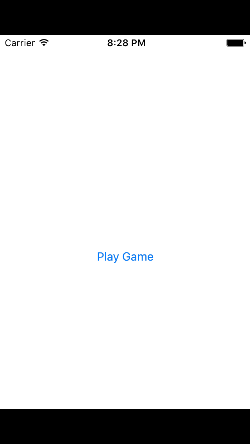
Configuring CocoaPods dependencies #
Before you integrate React Native into your application, you will want to decide what parts of the React Native framework you would like to integrate. We will use CocoaPods to specify which of these "subspecs" your app will depend on.
The list of supported subspecs is available in /node_modules/react-native/React.podspec. They are generally named by functionality. For example, you will generally always want the Core subspec. That will get you the AppRegistry, StyleSheet, View and other core React Native libraries. If you want to add the React Native Text library (e.g., for <Text> elements), then you will need the RCTText subspec. If you want the Image library (e.g., for <Image> elements), then you will need the RCTImage subspec.
You can specify which subspecs your app will depend on in a Podfile file. The easiest way to create a Podfile is by running the CocoaPods init command in the /ios subfolder of your project:
The Podfile will contain a boilerplate setup that you will tweak for your integration purposes. In the end, Podfile should look something similar to this:
After you have created your Podfile, you are ready to install the React Native pod.
You should see output such as:
If you get a warning such as "The
swift-2048 [Debug]target overrides theFRAMEWORK_SEARCH_PATHSbuild setting defined inPods/Target Support Files/Pods-swift-2048/Pods-swift-2048.debug.xcconfig. This can lead to problems with the CocoaPods installation", then make sure theFramework Search PathsinBuild Settingsfor bothDebugandReleaseonly contain$(inherited).
Code integration #
Now we will actually modify the native iOS application to integrate React Native. For our 2048 sample app, we will add a "High Score" screen in React Native.
The React Native component #
The first bit of code we will write is the actual React Native code for the new "High Score" screen that will be integrated into our application.
1. Create a index.js file #
First, create an empty index.js file in the root of your React Native project.
index.js is the starting point for React Native applications, and it is always required. It can be a small file that requires other file that are part of your React Native component or application, or it can contain all the code that is needed for it. In our case, we will just put everything in index.js.
2. Add your React Native code #
In your index.js, create your component. In our sample here, we will add simple <Text> component within a styled <View>
RNHighScoresis the name of your module that will be used when you add a view to React Native from within your iOS application.
The Magic: RCTRootView #
Now that your React Native component is created via index.js, you need to add that component to a new or existing ViewController. The easiest path to take is to optionally create an event path to your component and then add that component to an existing ViewController.
We will tie our React Native component with a new native view in the ViewController that will actually host it called RCTRootView .
1. Create an Event Path #
You can add a new link on the main game menu to go to the "High Score" React Native page.
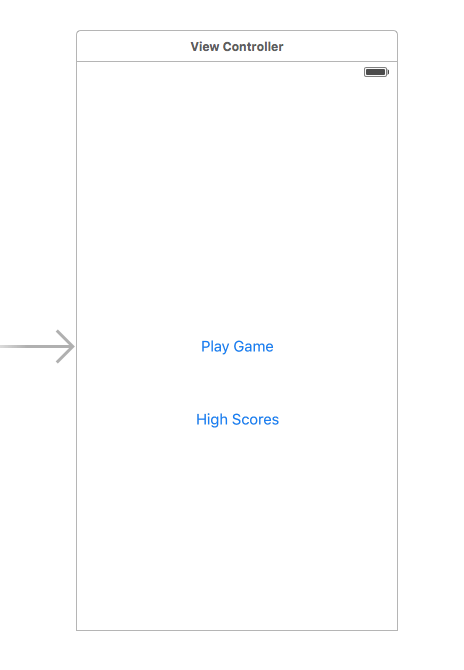
2. Event Handler #
We will now add an event handler from the menu link. A method will be added to the main ViewController of your application. This is where RCTRootView comes into play.
When you build a React Native application, you use the React Native packager to create an index.bundle that will be served by the React Native server. Inside index.bundle will be our RNHighScore module. So, we need to point our RCTRootView to the location of the index.bundle resource (via NSURL) and tie it to the module.
We will, for debugging purposes, log that the event handler was invoked. Then, we will create a string with the location of our React Native code that exists inside the index.bundle. Finally, we will create the main RCTRootView. Notice how we provide RNHighScores as the moduleName that we created above when writing the code for our React Native component.
First import the RCTRootView header.
The
initialPropertiesare here for illustration purposes so we have some data for our high score screen. In our React Native component, we will usethis.propsto get access to that data.
Note that
RCTRootView initWithURLstarts up a new JSC VM. To save resources and simplify the communication between RN views in different parts of your native app, you can have multiple views powered by React Native that are associated with a single JS runtime. To do that, instead of using[RCTRootView alloc] initWithURL, useRCTBridge initWithBundleURLto create a bridge and then useRCTRootView initWithBridge.
First import the React library.
The
initialPropertiesare here for illustration purposes so we have some data for our high score screen. In our React Native component, we will usethis.propsto get access to that data.
Note that
RCTRootView bundleURLstarts up a new JSC VM. To save resources and simplify the communication between RN views in different parts of your native app, you can have multiple views powered by React Native that are associated with a single JS runtime. To do that, instead of usingRCTRootView bundleURL, useRCTBridge initWithBundleURLto create a bridge and then useRCTRootView initWithBridge.
When moving your app to production, the
NSURLcan point to a pre-bundled file on disk via something like[[NSBundle mainBundle] URLForResource:@"main" withExtension:@"jsbundle"];. You can use thereact-native-xcode.shscript innode_modules/react-native/scripts/to generate that pre-bundled file.
When moving your app to production, the
NSURLcan point to a pre-bundled file on disk via something likelet mainBundle = NSBundle(URLForResource: "main" withExtension:"jsbundle"). You can use thereact-native-xcode.shscript innode_modules/react-native/scripts/to generate that pre-bundled file.
3. Wire Up #
Wire up the new link in the main menu to the newly added event handler method.
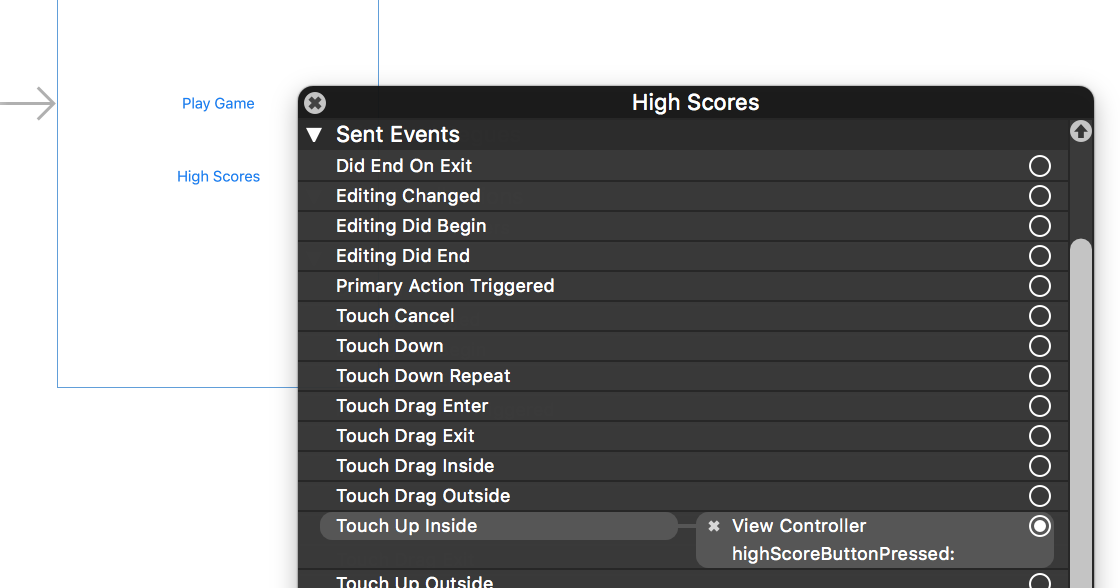
One of the easier ways to do this is to open the view in the storyboard and right click on the new link. Select something such as the
Touch Up Insideevent, drag that to the storyboard and then select the created method from the list provided.
Test your integration #
You have now done all the basic steps to integrate React Native with your current application. Now we will start the React Native packager to build the index.bundle package and the server running on localhost to serve it.
1. Add App Transport Security exception #
Apple has blocked implicit cleartext HTTP resource loading. So we need to add the following our project's Info.plist (or equivalent) file.
App Transport Security is good for your users. Make sure to re-enable it prior to releasing your app for production.
2. Run the packager #
To run your app, you need to first start the development server. To do this, simply run the following command in the root directory of your React Native project:
3. Run the app #
If you are using Xcode or your favorite editor, build and run your native iOS application as normal. Alternatively, you can run the app from the command line using:
In our sample application, you should see the link to the "High Scores" and then when you click on that you will see the rendering of your React Native component.
Here is the native application home screen:
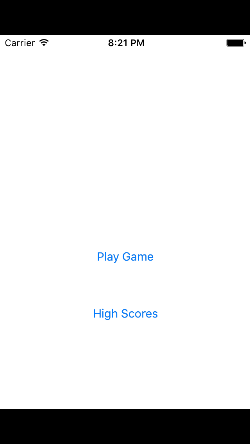
Here is the React Native high score screen:

If you are getting module resolution issues when running your application please see this GitHub issue for information and possible resolution. This comment seemed to be the latest possible resolution.
See the Code #
You can examine the code that added the React Native screen to our sample app on GitHub.
You can examine the code that added the React Native screen to our sample app on GitHub.
Adding React Native to your app #
Configuring maven #
Add the React Native dependency to your app's build.gradle file:
If you want to ensure that you are always using a specific React Native version in your native build, replace
+with an actual React Native version you've downloaded fromnpm.
Add an entry for the local React Native maven directory to build.gradle. Be sure to add it to the "allprojects" block:
Make sure that the path is correct! You shouldn’t run into any “Failed to resolve: com.facebook.react:react-native:0.x.x" errors after running Gradle sync in Android Studio.
Configuring permissions #
Next, make sure you have the Internet permission in your AndroidManifest.xml:
If you need to access to the DevSettingsActivity add to your AndroidManifest.xml:
This is only really used in dev mode when reloading JavaScript from the development server, so you can strip this in release builds if you need to.
Code integration #
Now we will actually modify the native Android application to integrate React Native.
The React Native component #
The first bit of code we will write is the actual React Native code for the new "High Score" screen that will be integrated into our application.
1. Create a index.js file #
First, create an empty index.js file in the root of your React Native project.
index.js is the starting point for React Native applications, and it is always required. It can be a small file that requires other file that are part of your React Native component or application, or it can contain all the code that is needed for it. In our case, we will just put everything in index.js.
2. Add your React Native code #
In your index.js, create your component. In our sample here, we will add simple <Text> component within a styled <View>:
3. Configure permissions for development error overlay #
If your app is targeting the Android API level 23 or greater, make sure you have the overlay permission enabled for the development build. You can check it with Settings.canDrawOverlays(this);. This is required in dev builds because react native development errors must be displayed above all the other windows. Due to the new permissions system introduced in the API level 23, the user needs to approve it. This can be achieved by adding the following code to the Activity file in the onCreate() method. OVERLAY_PERMISSION_REQ_CODE is a field of the class which would be responsible for passing the result back to the Activity.
Finally, the onActivityResult() method (as shown in the code below) has to be overridden to handle the permission Accepted or Denied cases for consistent UX.
The Magic: ReactRootView #
You need to add some native code in order to start the React Native runtime and get it to render something. To do this, we're going to create an Activity that creates a ReactRootView, starts a React application inside it and sets it as the main content view.
If you are targetting Android version <5, use the
AppCompatActivityclass from thecom.android.support:appcompatpackage instead ofActivity.
If you are using a starter kit for React Native, replace the "HelloWorld" string with the one in your index.js file (it’s the first argument to the
AppRegistry.registerComponent()method).
If you are using Android Studio, use Alt + Enter to add all missing imports in your MyReactActivity class. Be careful to use your package’s BuildConfig and not the one from the ...facebook... package.
We need set the theme of MyReactActivity to Theme.AppCompat.Light.NoActionBar because some components rely on this theme.
A
ReactInstanceManagercan be shared amongst multiple activities and/or fragments. You will want to make your ownReactFragmentorReactActivityand have a singleton holder that holds aReactInstanceManager. When you need theReactInstanceManager(e.g., to hook up theReactInstanceManagerto the lifecycle of those Activities or Fragments) use the one provided by the singleton.
Next, we need to pass some activity lifecycle callbacks down to the ReactInstanceManager:
We also need to pass back button events to React Native:
This allows JavaScript to control what happens when the user presses the hardware back button (e.g. to implement navigation). When JavaScript doesn't handle a back press, your invokeDefaultOnBackPressed method will be called. By default this simply finishes your Activity.
Finally, we need to hook up the dev menu. By default, this is activated by (rage) shaking the device, but this is not very useful in emulators. So we make it show when you press the hardware menu button (use Ctrl + M if you're using Android Studio emulator):
Now your activity is ready to run some JavaScript code.
Test your integration #
You have now done all the basic steps to integrate React Native with your current application. Now we will start the React Native packager to build the index.bundle package and the server running on localhost to serve it.
1. Run the packager #
To run your app, you need to first start the development server. To do this, simply run the following command in the root directory of your React Native project:
2. Run the app #
Now build and run your Android app as normal.
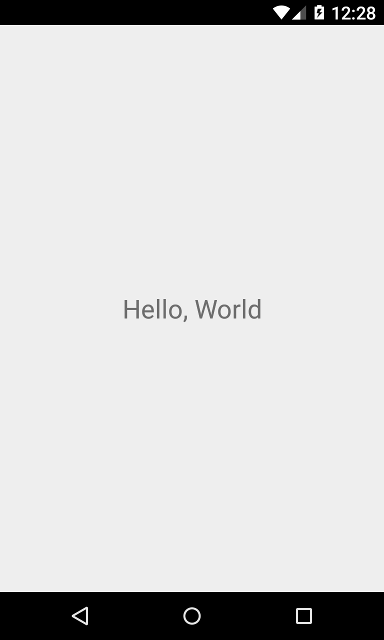
Once you reach your React-powered activity inside the app, it should load the JavaScript code from the development server and display:
Creating a release build in Android Studio #
You can use Android Studio to create your release builds too! It’s as easy as creating release builds of your previously-existing native Android app. There’s just one additional step, which you’ll have to do before every release build. You need to execute the following to create a React Native bundle, which will be included with your native Android app:
Don’t forget to replace the paths with correct ones and create the assets folder if it doesn’t exist.
Now just create a release build of your native app from within Android Studio as usual and you should be good to go!
Now what? #
At this point you can continue developing your app as usual. Refer to our debugging and deployment docs to learn more about working with React Native.
Improve this page by sending a pull request!