Contents
| - | Picking a Calendar Date |
| - | Setting the Minimum and Maximum Calendar Dates |
| - | Validating a Calendar Range |
| - | Changing the Calendar Style |
| - | Tips for Using the Calendar Component |
| - | Summary |

| December, 2007 [Revision number: V6.0] |
This tutorial describes how to work with the Calendar component in NetBeans IDE 6.0. This tutorial shows how to set the minimum and maximum calendar date and how to verify that a date that the user selects falls within this range. |
Contents
|
|
Image file used in this tutorial |
| » table_title_solid.gif |
This tutorial works with the following technologies and resources
| JavaServer Faces Components/ Java EE Platform |
 1.2 with Java EE 5*1.1 with J2EE 1.4 1.2 with Java EE 5*1.1 with J2EE 1.4
| |||
| Travel Database |
 Not required Not required |
|||
* To take advantage of NetBeans IDE 6.0's Java EE 5 capabilities, use an application server that is fully compliant with the Java EE 5 specification, such as the Sun Java System Application Server 9 (GlassFish Project).
This tutorial has been tailored for use with the Sun Java Application Server PE 9.0 Update Release 1. If you are using a different server, consult the Release Notes and FAQs for known problems and workarounds. For detailed information about the supported servers and Java EE platform, see the Release Notes.
Create a new Visual Web JSF application project, name it CalendarExample, and enable the Visual Web JavaServer Faces framework.
You design the page as shown in the following figure.
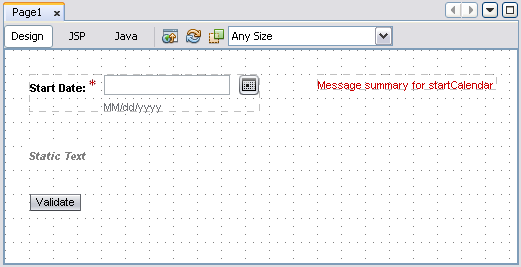 Figure 1: Calendar Format Page Design
 |
In the Properties window, set the the following values:
| Property | Value |
|---|---|
| id | startCalendar |
| dateFormatPatternHelp | MM/dd/yyyy |
| label | Start Date: |
| required |  for True
 |
Place a Message component to the right of the Calendar component. Press the Ctrl-Shift keys and drag a line from the Message Component to the Calendar component.
This action enables the Message component to display error messages for the Calendar.id property to validationMsgStaticText.Validate, and press Enter. In the Properties window,
set the id property to validateButton.Double-click the Validate button, and add the following code to the validateButton action method:
| Code Sample 1: Code to Validate Calendar Date |
public String validateButton_action() {
        validationMsgStaticText.setText(
                (String)DateFormat.getDateInstance(
                DateFormat.MEDIUM).format(startCalendar.getSelectedDate())
                + " is a valid date.");
        return null;
} |
Deploy and run the application, and then open the pop-up calendar.
The Calendar displays the current month and year. By default, the earliest valid date that you can select is 100 years before the current date, and the last valid date is 100 years after the current date.Choose a date from the pop-up calendar and then click the Validate button.
If the date you selected falls within the default minimum and maxium dates, the Static Text displays a valid message, as shown in Figure 2. If you choose a date outside this range, you see a validation error message.
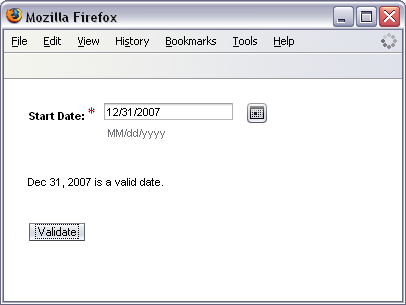 Figure 2: Valid Calendar Date
 |
In the Java Editor, scroll to the preprocess method. Add the following code (shown in bold) to clear the existing message in the Static Text component.
| Code Sample 2: Clear Old Valid Date Message |
public void preprocess() {
        // Clear out old valid date message before start
        // new validations
        validationMsgStaticText.setText("");
} |
Find the prerender method. Add the following code to pre-populate the Calendar text field with today's date.
| Code Sample 3: Set Default Start Date |
public void prerender() {
        // Set default start date, if not
        // already entered
        java.util.Calendar date = GregorianCalendar.getInstance();
        if (startCalendar.getSelectedDate() == null) {
            startCalendar.setSelectedDate(date.getTime());
        }
} |
Add the following two methods above the validateButton action method.
| Code Sample 4: Set Minimum and Maximum Calendar Dates |
private Date minCalDate;

     public Date getMinCalDate() {
       java.util.Calendar date = java.util.Calendar.getInstance
           (FacesContext.getCurrentInstance().getViewRoot().getLocale());
       // Have to zero out the time because
       // the date comparison is time sensitive
       date.set(java.util.Calendar.HOUR_OF_DAY, 0);
       date.set(java.util.Calendar.MINUTE, 0);
       date.set(java.util.Calendar.SECOND, 0);
       date.set(java.util.Calendar.MILLISECOND, 0);
       return date.getTime();
   }

    private Date maxCalDate;

    public Date getMaxCalDate() {
        java.util.Calendar date = GregorianCalendar.getInstance();
        date.set(java.util.Calendar.HOUR_OF_DAY, 0);
        //here is where you adjust your time period
        date.add(java.util.Calendar.YEAR, 1);
		SimpleDateFormat formatter
                = new SimpleDateFormat("EEE, MMM d, yyyy 'at' hh:mm:ss a zzz");
        error(formatter.format(date.getTime()));
        maxCalDate = date.getTime();
        return maxCalDate;
} |
getMinCalDate method sets the Calendar's minimum date to today.
In the getMaxCalDate method, the line date.add(java.util.Calendar.YEAR, 1); sets the maximum date to one year from today. For more examples on setting the minimum and maximum dates, including how to set the calendar to display past years, see the section of this tutorial titled Tips for Using the Calendar Component .
In the Property Bindings dialog box, bind the Calendar's minDate property to Page 1's minCalDate, as shown in the following figure. Click Apply.
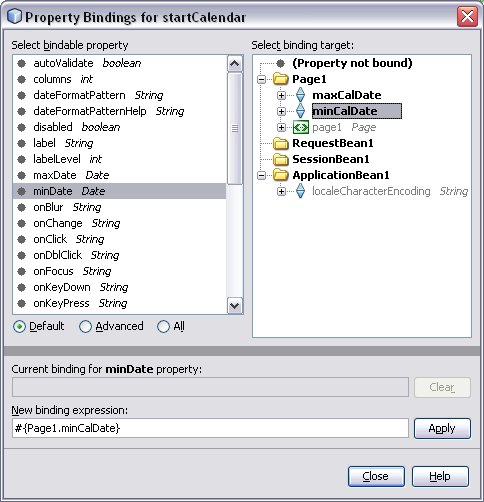 Figure 3: Binding for
 mindate Property |
maxDate property to Page 1's maxCalDate, and click Apply. Click Close to close the dialog box. Choose any date in the Calendar and then click the Validate button.
If the date is within one year of today's date, the application displays a valid message. If you pick a date before or after this range, the application displays an error message.Place a Calendar component on the page directly underneath the Start Calendar. Adjust the other components as necesary. Following is the page you design in this section.
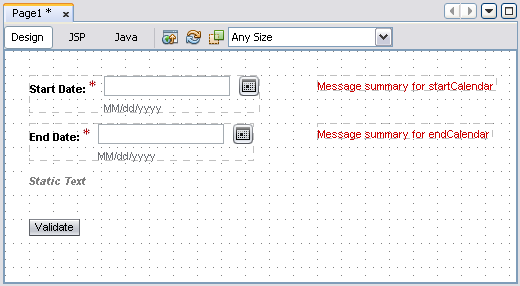 Figure 4: Page That Includes an End Calendar
 |
In the Properties window for the new Calendar, set the following values:
| Property | Value |
|---|---|
| id | endCalendar |
| dateFormatPatternHelp | MM/dd/yyyy |
| label | End Date: |
| required |
for True |
minDate property to the Page 1's minCalDate. Click Apply.maxDate property to Page1's maxCalDate. Click Apply, then close the Property bindings dialog box.Add the following code to the endCalendar_validate() method. This code ensures that the end date is at least one week after the start date.
| Code Sample 5: Code to Validate Start Date |
public void endCalendar_validate(FacesContext context,
           UIComponent component, Object value) {
        java.util.Calendar endDate = GregorianCalendar.getInstance();
        endDate.setTime((Date)value);
        java.util.Calendar startDate = GregorianCalendar.getInstance();
        startDate.setTime(startCalendar.getSelectedDate());
        if (startCalendar.getSelectedDate() != null) {
            if (startDate.after(endDate)) {
                throw new ValidatorException(new FacesMessage
                        ("End date must be after start date."));
            } else {
                startDate.add(java.util.Calendar.DATE, 7);
                if (startDate.after(endDate)) {
                    throw new ValidatorException(new FacesMessage
                         ("End date must be at least one week after the start date."));
                }

            }
        }
} |
Modify the validateButton action method to include validation for the End Calendar date:
| Code Sample 6: Code to Validate End Date |
public String validateButton_action() {
            SimpleDateFormat formatter
                = new SimpleDateFormat("EEE, MMM d, yyyy");
        validationMsgStaticText.setText(
                formatter.format(startCalendar.getSelectedDate())
                +
                " - "
                +
                formatter.format(endCalendar.getSelectedDate())
                + " is a valid date range.");
        return null;
} |
Run the application. Choose a Start Date and End Date and then click the Validate button.
If the dates are between the minimum and maximum dates (today and one year from today), and if the end date is more than one week past the start date, the application displays a valid message as shown in Figure 2. Otherwise, the application displays an error message as shown in the figure below.
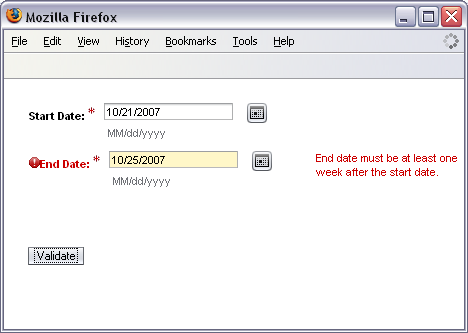 Figure 5: Calendar Range - Invalid Results
 |
In the Projects window, double-click the CalendarExample > Web Pages > resources node > stylesheet.css node. Add the code in either Code Sample 7 or 8, depending on which version of JavaServer Faces components you are using.
| Code Sample 7: Stylesheet Code for JavaServerFaces 1.1 Calendar |
.CalPopDiv .DatSelDiv{
background-image:url(table_title_solid.gif);
}

.CalPopDiv .DatDayHdrTxt {
color: red
}
|
| Code Sample 8: Stylesheet Code for JavaServer Faces 1.2 Calendar |
.CalPopDiv_sun4 .DatSelDiv_sun4 {
background-image:url(table_title_solid.gif);
}

.CalPopDiv_sun4 .DatDayHdrTxt_sun4 {
color: red
}
|
The first style class sets a new background image for the pop-up Calendar title. The second style class sets the color of the day header text to red.
A complete list of CSS styles for the Calendar component is available in the NetBeans online help. Choose Help > Help Contents from the main menu and search for the topic Calendar Component CSS Classes.Deploy and run the application, then open the pop-up Calendar.
getMaxCalDate method to set the maximum value to one year from the minimum value:
date.add(java.util.Calendar.YEAR, 1);To adjust the time period for a number of days, such as a week, use code similar to the following:
date.add(java.util.Calendar.DATE, 7);
getMinCalDate method to set the minimum date to today.
To display past years in the calendar, use code similar to the following.
This code displays the past ten calendar years:
date.add(java.util.Calendar.YEAR, -10);
 button in the
 dateFormatPattern property and select a predefined date format.
If the Property Editor does not include the format you want, you may create your own. The values you can enter are limited to some combination of yyyy for the year, MM for the month, and dd for the day. Typical separator characters are slash (/), period (.), and dash (-).
In this tutorial, you added a Calendar component to a Visual Web JSF Page, and then set the minimum and maximum dates. You also add a Validator component, and added code to validate that the date the user sets in the End Calendar is at least one week after the date set in the Start Calendar. You also changed the style of the calendar.
