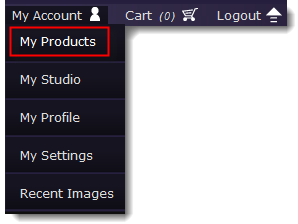
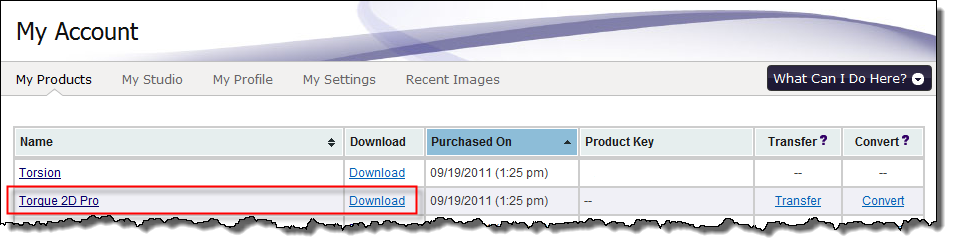
OverviewSetting up Torque 2D is a simple process. When you license Torque 2D, you get access to all the editors, scripting and full engine source code. This gives you the power to make changes to the engine's functionality, should you choose to. Studying the source-code is also a great way to learn about advanced game engine programming. Even if you download the source code now, you need to prepare your system before you work with Torque 2D. Installing Torque 2DAfter you have purchased a license, you are free to download and install Torque 2D. There are many components that ship with the engine, but first let's obtain the installer. Log into GarageGames.com, then click on the My Account->My Products link:
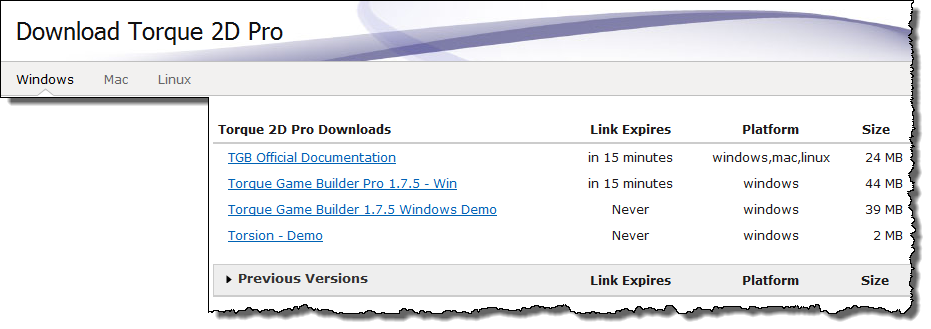
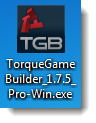
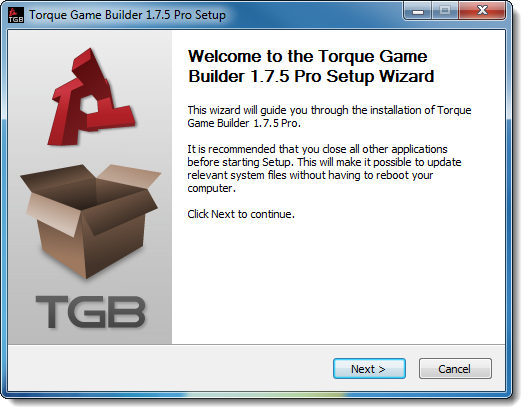
It will be a .exe and you will have been prompted to select a location when you started the download so navigate to that location and double click the installer icon.
It will be a .dmg file, the default is usually to download to your desktop, and depending on your version of Safari it may open automatically when the download is complete. If it does not, then locate and double click the installer icon.
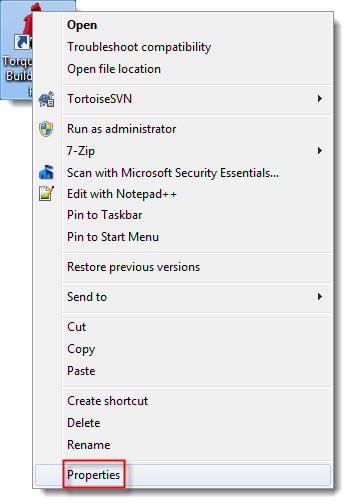
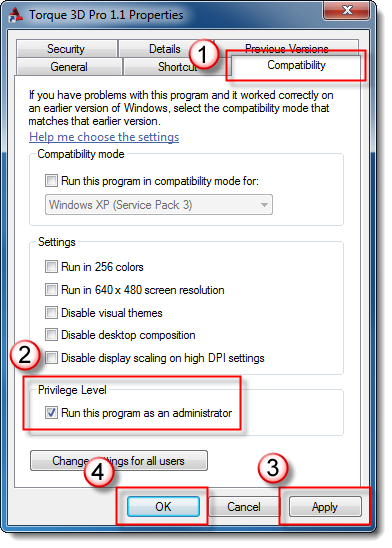
NOTE: If you have Windows permissions enabled and UAC running, you might run into problems trying to create and open projects from the editor. You will receive an error messages stating "Unable to open project". UAC is preventing Torque 2D from saving out the necessary files required to create and open projects. To resolve this issue, you must go through the following steps on Windows 7 or Windows Vista:
Optional DownloadsDepending on your operating system, there are other tools you can obtain to speed up development. For example, on Windows you might consider Torsion from the GarageGames.com store. If you are looking at serious development, you might consider setting up source control such as Subversion or Git. ConclusionWith Torque 2D installed you are ready to start making games. It is highly recommended you keep reading through the documentation for tips on how to get started and learn the work flow of the tools. |