Import audio
Beginner Designer
You can import audio files to use as sound assets in your project. You can import file types including .wav, .mp3, .ogg, .aac, .aiff, .flac, .m4a, .wma, and .mpc.
Drag and drop the audio file from Windows Explorer to the Asset view:
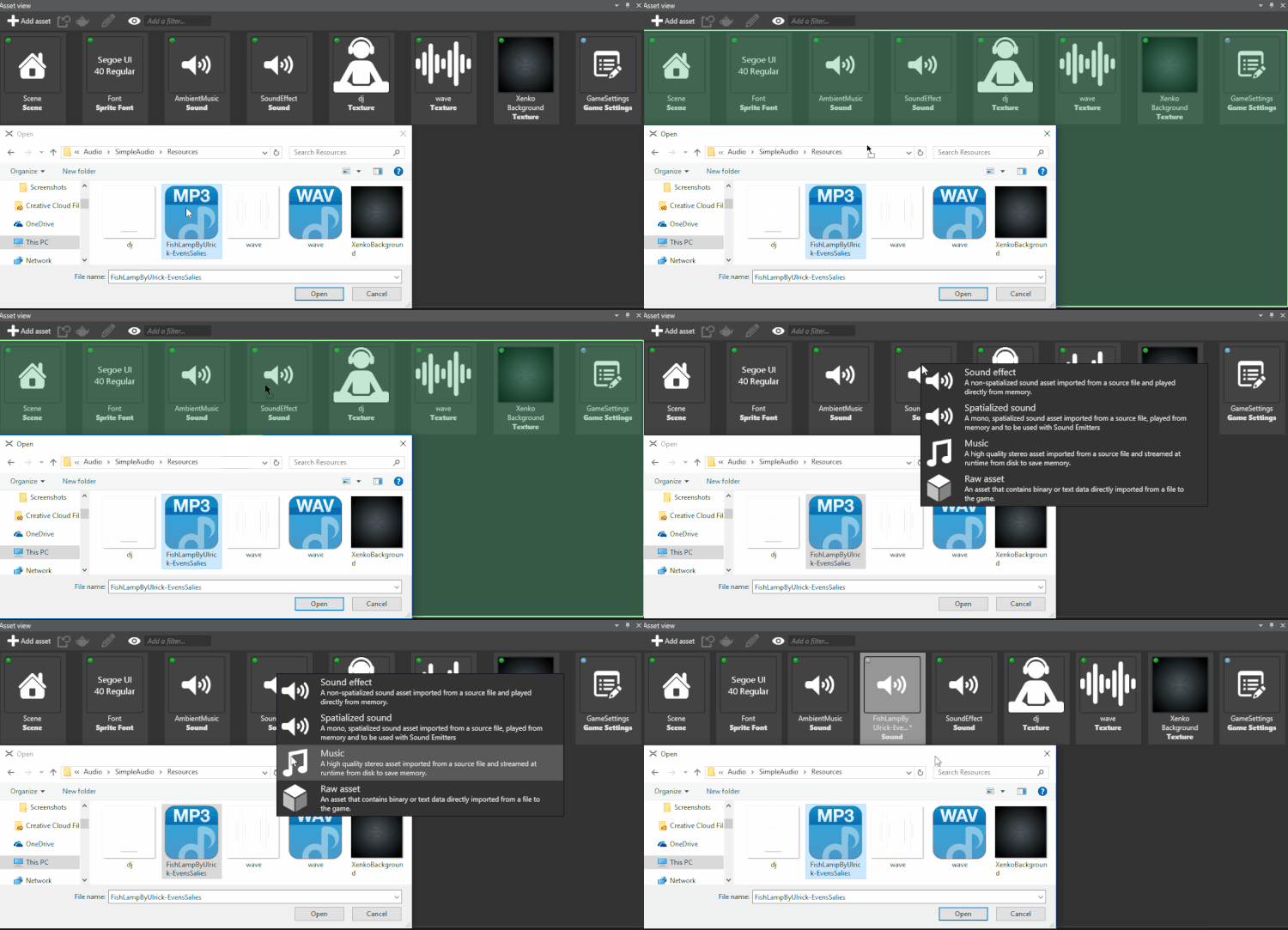
Alternatively, in the Asset view:
- Click

- Click
 (Import audio directly from file) and select the audio file.
- Click
To give the sound asset some default properties, choose a preset. (You can always change the properties in the Property grid later.)
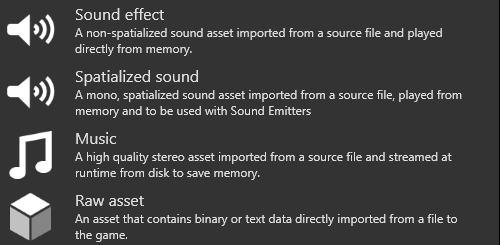
- Sound effect: Recommended for smaller files that you want to play directly from memory.
- Spatialized sound: Process the sound asset as spatialized audio. Note that Xenko processes audio files as mono (single-channel) audio. The source file is unaffected.
- Music: Recommended for larger files that you want to stream from disk to save memory.
After you import an audio file, you can select it as an asset in the Asset view.