Stream audio
Beginner Designer Programmer
By default, Xenko plays audio directly from memory. This is useful for short sound effects such as gunshots or footsteps.
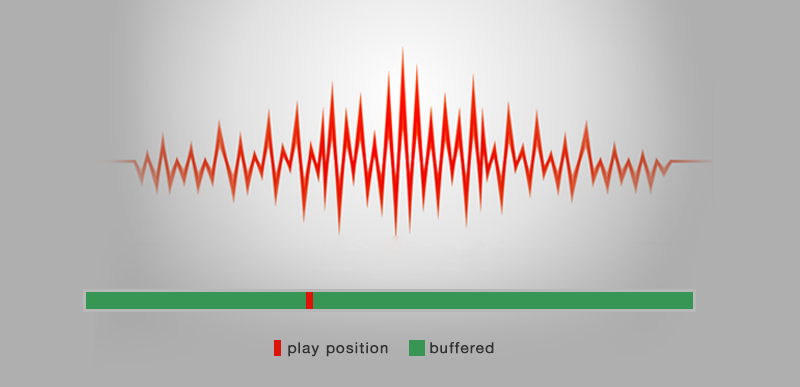
Alternatively, Xenko can buffer audio and stream it in sequences. As soon as the first sequence is buffered, Xenko plays it while buffering the following sequences in parallel. This saves a lot of memory when used for larger audio files such as background music and character dialogue.
Note
Streaming audio increases latency unless you preload it with the ReadyToPlay task (see below).
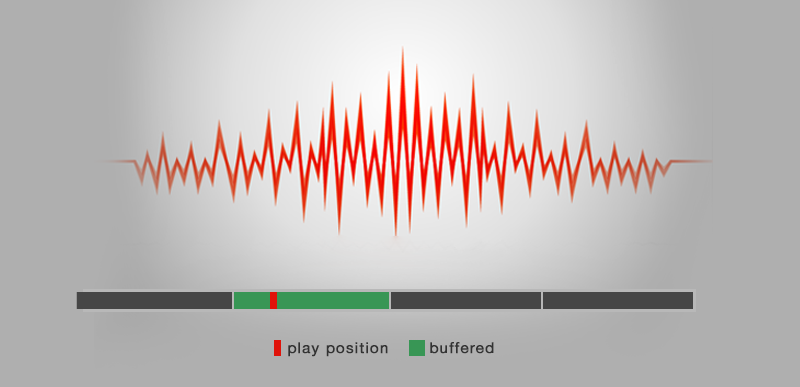
To stream a sound asset:
In the Asset view, select the sound asset.
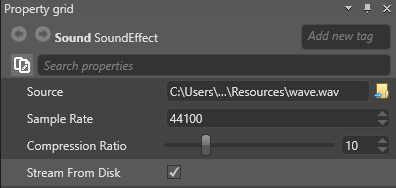
In the Property grid, select Stream From Disk:
In the script for the asset, you can configure an audio file to play once the audio engine buffers enough audio samples. To do this, use this task:
SoundInstance music = musicSound.CreateInstance();
await music.ReadyToPlay();
music.Play();