Navigation components
Beginner Level designer Programmer
Navigation components allow entities to use navigation meshes to find paths through the scene. Alternatively, if you enable dynamic navigation in Game Settings, entities can generate their own navigation meshes.
Add a navigation component
Select an entity you want to use navigation.
In the property grid, click Add component and select Navigation.
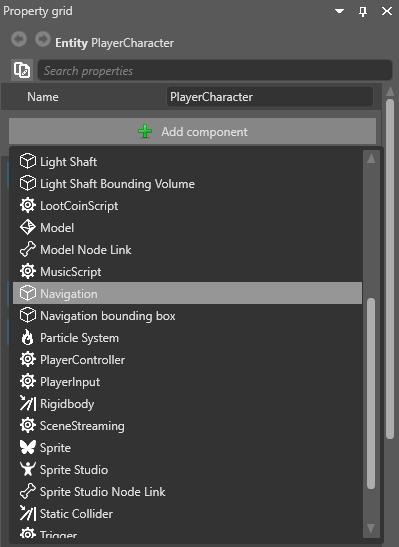
Game Studio adds a navigation component to the entity.
Under the Navigation component properties, next to Navigation mesh, click
 (Pick an asset up):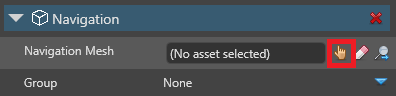
In the asset picker, select the navigation mesh you want the entity to use and click OK.
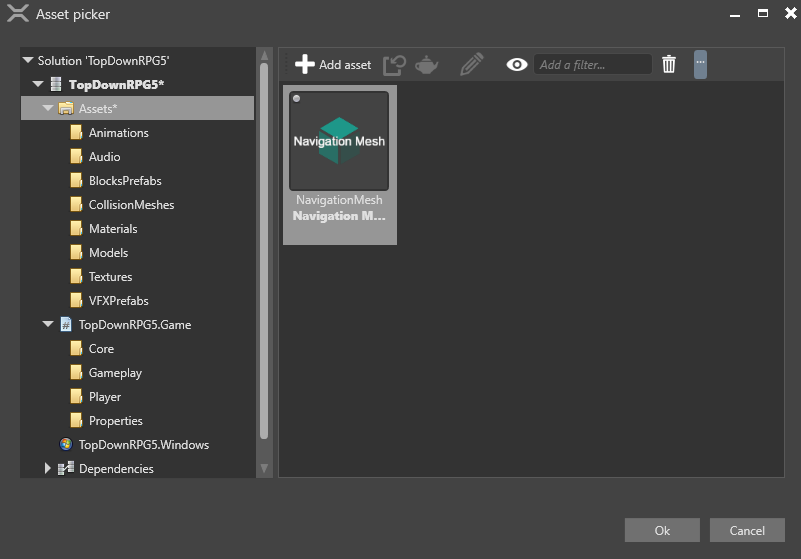
Alternatively, if you want this entity to navigate dynamically by generating its own navigation mesh, leave the Navigation mesh field empty. For more information, see Dynamic navigation.
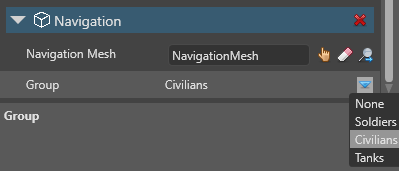
Under Group, select the navigation group the entity should belong to. The entity uses the navigation properties you set in this group.
Use navigation components in scripts
For example:
void Move(Vector3 from, Vector3 to)
{
    var navigationComponent = Entity.Get<NavigationComponent>();
    List<Vector3> path = new List<Vector3>();
    if(navigationComponent.TryFindPath(from, to, path))
    {
        // Follow the points in path
    }
    else
    {
        // A path couldn't be found using this navigation mesh
    }
}
For more information, see the NavigationComponent API documentation.