Use assets
Beginner
There are three ways to use assets:
- reference them in entity components
- reference them in other assets
- load them from code
Reference assets in components
Many kinds of component use assets. For example, model components use model assets.
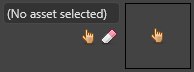
Components that use assets have asset picker docks in the property grid.
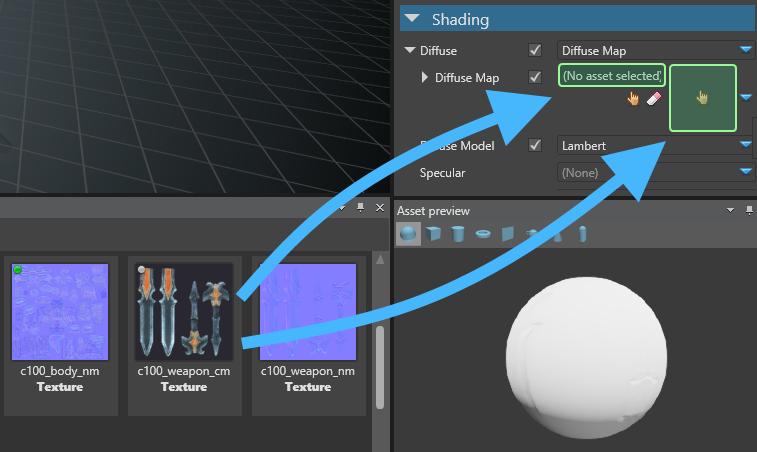
To add an asset to an entity component, drag the asset to the asset picker in the component properties (in the property grid). You can drop assets in the text field or the empty thumbnail.
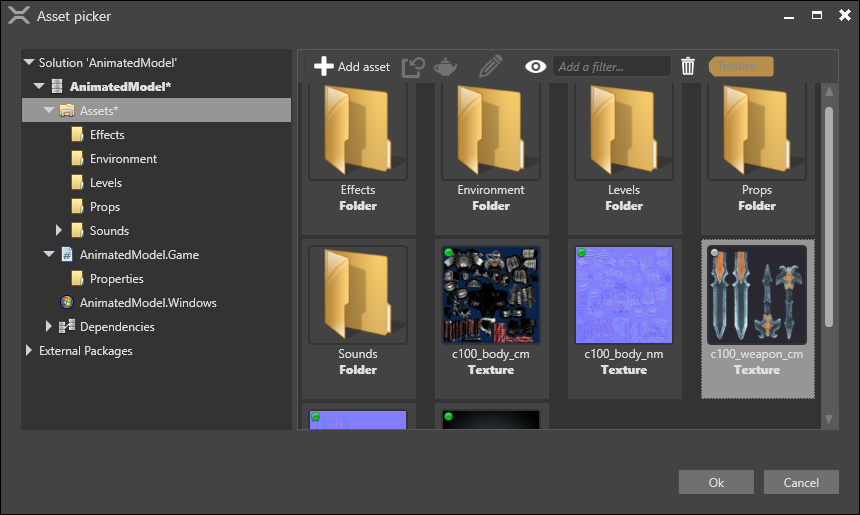
Alternatively, click  (Pick an asset up) to open the asset picker and select the asset.
Note
The asset picker only displays assets of types expected by the component. For example, if the component is an audio listener, the asset picker only displays audio assets.
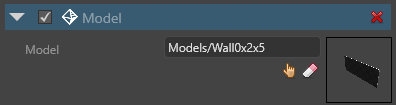
After you add an asset to a component, the asset picker dock displays its name and a thumbnail image.
Reference assets in other assets
Assets can reference other assets. For example, a model asset might use material assets.
You can add asset references to assets the same way you add them to entity components (see above).
Clear a reference
To clear a reference to an asset, in the asset picker dock, click  (Clear reference).
Examine references
You can examine the references in a selected asset in the References in the bottom-right corner of Game Studio.
- The Referencees tab displays the assets referenced by the selected asset.
- The Referencers tab displays the assets that reference the selected asset.
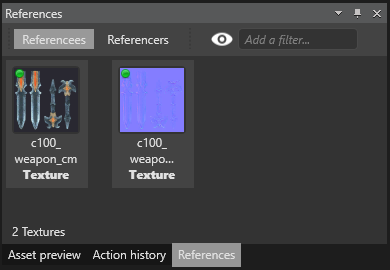
Tip
If you can't see the References tab, make sure it's displayed under View > References.
Load assets from code
You can load assets at runtime and use them in your scripts. To do this, use ContentManager.
Example code
This script loads a model at runtime and adds it to the scene.
// Load a model (replace URL with valid URL)
var model = Content.Load<Model>("AssetFolder/MyModel");

// Create a new entity to add to the scene
Entity entity = new Entity(position, "Entity Added by Script") { new ModelComponent { Model = model } };

// Add a new entity to the scene
SceneSystem.SceneInstance.RootScene.Entities.Add(entity);
Tip
To find the asset URL, in Game Studio, move the mouse over the asset. Game Studio displays the asset URL in a tooltip. URLs typically have the format AssetFolder/AssetName.
Warning
When loading assets from scripts, make sure you:
- include the asset in the build as described in Manage assets
- make sure you add the script as a component to an entity in the scene
Unload unneeded assets
When loading assets from code, you should unload assets when you don't need them any more. If you don't, assets stay in memory, wasting GPU.
To do unload an asset, use Content.Unload(myAsset).