Launch Xenko
Beginner
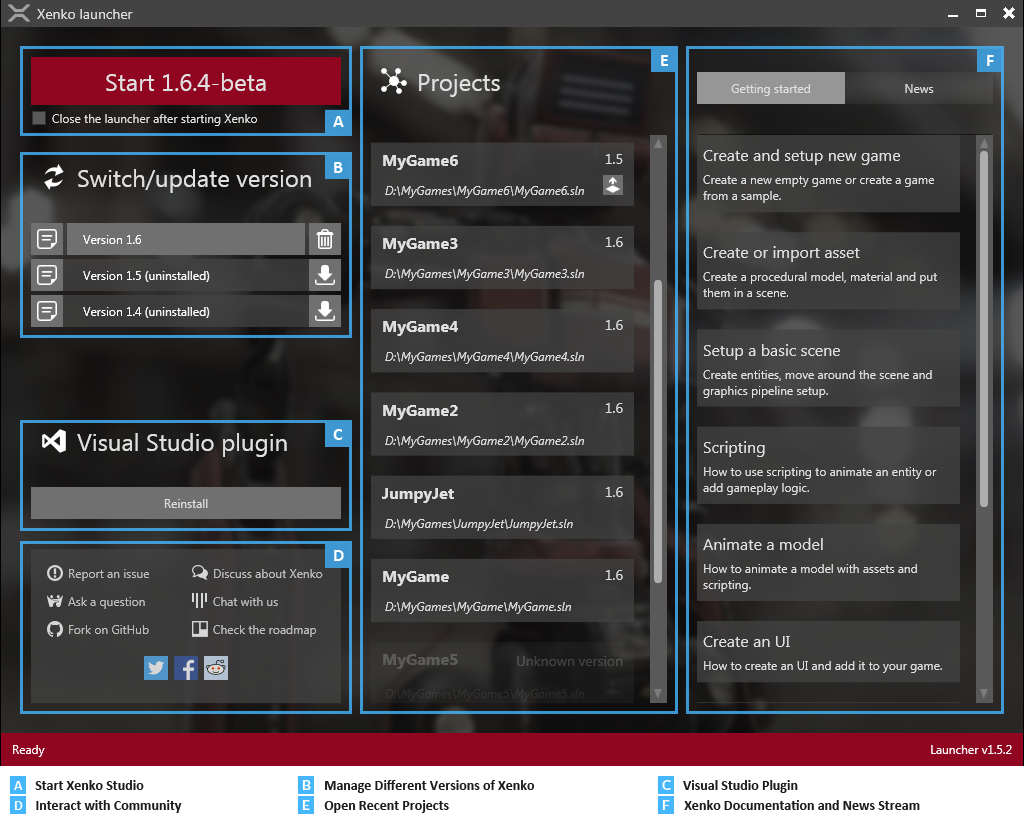
With the Xenko launcher, you can install, manage and run different versions of Xenko.
Install the latest version of Xenko
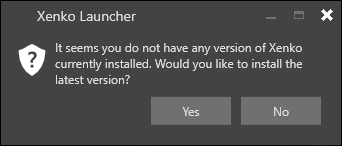
If you don't have Xenko installed, the Xenko Launcher prompts you to install the latest version.
If you choose to install the latest version, the Xenko Launcher asks if you want to install the Xenko Visual Studio extension.
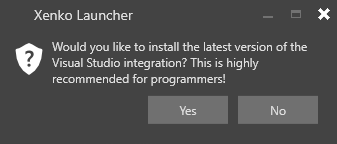
The Xenko Visual Studio extension adds syntax highlighting, live code validation, error checking, and navigation. It also lets you you edit shaders directly from Visual Studio. You don't need to install the extension to use Xenko, but we recommend it, especially for programmers.
Manage different versions of Xenko
You can install multiple versions of Xenko and launch them from the Xenko Launcher.
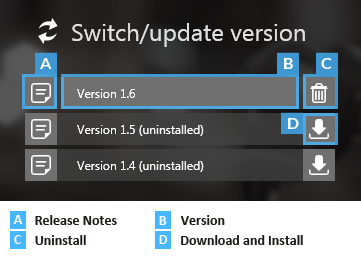
You might need to use an older version of Xenko to work with old projects. Newer versions of Xenko might contain changes that require old projects to be upgraded.
For minor versions, only the last number of the version number changes (1.9.0, 1.9.1, 1.9.2, etc). Minor versions don't contain breaking changes, so they're safe to install and use with your existing projects.
Note
You can't revert to earlier minor versions. For example, you can install both Xenko 1.9 and 1.8 side by side, but you can't revert from Xenko 1.9.2 to Xenko 1.9.1.
To see the release notes for a particular version, click the note icon next to the version name.
To install a particular version, click the Download and install icon next to the version name.
Start Game Studio
Now you've installed Xenko, it's time to start Game Studio and build a project.
Under Switch/update version, select the version of Xenko you want to use.
The version number is updated on the Start button.
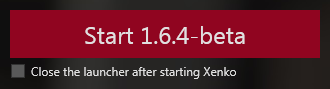
Click Start to launch Game Studio.
What's next?
See also
For more details about the Xenko launcher, see the Xenko launcher page.