Use a script
Beginner Programmer
To use a script, add it to an entity as a component. You can do this in Game Studio or in code. Xenko runs scripts when the entity they are attached to is loaded.
You can add a single script to as many entities as you need. You can also add multiple scripts to single entities; in this case, Xenko creates multiple instances of the script. This means the same script can have different values in its public properties and fields.
Add a script in Game Studio
There are two ways to add scripts to entities in Game Studio:
- drag the script from the asset view to the entity properties
- add the script in the property grid
Drag and drop
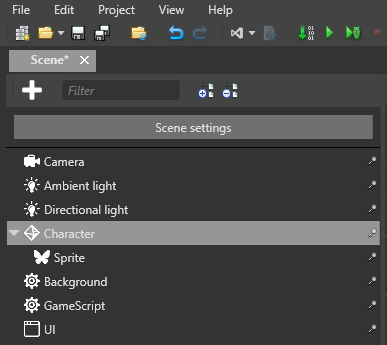
In the entity tree (on the left by default), or in the scene, select the entity you want to add the script to.
In the solution explorer (in the bottom left by default), select the assembly which contains your script. Game Studio shows your script in the asset view.
Note
Though scripts are a kind of asset, they're not saved in the Assets folder. Instead, they're saved in your .Game folder. For more information, see Project structure.
Drag the script from the asset view to the property grid.
Game Studio adds the script to the entity.
Add the script in the property grid
In the scene editor, select the entity you want to add the script to.
In the property grid (on the right by default), click Add component and select the script you want to add.
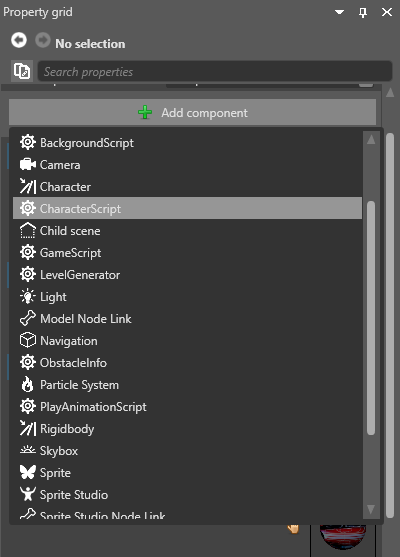
Game Studio adds the script to the entity.
Add a script from code
The code below adds a script to an entity.
// myEntity is an existing entity in the scene; myAsyncScript is the script you want to add to the entity
myEntity.Add(new myAsyncScript());