This lesson teaches you to
Create a new project with Eclipse
This lesson describes how to set up the Couchbase Lite environment with Eclipse.
Set up the environment
Before you can build an app, you need to set up your development environment. To get set up with Eclipse, you can use one of the following methods:
Recommended method. Download and install the Android Developer Tools (ADT) Bundle, which includes the essential Android SDK components and a version of the Eclipse IDE with built-in ADT. This tutorial was developed with the ADT Bundle.
If you already have Eclipse installed and prefer to use that version, you can install the Android SDK by following the instructions for using an existing IDE found on the ADT Bundle page.
Create a new project
Launch Eclipse.
Select File > New > Android Application Project.
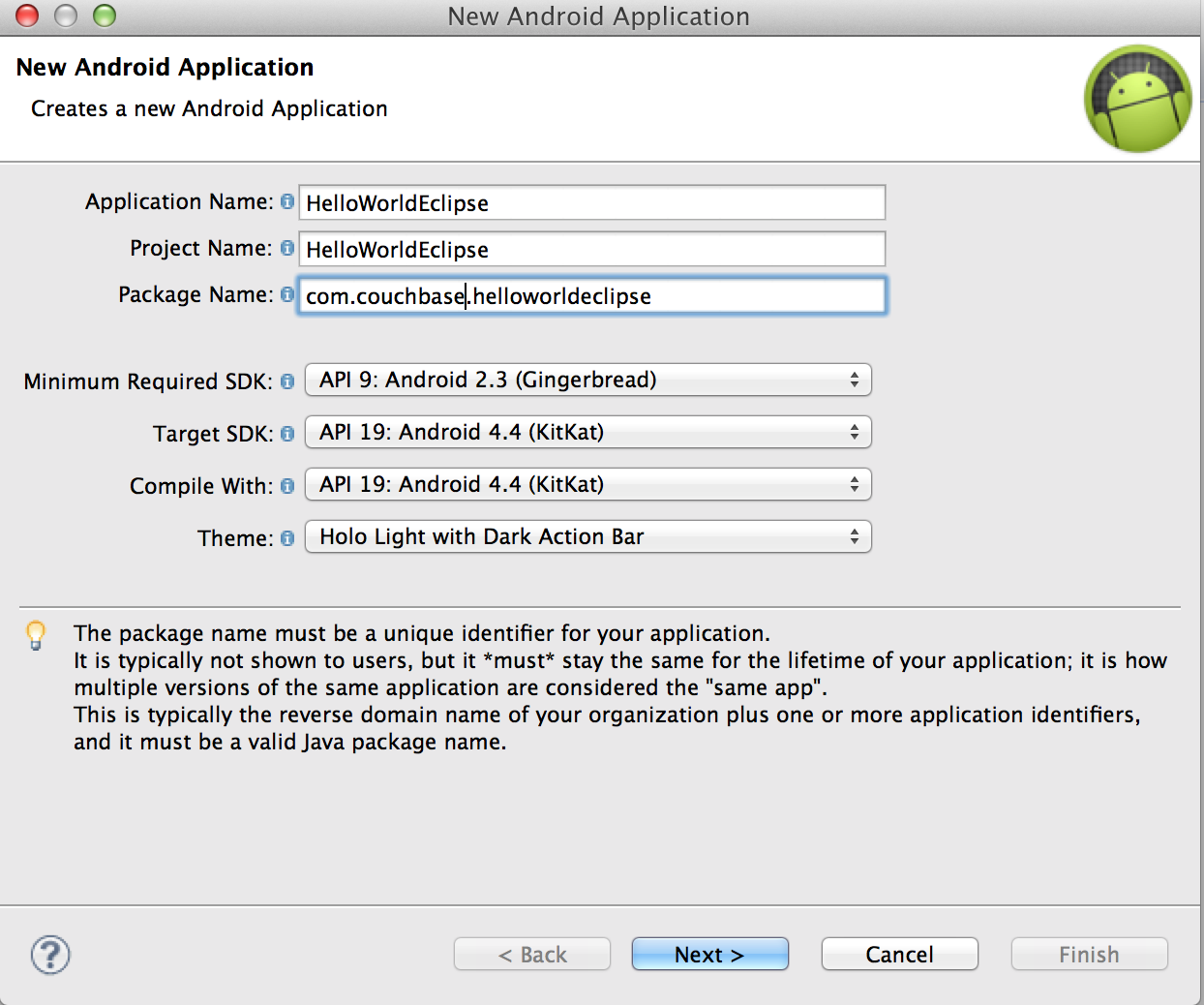
In the New Project window, enter the application name, module name, package name, and project location.
This example uses
HelloWorldEclipsefor the application name.Set the minimum required SDK to API 9: Android 2.3 (Gingerbread) or later and use the currently recommended Android API.
After you fill in the fields, the New Project window should look something like this:
Click Next, and then move through the remaining setup screens and enter settings as necessary (or just accept the defaults).
When you get to the last setup screen, click Finish.
Open the AndroidManifest.xml file (it’s located at the root level of your project directory), and add the following line to the file as a child of the
<manifest>element.<uses-permission android:name="android.permission.INTERNET" />Save the AndroidManifest.xml file.
Add Couchbase Lite
Download the latest version of Couchbase Lite from http://www.couchbase.com/download#cb-mobile.
Decompress the zip file.
In the decompressed folder, find the cbl_collator_so-1.0.2.jar file, rename it to cbl_collator_so-1.0.2.zip, and then decompress it.
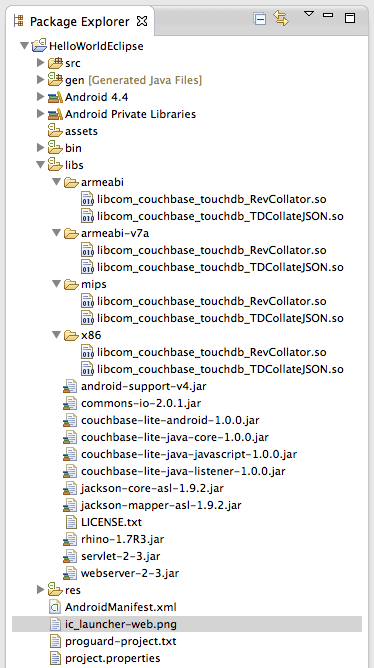
Copy all the folders in the /cbl_collator_so-1.0.2/libs folder into the libs folder in the HelloWorldEclipse project.
Note:You need to extract and copy these files manually because Eclipse cannot handle JARs that contain native libraries. For more information about this limitation, see Android issue 17861.Copy all the remaining JAR files from the /couchbase-lite-1.0.2 folder into the project libs folder.
You do not need to copy any .aar and .pom files from the folder.
After you copy all the files into the libs directory in your Eclipse project, its content should look similar to the following figure:
Build and run the app
Running the empty app at this point verifies whether the dependencies are set up correctly. The app won’t run properly if you have Android Studio running simultaneously with the ADT bundle Eclipse.
Click Run and verify the app runs properly.
When requested, start the emulator.
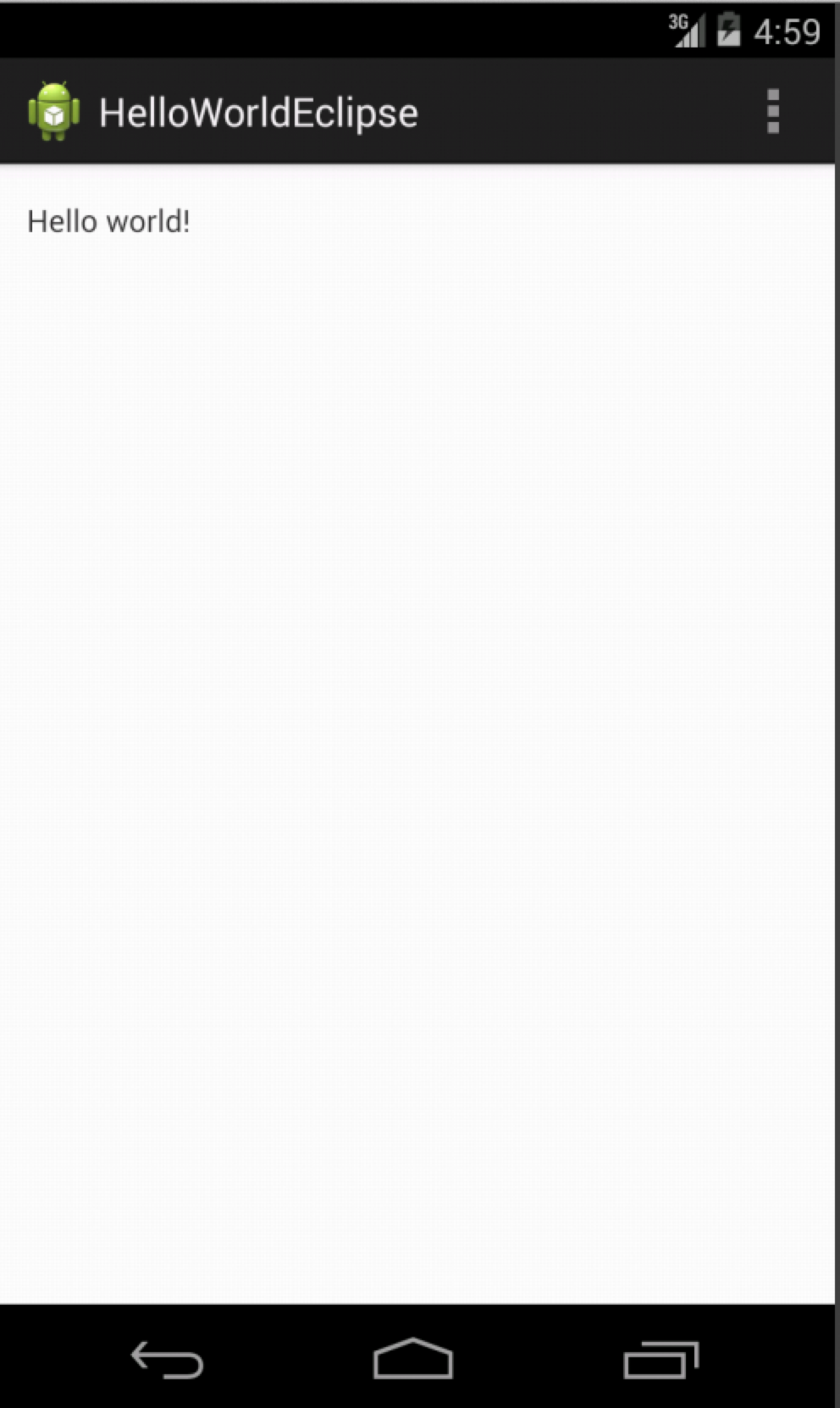
You should see the app start in the emulator and the text “Hello World” in the app window, similar to the following figure: