


Fuse IDE is installed from the FuseSource Eclipse update site. You will need to add the update site to your list of available software sites before installing.
Before you can install Fuse IDE you need to add the update site to the list of available software sites. To add the update site:
Select |.
The Install wizard opens.
Enter
http://repo.fusesource.com/ide/in the Work with: field.Click .
The Add Repository dialog opens.
Enter a name for the new site in the Name: field.
Click .
The Add Repository editor closes.
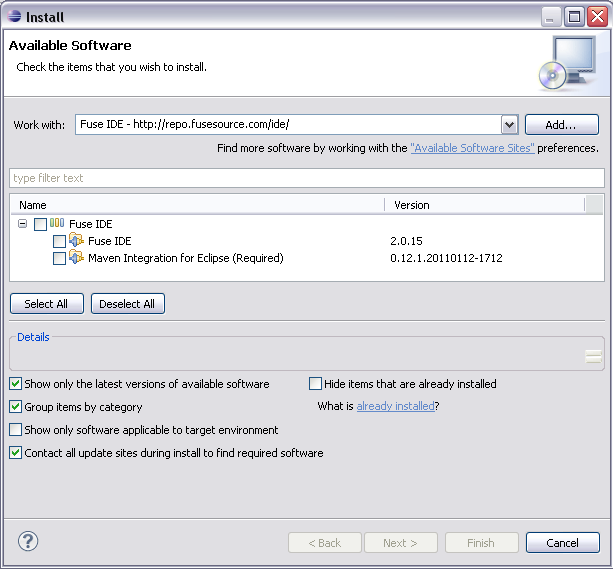
The name of the new software repository appears before the URL entered in the Work with: field. Fuse IDE will appear in the table at the bottom of the editor.
To install Fuse IDE:
Select |.
The Install wizard opens.
Enter the name of the FuseSource software site into the Work with: field.
![[Tip]](imagesdb/tip.gif)
Tip You can use the drop down list to select the software site.
As shown in Figure Figure 3.1, Fuse IDE for Camel will appear in the table at the bottom of the editor.
Place a check in the box next to Fuse IDE.
Click .
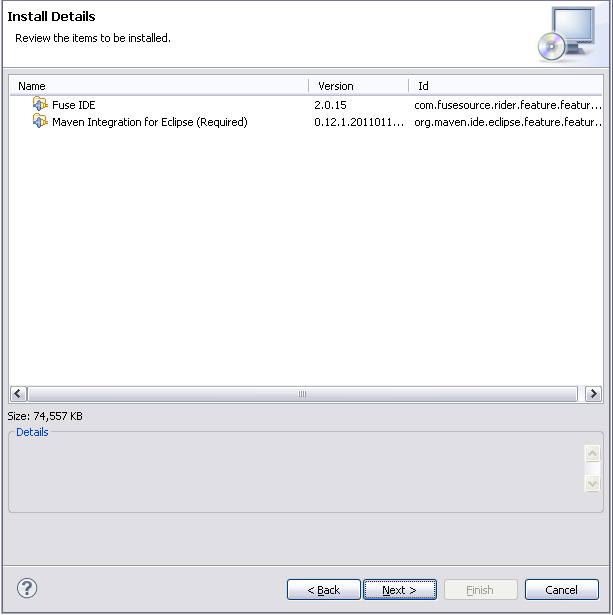
The Install Details page, shown in Figure 3.2, opens and lists Fuse IDE.
Click .
The Review License page opens.
Read the license agreements.
Select I accept the terms of the license agreement.
Click .
The software installs.
If you are warned about installing unsigned packages, accept the FuseSource certificates and continue the installation.
When asked to restart Eclipse click .
Eclipse will shutdown and then restart. When it restarts, Fuse IDE will be available.
 |  | |
 |

