


Once Fuse IDE is installed you can check for updates and install them using the standard Eclipse update mechanism.
To check for updates to Fuse IDE:
Select |.
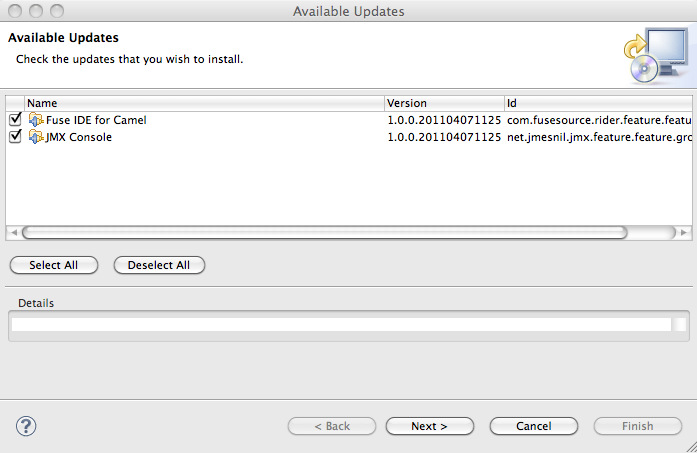
If there are updates a dialog similar to Figure 5.1 will open.
Ensure that Fuse IDE is checked.
Click .
The Update Details page opens.
Ensure that Fuse IDE is listed.
Click .
The Review Licenses page opens.
Read the license agreement.
Select I accept the terms of the license agreement.
Click .
The software installs.
If you are warned about installing unsigned packages, accept the FuseSource certificates and continue the installation.
When asked to restart Eclipse click .
Eclipse will shutdown and then restart. When it restarts, the new version Fuse IDE will be available.
![[Warning]](imagesdb/warning.gif) | Warning |
|---|---|
On occasion the update will fail. To recover you will need to uninstall Fuse IDE, as described in Removing Fuse IDE, and then reinstall Fuse IDE , as described in Installing Fuse IDE. |
 |  | |
 |

