


To enable SSL/TLS on the platform JMX connector, you need to set the following system properties in the environment (see also Configuring JSSE System Properties):
com.sun.management.jmxremote.sslA boolean property, which must be set to
trueto enable SSL/TLS on the JMX endpoint.javax.net.ssl.keyStoreSpecifies the location of the key store containing the broker's own X.509 certificate.
javax.net.ssl.keyStorePasswordSpecifies the password that unlocks the key store and decrypts the private key stored in the key store.
![[Note]](imagesdb/note.gif) | Note |
|---|---|
It is not possible to enable SSL/TLS security without JMX remote authentication. JMX remote authentication is a prerequisite for enabling SSL/TLS on the JMX port. |
Modify the activemq[.bat] startup script in the
ACTIVEMQ_BASE/bin/
- Windows
Search the
activemq.batscript forSUNJMXand replace the lines you find with the following lines:set SUNJMX=-Dcom.sun.management.jmxremote set SUNJMX=%SUNJMX% -Dcom.sun.management.jmxremote.ssl=true set SUNJMX=%SUNJMX% -Dcom.sun.management.jmxremote.port=11099 set SUNJMX=%SUNJMX% -Dcom.sun.management.jmxremote.password.file=%ACTIVEMQ_HOME%\conf\jmx.password set SUNJMX=%SUNJMX% -Dcom.sun.management.jmxremote.access.file=%ACTIVEMQ_HOME%\conf\jmx.access set SUNJMX=%SUNJMX% -Djavax.net.ssl.keyStore=%ACTIVEMQ_HOME%\conf\broker.ks set SUNJMX=%SUNJMX% -Djavax.net.ssl.keyStorePassword=password
- *NIX
Search the
activemqscript forACTIVEMQ_SUNJMX_STARTand replace the lines you find with the following lines:ACTIVEMQ_SUNJMX_START="-Dcom.sun.management.jmxremote.port=11099 " ACTIVEMQ_SUNJMX_START="$ACTIVEMQ_SUNJMX_START -Dcom.sun.management.jmxremote.password.file=${ACTIVEMQ_CONFIG_DIR}/jmx.password" ACTIVEMQ_SUNJMX_START="$ACTIVEMQ_SUNJMX_START -Dcom.sun.management.jmxremote.access.file=${ACTIVEMQ_CONFIG_DIR}/jmx.access" ACTIVEMQ_SUNJMX_START="$ACTIVEMQ_SUNJMX_START -Dcom.sun.management.jmxremote.ssl=true" ACTIVEMQ_SUNJMX_START="$ACTIVEMQ_SUNJMX_START -Dcom.sun.management.jmxremote" ACTIVEMQ_SUNJMX_START="$ACTIVEMQ_SUNJMX_START -Djavax.net.ssl.keyStore=${ACTIVEMQ_CONFIG_DIR}/broker.ks" ACTIVEMQ_SUNJMX_START="$ACTIVEMQ_SUNJMX_START -Djavax.net.ssl.keyStorePassword=password"
If you have already enabled JMX remote authentication (as described in Authentication for the Platform JMX Connector) the changes that you need to make here are to
enable SSL, by setting com.sun.management.jmxremote.ssl to true,
and to add the keyStore and keyStorePassword settings as
shown.
To test the secure platform JMX connector, perform the following steps:
Start up the standalone broker. Open a new command prompt and run the startup script, as follows:
bin/activemq
Start up the JConsole with the required SSL/TLS client settings, as follows:
jconsole -J-Djavax.net.ssl.trustStore=
ActiveMQInstallDir/conf/client.ts -J-Djavax.net.ssl.trustStorePassword=passwordWhere the
jconsolecommand uses the standard JSSE system properties to specify the relevant client trust store (see Configuring JSSE System Properties for details).![[Tip]](imagesdb/tip.gif)
Tip Don't forget the
-Jswitch, which passes the options through to the underlying Java virtual machine (JVM).You should be able to connect to the JVM platform JMX connector using the following JMX URL:
service:jmx:rmi:///jndi/rmi://
Hostname:11099/jmxrmiWhere you substitute
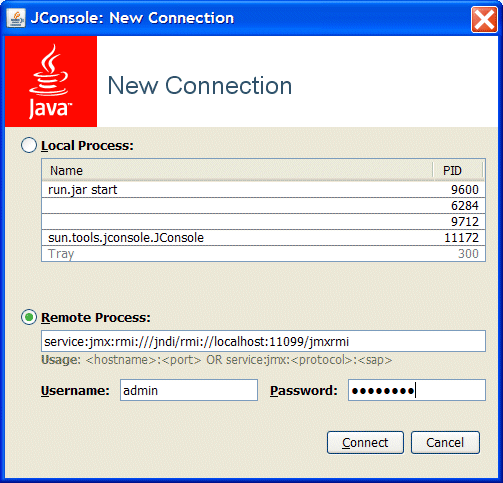
Hostnamewith the name of the host where the broker is running.When the JConsole: New Connection dialog pops up, enter the preceding JMX URL in the Remote Process: field, and enter the credentials for one of the JMX users in the Username and Password fields, as shown. Click Connect.
 |  |  |
 |

