

|
|
|
The Blocking Lock Display screen appears when you select Block_Info from the Lock List Display screen. This screen helps locate bottlenecks in the database.
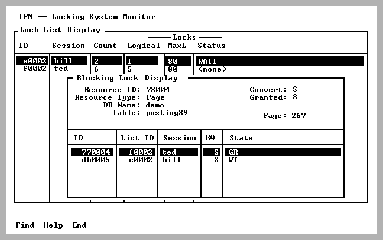
If there are tables where concurrent access is not occurring (that is, much waiting is occurring because a database session is performing table level locking or has page locks that escalate to table level locks), Block_Info finds the lock that is granted on a resource for which another lock is waiting.
For example, if there is a lock list that is blocked (waiting or converting). The granted lock is known as a blocking lock because it is blocking access to a resource. Block_Info finds the blocking lock. It is either be a granted page lock on the same page or a granted table lock on the table that contains the page. All locks that are found are displayed in the scrolling area in the bottom area of the pop-up. The upper portion of the pop-up contains information on the selected resource. The first lock in the scrolling area is the blocking lock. All other (waiting) locks are displayed below it.
|
|
|
The Blocking Lock Display helps locate bottlenecks in the database.
To look for concurrency bottlenecks
The String to search for prompt appears.
The blocking lock is found if it is in the locking system in the current installation on the machine where IPM is running.
Note: If you are searching for a lock on another node in the cluster, the lock may not be visible on the current node. To find the lock, run IPM on the other nodes.
|
|
|
The Blocking Lock Display includes the following information:
Resource block identifier of the resource that the blocking lock is held on
Type of resource. For a list of resource types, see Resource Type.
Mode to which this resource is converting. For a list of possible modes, see Mode Values.
Mode in which this resource is requested. For a list of possible modes, see Mode Values.
Name of the database.
The table name to which this resource belongs. If the resource is not a table or page resource type, this field does not appear.
Page number of this resource. If the resource is not a page resource type, this field does not appear.
|
|
|
The scrolling area in the Blocking Lock Display contains the following columns:
Internal lock identifier for this lock
Internal lock list identifier to which this lock belongs
Name of the session to which this lock belongs
Mode in which the lock was requested. For a list of possible modes, see Mode Values.
Current state of the lock:
|
|
|
The Blocking Lock Display has the following menu items:
Searches any column in the scrolling area. To initiate the search, tab to the desired column select Find. If you are searching a text column, Find locates all occurrences in the column.
Displays help screens.
Returns to the previous menu.