

|
|
|
The Resource List Display screen appears when you select Resources from the Lock Info Menu screen. This screen contains an entry for each resource that has one or more locks granted or requested on it.
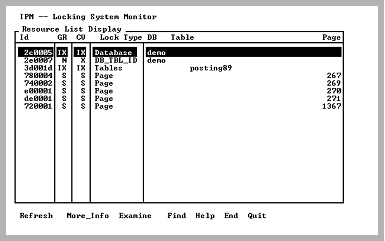
The information displayed is sorted by database. Page and row resources are listed under the table resource to which they belong (for example, all pages for table x in database test are listed under the entry for table x). The Database name is left-justified in the DB-Table-Page column. The database name is printed only when it changes. The same applies for table names. Table names are indented 5 spaces.
This screen allows high traffic areas to be found. If there is much page locking in a given table and there are many page type entries under the table entry of interest, select the Examine menu item by placing the cursor on the table entry of interest.
For example, to see what and how many locks are on table test, place the cursor on that table resource entry and select the Examine menu item. When the Lock Detail Display screen appears, there is one lock for each session touching the test table. If many locks are displayed, it is an indication that this table is a potential contention source (for example, any session attempts to lock the table shared or exclusive).
If a database cannot be opened to display table names, IPM displays <can't find [x, y]> instead. The x is the reltid of the table and y is the reltidx of that table ("reltid" and reltidx are columns in the iirelation catalog).
When a database cannot be opened, the possible reasons are given below:
By selecting the Options menu item, you can view or modify various IPM options that affect which resources are displayed. To use this menu item, see Option Selection Screen.
Selecting the Refresh menu item after changing the options collects resource information based on the new option settings.
It is not necessary to select the Refresh menu item when the options you have changed result in a subset of the resource information currently displayed.
For example, all resources for database test are selected based on the previous options. If the new option settings select only a specific resource type for that database, return to the Lock Info Menu and select the Resources menu item.
|
|
|
Columns in the Resource List Display screen are:
The internal resource block identifier
The mode in which this resource is granted. For a list of possible modes, see Mode Values.
The mode to which this resource is converting. For a list of possible modes, see Mode Values.
The type of resource. For a list of resource types, see Resource Type.
The database name, table name or page that identifies this resource. The values are justified and formatted for ease in reading.
|
|
|
The menu items available on this screen are:
Queries the Ingres locking system for locking information. Lock List and Resource information are obtained together to ensure a consistent snapshot of the locking system. After setting IPM Options, select this menu item so the locking information reflects the options you set. For more information, see Option Selection Screen.
Place the cursor on the desired resource and select this menu item. Additional information for that resource is displayed on a pop-up screen (including the number of physical locks).
For more information on this screen, see Resource List Display More_Info Screen.
Place the cursor on the desired resource and select this menu item. The Resource Detail Display screen is displayed. It contains information for all locks on that resource. Other information, such as the session name, is also shown.
For additional information on this screen, see Resource Detail Display Screen.
Searches any column in the scrolling area. To initiate the search, tab to the desired column and select Find. If you are searching a text column, Find locates all occurrences in the column.
Displays help screens
Returns to the Lock Info Menu screen
Exits IPM
|
|
|
When the More_Info menu item is selected from the Resource List Display, a pop-up containing additional fields for the specified resource is displayed.
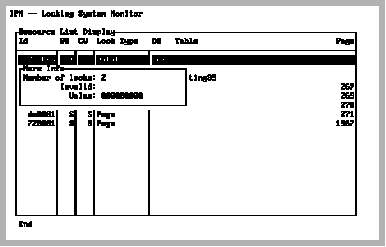
The additional fields are:
The number of physical locks held on this resource
Indicates if the value is valid or not
The lock value associated with this resource