

|
|
|
The Resource Lock Display screen is displayed when you select Resource_Info from the Lock Detail Display screen. All the locks held on the resource related to the lock specified on the Lock Detail Display screen are displayed.
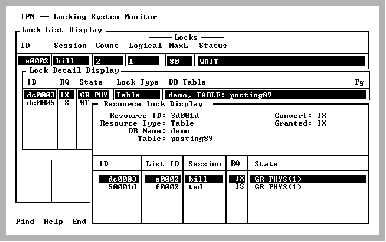
If the specified lock belonged to page 0 of the foo table, the Resource Lock Display screen displays all locks held on that same resource (page 0, foo table).
For example, if the specified lock is a table lock, it is useful to see what other locks are held on that table because it is an indication of how much activity is occurring there.
The Resource Lock Display has the following items:
Resource block identifier of the resource on which the blocking lock is held
Type of resource. For a list of resource types, see Resource Type.
Mode to which this resource is converting. For a list of possible modes, see Mode Values.
Mode in which this resource is granted. For a list of possible modes, see Mode Values.
Name of the database
Table name to which this resource belongs. If the resource is not a table or page resource type, this field does not appear.
Page number of this resource. If the resource is not a page resource type, this field does not appear.
|
|
|
Possible mode values that can appear in locking displays (for example, in the Convert and Granted fields of the Resource Lock Display) are as following:
This mode is used when reading.
For table resource types, this means that there are shared page locks in this table.
Note: This lock strength can be seen on pages if row level locking is used.
This mode is used when writing.
This is same as intended shared, except pages are exclusively locked.
Note: This lock strength can be seen on pages if row level locking is used.
Used to keep a lock without causing locking contention. It is less expensive to convert a lock than to drop and request a new one.
This mode is used with Embedded SQL cursors.
|
|
|
The Resource Lock Display has the following menu items:
Searches any column in the scrolling area. To initiate the search, tab to the desired column and select Find. If you are searching a text column, Find locates all occurrences in the column.
Displays help screens.
Returns to the Lock Detail Display screen.