9. Live Broadcasting
Starting with version 1.9.0, Mixxx directly supports live broadcasting. This allows you to connect directly to Shoutcast and Icecast servers. Using the preferences dialogue, you can simply supply Mixxx with all information needed to establish a server connection. To enable live broadcasting you can either use the options menu or the checkbox within the preference dialogue.
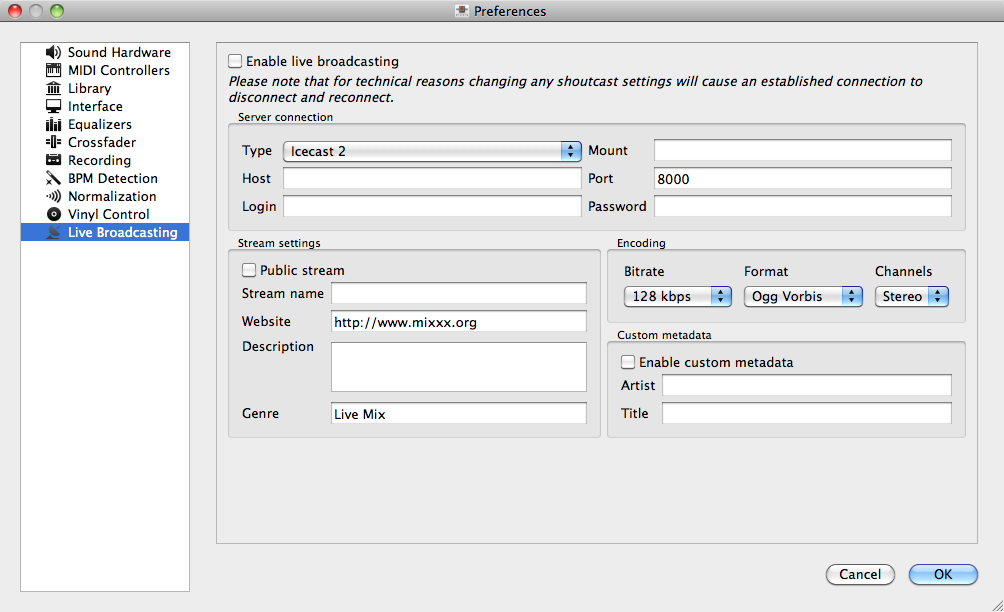
Mixxx preferences - Setting up live broadcasting
By default, Mixxx broadcasts artist and title information to your listeners. You can disable this behavior by selecting “enable custom metadata”.
Note
For technical reasons, broadcasting artist and title information is not supported for OGG streams.
9.1. Icecast
For an Icecast server, you’ll need to provide the mount point (of the form ”/mount”). You can enter the host name either as an IP address or an URL. In the “login” field, the default is to enter “source” – without this, you will not connect successfully to the server. The password will be provided by your streaming server provider, unless you run your own radio server.
An Icecast server can stream either MP3 or Ogg. However, although Ogg is more efficient and effective - you get a better sound than mp3 at a lower data rate - not all players can play Ogg streams, so as a result MP3 is probably a better choice unless you know your listeners can hear an Ogg stream successfully. You may need the LAME libraries to stream in MP3. See MP3 streaming for more details.
9.2. Shoutcast
If you connect to an Shoutcast server the default login name is “admin”. It is not necessary to specify a mount point. The password will be provided by your streaming server provider.
9.3. MP3 streaming
MP3 streaming is not supported out of the box in Mixxx since we do not license the MP3 encoding patents. In order to enable MP3 streaming you must install the LAME MP3 encoding tool yourself. For information about this, see the Mixxx Wiki page on the topic.
9.3.1. Linux
On Ubuntu and GNU/Linux-based operating systems MP3 streams can be activated by installing the package libmp3lame. Dependent on your Linux distribution the package might be slightly named different such as lame.
sudo apt-get install libmp3lame0
9.3.2. Windows
To activate MP3 streaming on Windows, follow these steps:
- Download LAME 3.98.4 binaries from http://lame.bakerweb.biz/ . The ZIP file includes x86 and x64 DLLs
- Unpack the archive
- If you have the 32-bit version of Mixxx, copy libmp3lame.dll from the x86 folder to the location you have installed Mixxx.
- If you have the 64-bit version of Mixxx, copy libmp3lame.dll from the x64 folder to the location you have installed Mixxx.
- Rename the DLL to lame_enc.dll
Please note that Audacity and other web sites provide lame binaries too. DO NOT USE THESE VERSIONS. If you do, Mixxx will show an error when activating live broadcasting.
9.3.3. Mac OS X
To activate MP3 streaming on Mac OS X, follow these steps:
- Download LAME 3.98.4 Intel (Mac OS X 10.5+ 32-bit & 64-bit) or LAME 3.98.4 PowerPC (Mac OS X 10.5 32-bit)
- Unpack and install the archive.
Another easy way to achieve MP3 streaming is to use MacPorts which is a repository manager (like apt on Debian/Ubuntu) for Open Source software. Having installed this piece of software, installing MP3 support is rather simple.
sudo port install lame