Geometry attributes
Intermediate Artist Programmer
The material geometry attributes define the shape of a material.
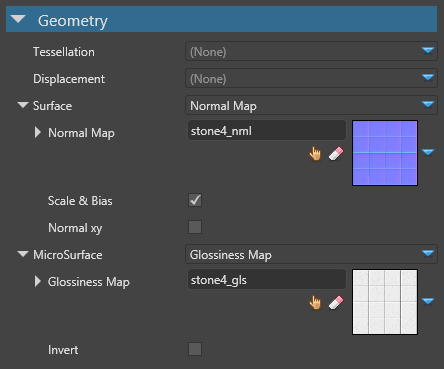
Tessellation
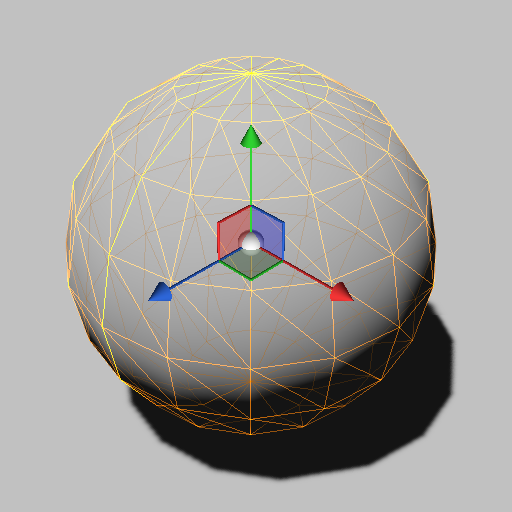
Real-time tessellation uses a HW feature of the GPU to massively subdivide triangles. This increases the realism and potential of deformations of the surface geometry.
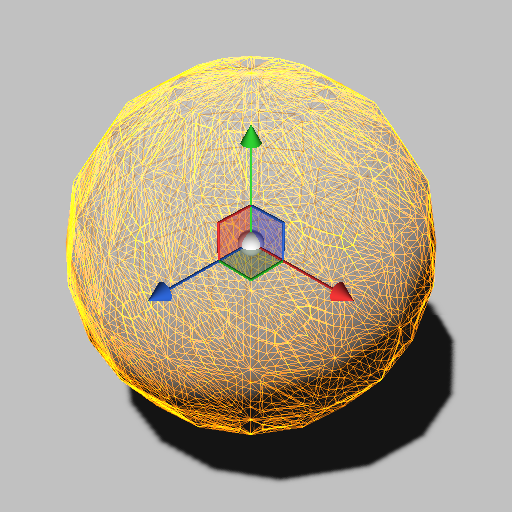
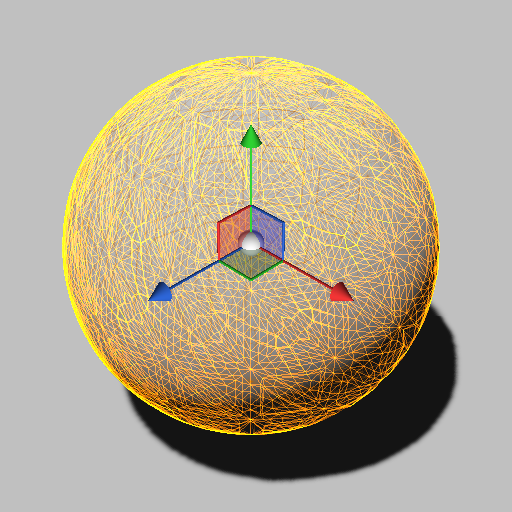
You can choose none, flat tessellation, or point normal tesellation.
| No tessellation | Flat tessellation | Point normal tessellation |
|---|---|---|
 |
 |
 |
Flat tessellation
This option tessellates the mesh uniformly.

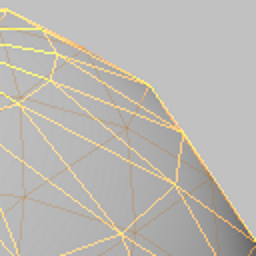
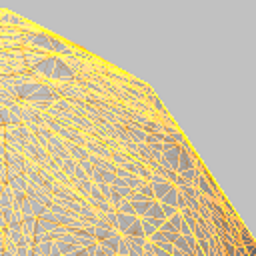
In the images below, notice how the flat tessellation adds extra triangles, but doesn't take the curve into account:
| No tessellation | Flat tessellation |
|---|---|
 |
 |
| Property | Description |
|---|---|
| Triangle size | The size of a tessellated triangle in screen-space units |
| Adjacent edges average | Adjust the triangle size values from the average of adjacent edges values |
Point normal tessellation
This option tessellates the mesh using the curvature provided by the mesh normals.

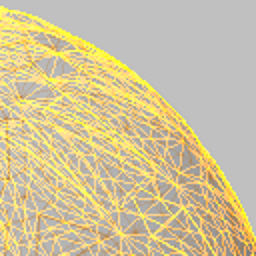
The images below show how point normal tessellation adds extra triangles while taking the curvature of the mesh into account:
| No tessellation | Point normal tessellation |
|---|---|
|
 |
| Property | Description |
|---|---|
| Triangle size | The size of a tessellated triangle in screen-space units |
| Adjacent edge average | Adjust the triangle size and normal curvature values from the average of adjacent edge values |
Displacement
Under the Displacement properties, you can specify displacement map. This displaces the geometry of the mesh.
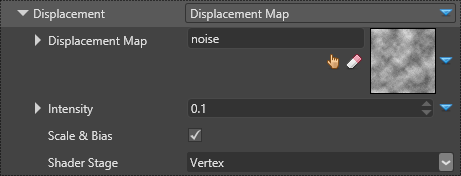
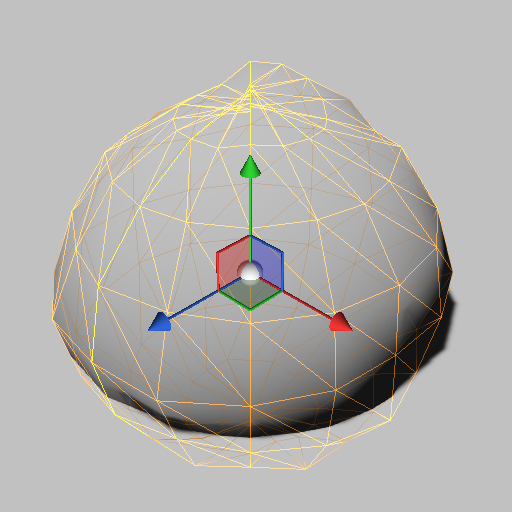
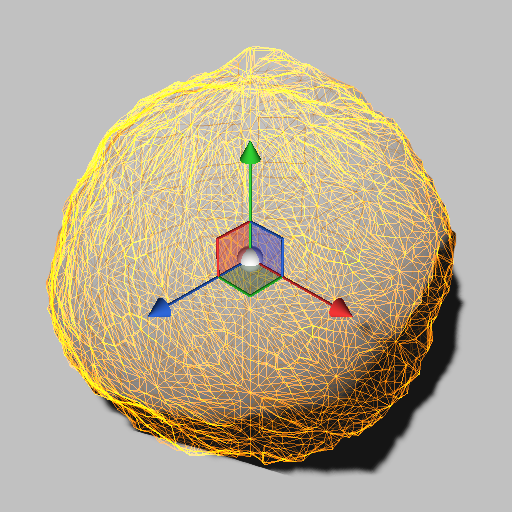
Depending on the stage at which the displacement is applied, the results can be very different:
| Displacement with vertex shader | Tessellation with displacement |
|---|---|
 |
 |
| Property | Description |
|---|---|
| Displacement Map | The displacement texture as a material color provider |
| Intensity | The amount of displacement |
| Scale & Bias | When enabled, the value coming from the texture is considered a positive value ranging from 0.0 to 1.0 and the shader applies a scale to get the range -1.0 to 1.0 |
| Shader Stage | Specify which shader stage the displacement map should be applied to: vertex shader or domain shader (used with tessellation) |
Surface
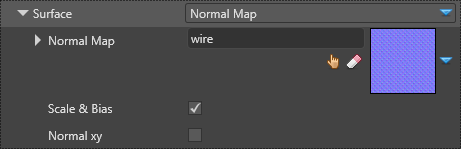
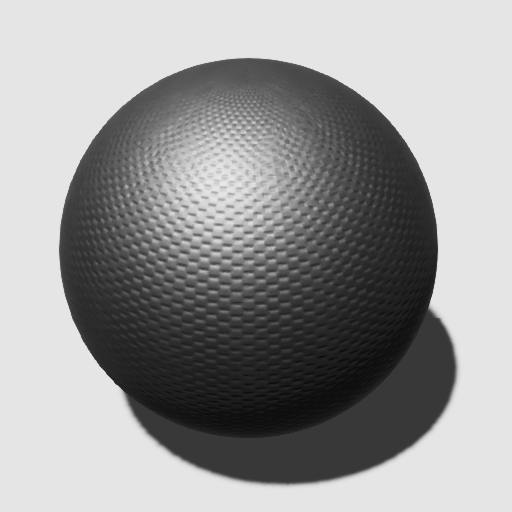
Under the Surface properties, you can define a Normal maps to define macro surface normals. The normal map provides per-pixel normal perturbation of the normal of the mesh. Normal maps create the appearance of bumps and indents in the mesh:
| Flat | Using a normal map |
|---|---|
 |
 |
| Property | Description |
|---|---|
| Normal Map | The normal map color provider |
| Scale and offset | If enabled, values from the texture are considered positive values ranging from 0.0 to 1.0. The shader applies a scale to get the range -1.0 to 1.0 |
| Reconstruct Z | If enabled, this reconstructs the Z component from the X and Y components, assuming that X2 + Y2 + Z2 = 1 and that Z is always positive, so no normal vector can point to the back side of the surface. This is necessary when storing normals in a 2-channel texture, throwing away the Z component. Xenko might select such a format when you choose to Compress a normal map, so this option needs to be enabled. |
For more information about normal maps, see the normal maps page.
Micro surface
Under the Micro surface setting, you can provide a glossiness map to provide per-pixel information for glossiness.
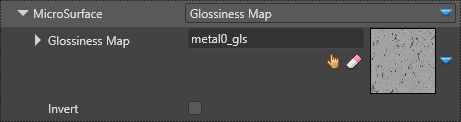
If you select Float:
- a value of 1.0 means the surface is highly glossy (the coarse normal isn't perturbed)
- a value of 0.0 means the surface is very rough (the coarse normal is highly perturbed in several directions)
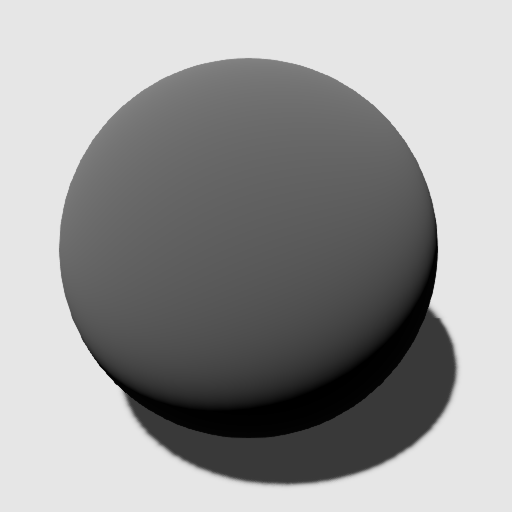
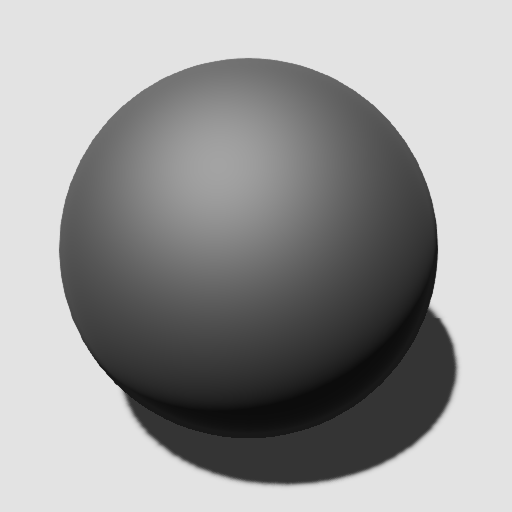
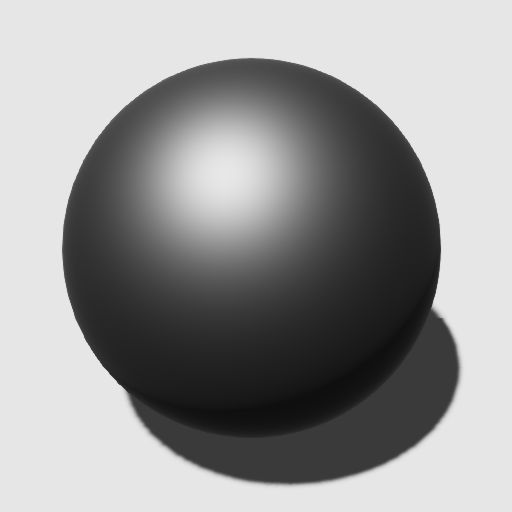
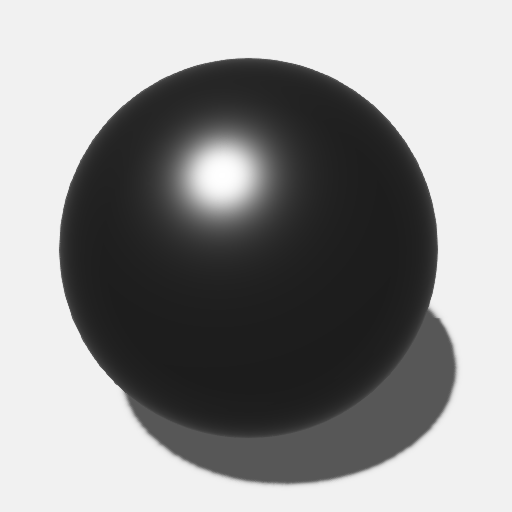
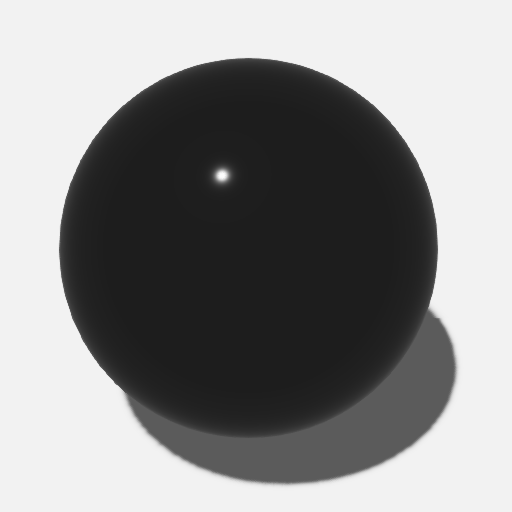
The screenshots below show different levels of glossiness on a material:
- Diffuse = #848484, Lambert
- Specular Metalness = 1.0, GGX
| Glossiness = 0.0 | 0.25 | 0.5 | 0.8 | 1.0 |
|---|---|---|---|---|
 |
 |
 |
 |
 |
| Property | Description |
|---|---|
| Glossiness map | The glossiness map color provider |
| Invert | Inverts the glossiness value (eg a value of 1.0 produces zero glossiness instead of maximum). This effectively turns the glossiness attribute into a roughness attribute found in other game engines |