Textures
Beginner Artist Programmer
Textures are images mainly used in materials. Xenko maps textures to the surfaces the material covers.
Textures can add color information to a material — for example, to add a brick pattern to a wall or a wood pattern to a table. The values of the pixels in a texture (texels) can also be used for other calculations, such as in specular maps, metalness maps, or normal maps.
Materials typically contain multiple textures; for example, a material might contain a color texture, a normal map texture, and a roughness texture.
Textures can also be used outside materials; for example, you can draw them directly to the UI, or use them in sprites.
Supported file types
You can use the following file types as textures:
.dds.jpg.jpeg.png.gif.bmp.tga.psd.tif.tiff
Note
- Xenko only imports the first frame of animated image files, such as animated gifs or PNGs. They don't animate in Xenko; they appear as static images.
- Xenko currently doesn't support movie files.
Add a texture
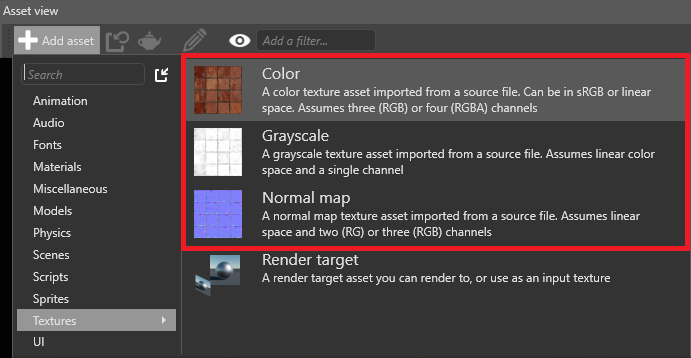
In the asset view, click Add asset > Texture, then select a template for the texture (color, grayscale or normal map):
Note
render textures are a different kind of texture, and don't use images. Instead, they render the output from a camera. For more information, see Render textures.
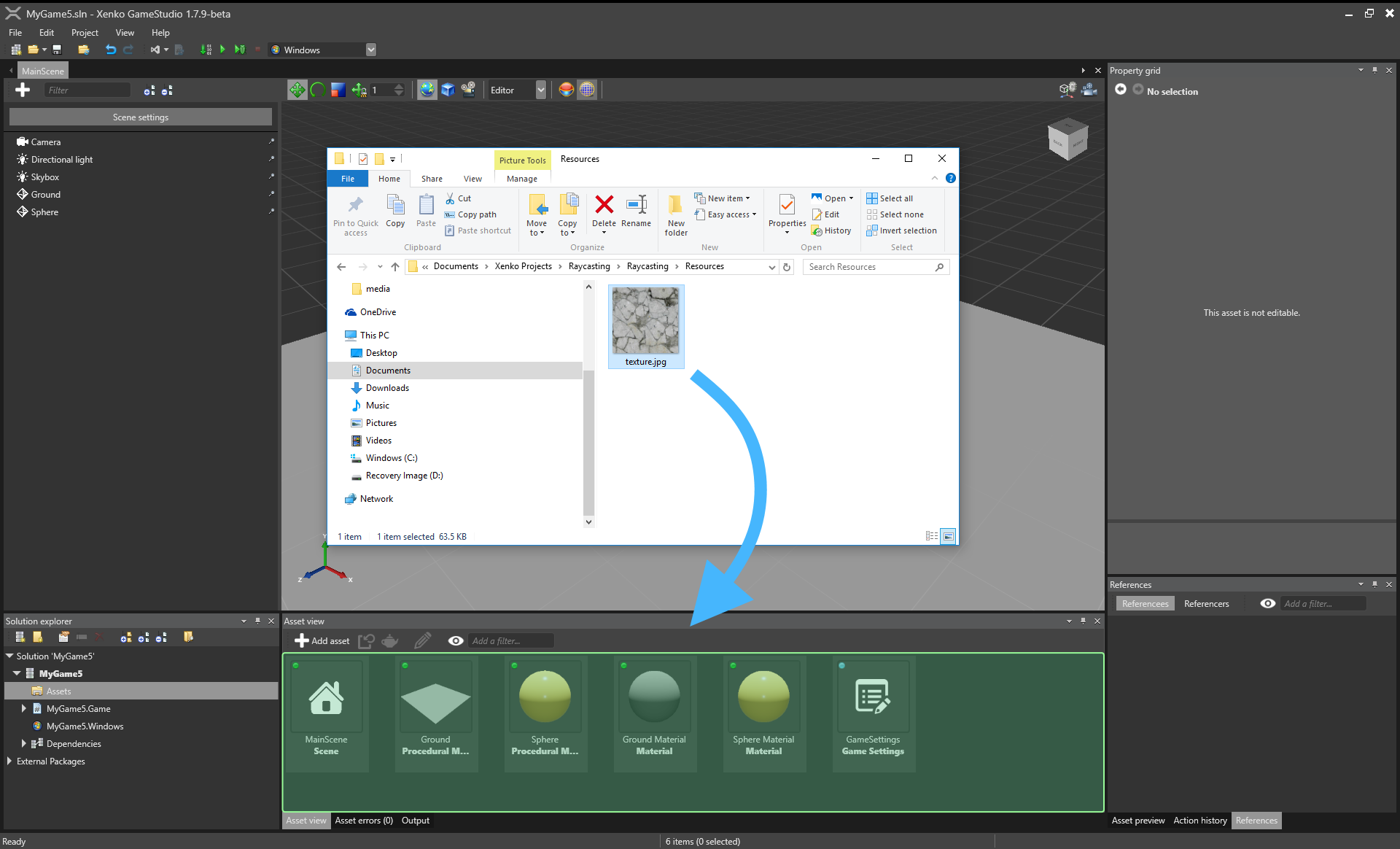
Alternatively, drag the texture file from Explorer to the asset view:
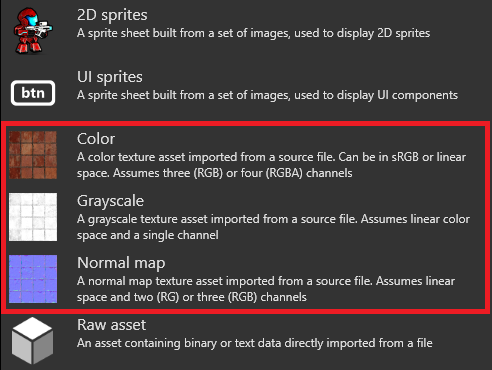
Then select a texture template (color, grayscale or normal map):
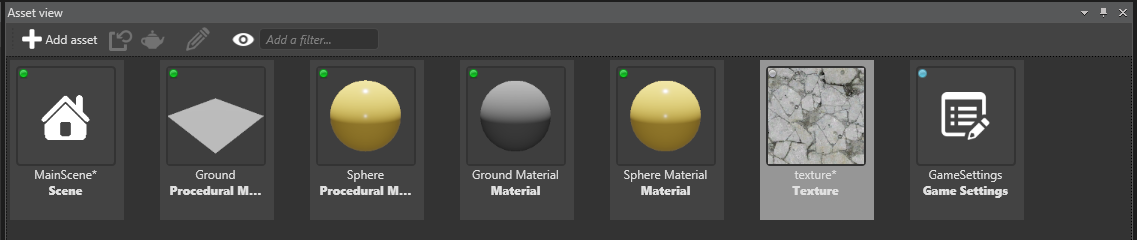
Game Studio adds the texture to the asset view:
Texture properties
The following properties are common to all textures.
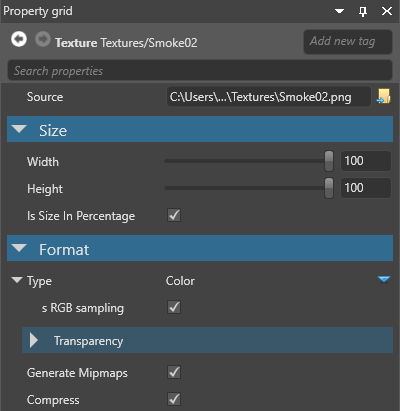
| Property | Description |
|---|---|
| Width | The width of the texture as it's displayed in-game |
| Height | The height of the texture as it's displayed in-game |
| Is size in percentage | Use percentages for width and height instead of actual pixel size |
| Width | The width of the texture as it's displayed in-game |
| Height | The height of the texture as it's displayed in-game |
| Type | The texture type. Use Color for textures you want to display as images, Normal map for normal maps, and Greyscale to provide values for other things (eg specular maps, metalness maps, roughness maps). Color textures and mormal maps have additional properties (see below) |
| Generate mipmaps | Generate mipmaps for the texture |
| Compress | Compresses the texture to a format based on the target platform and use. The final texture must be a multiple of 4. For more information, see Texture compression |
Color texture properties
The following properties apply if you set the texture type to color.
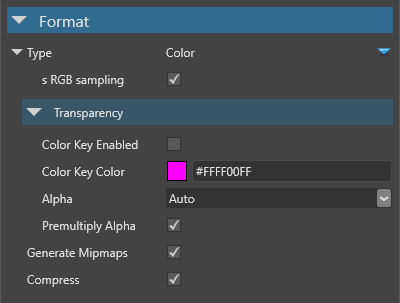
| Property | Description |
|---|---|
| sRGB sampling | Store the texture in sRGB format and convert to linear space when sampled. Recommended for all color textures, unless they're explicitly in linear space. |
| Color key enabled | Use the color set in the Color key color property for transparency at runtime. If disabled, the project uses transparent areas of the texture instead |
| Color key color | The color used for transparency at runtime. Only applied if Color key enabled is selected. |
| Alpha | The texture alpha format (None, Mask, Explicit, Interpolated, or Auto) |
| Premultiply alpha | Premultiply all color components of the images by their alpha component |
Normal map properties
The following property applies if you set the texture type to normal map.
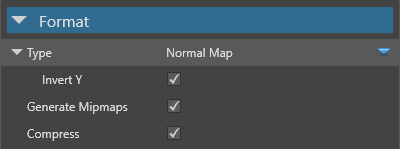
| Property | Description |
|---|---|
| Invert Y | Have positive Y-component (green) face up in tangent space. This option depends on the tools you use to create normal maps. |
For more information about normal maps, see the Normal maps page.
Grayscale textures
You can use grayscale textures to provide values in material maps. For example, you can use a texture as a blend map to blend two material layers:
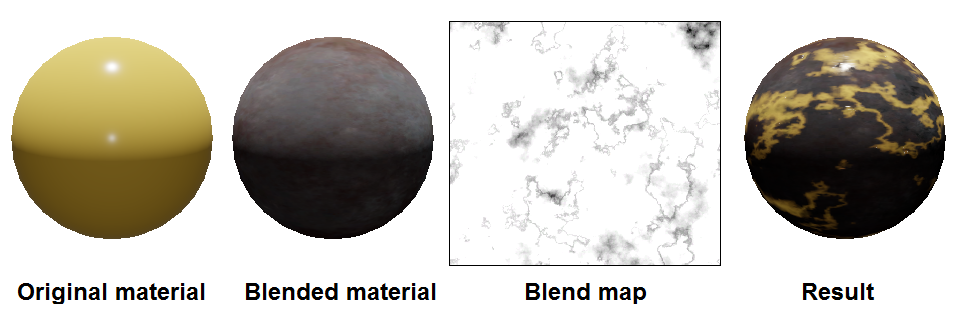
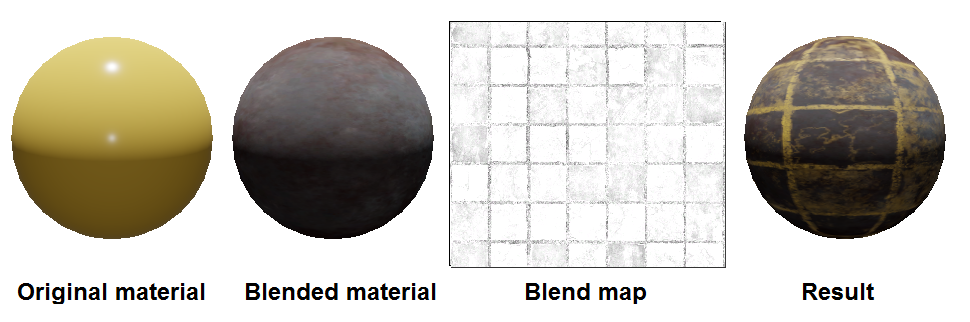
Note how the blend map texture corresponds to the patterning on the result.
For more information, see Material maps.
Global texture settings
For instructions about how to access the global texture settings, see the Game Settings page.
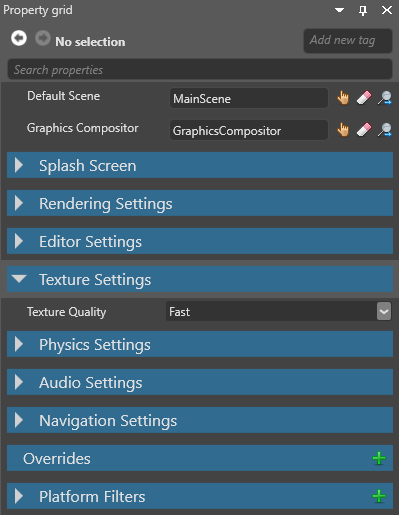
| Property | Description |
|---|---|
| Texture quality | The texture quality when encoding textures. Fast uses the least CPU, but has the lowest quality. Higher settings might result in slower builds, depending on the target platform. |