Gamepads
Beginner Programmer
Gamepads, such as the Xbox Elite Wireless Controller and the PS4 DualShock, are popular input devices for consoles and desktop.
Note
Xenko is currently optimized for the Xbox Elite gamepad. Other controllers work, but might have unexpected button mappings.
Digital and analog buttons
- Digital buttons have three states: pressed, down, and released. The D-pad, Start, Back, Thumbstick (press), A, B, X and Y buttons are digital buttons.
- Analog buttons return a value depending on how hard the user presses. The triggers are analog buttons, and return a value between 0 and 1. The thumbsticks are also analog, and return values between -1 and 1 on the X and Y axes.
The Xbox Elite controller buttons have the following names in Xenko:
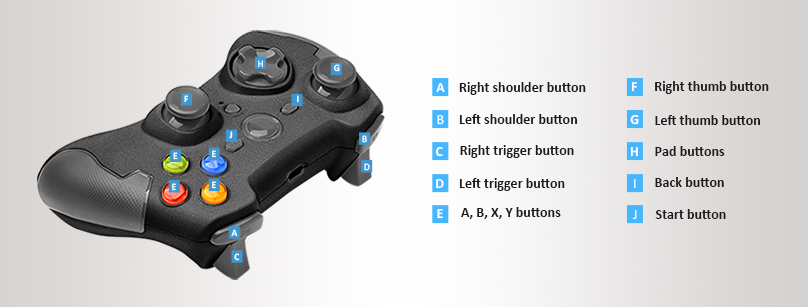
Handle gamepad input
Check that gamepads are connected
Before handling gamepad input:
- To check if a gamepad is connected, use Input.HasGamePad.
- To check how many gamepads are connected, use Input.GamePadCount.
- To check if the current gamepad has been disconnected, use GamePadState.IsConnected.
Note
Xenko doesn't support gamepads connected at runtime.
Digital buttons
Query the states and state changes of digital gamepad buttons with the following methods:
| Method | Functionality |
|---|---|
| IsPadButtonDown(index, button) | Checks whether the button is in the down state. |
| IsPadButtonPressed(index, button) | Checks whether the user has pressed the button since the previous update. |
| IsPadButtonReleased(index, button) | Checks whether the user has released the button since the previous update. |
- index (Integer): The index of the gamepad you want to check.
- button (GamePadButton): The gamepad button you want to check.
You can also get the state of digital buttons using GamePadState.Buttons.
Note
The GamePadState.Buttons field is a bitmask that uses binary system. Depending on the bitmask value, you can determine which buttons are up or down.
Analog buttons
To query values of analog buttons, first get the current state of gamepad using GetGamePad(index), where index (Integer) is the index of the gamepad you want to check.
Warning
The value returned by GetGamePad(index) is the state of the gamepad at the current update. You can't reuse this value for the next updates. You have to query it again in every update.
To get trigger and thumbstick positions, use these GamePadState fields:
| Field | Description |
|---|---|
| LeftThumb | Left thumbstick X-axis/Y-axis value in the range [-1.0f, 1.0f] for both axes. |
| RightThumb | Right thumbstick X-axis/Y-axis value in the range [-1.0f, 1.0f] for both axes. |
| LeftTrigger | Left trigger analog control value in the range [0, 1.0f] for a single axes. |
| RightTrigger | Right trigger analog control value in the range [0, 1.0f] for a single axis. |
Thumbsticks move along the X and Y axes. Their positions read as follows:
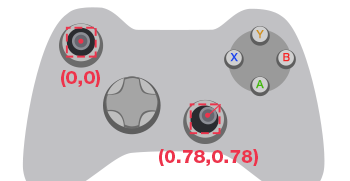
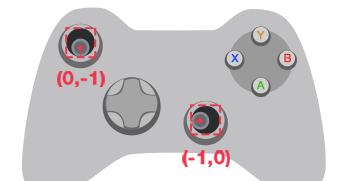
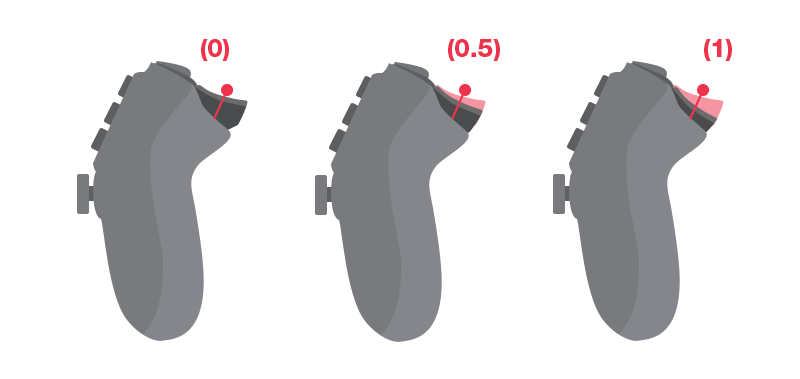
Triggers move along the X axis. Their positions read as follows:
Vibration
To set the gamepad vibration level, use SetGamePadVibration.
Note
Currently, Xenko only supports vibration for Xbox gamepads.
Example code
public class TestScript : SyncScript
{
    public override void Update()
    {
        //Check if a gamepad is connected
        if (Input.HasGamePad)
        {
            //Get the number of connected gamepads
            int gamepadCount = Input.GamePadCount;

            // Check each gamepad's status
            for (int i = 0; i < gamepadCount; i++)
            {
                //Get the analog thumbstick positions
                Vector2 speed = Input.GetGamePad(i).LeftThumb;
                Vector2 direction = Input.GetGamePad(i).RightThumb;

                //Get the digital buttons' status
                if (Input.IsPadButtonDown(i, GamePadButton.X))
                {
                    // The action repeats for as long as the user holds the button down.
                    // This is useful for continuous actions such as firing a machine gun.
                }
                if (Input.IsPadButtonPressed(i, GamePadButton.A))
                {
                    // The action is triggered only once, even if the user holds the button down.
                    // This is useful for one-time actions such as jumping.
                }
            }
        }
    }
}