Virtual buttons
Intermediate Programmer
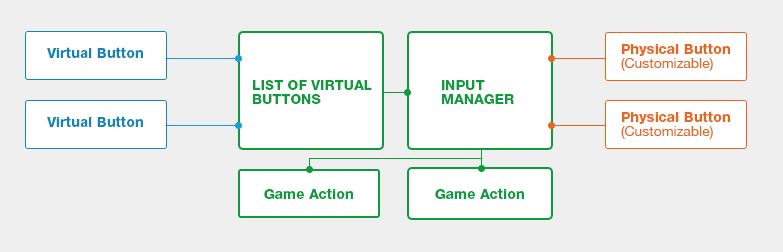
Rather than bind controls to physical keys and buttons, you can bind them to virtual buttons. Users can then assign physical buttons to the virtual buttons, allowing them to create their own control schemes.
For example, imagine you develop a first-person shooter game and need to assign a key for the UseMedkit function. Rather than bind the function to a particular key, you can create a virtual button called UseMedkit, then bind the virtual button to, say, the F key. If they want to, the player can then bind the virtual key to a different key at runtime.
Use virtual buttons
- Bind a key, button, or pointer to a virtual button (eg MyButton).
- Create a list of virtual buttons.
- Add MyButton to the list of virtual buttons.
- Assign a function to MyButton.
- Create additional virtual buttons.
- Add the additional buttons to the same list, or create additional lists.
Example code
public override void Start()
{
    base.Start();

    // Create a new VirtualButtonConfigSet if none exists.
    Input.VirtualButtonConfigSet = Input.VirtualButtonConfigSet ?? new VirtualButtonConfigSet();

    //Bind "M" key, GamePad "Start" button and left mouse button to a virtual button "MyButton".
    VirtualButtonBinding b1 = new VirtualButtonBinding("MyButton", VirtualButton.Keyboard.M);
    VirtualButtonBinding b2 = new VirtualButtonBinding("MyButton", VirtualButton.GamePad.Start);
    VirtualButtonBinding b3 = new VirtualButtonBinding("MyButton", VirtualButton.Mouse.Left);

    VirtualButtonConfig c = new VirtualButtonConfig();

    c.Add(b1);
    c.Add(b2);
    c.Add(b3);

    Input.VirtualButtonConfigSet.Add(c);
}

public override void Update() {
    float button = Input.GetVirtualButton(0, "MyButton");
}
Note
You can also bind keys and buttons not included in the Xenko API. For example, while the Xenko API supports two Extended Mouse Buttons, you can bind additional Extended Buttons to virtual buttons and use them in your project.