Changing your account settings
In the top-right corner of the Anaconda Enterprise screen, click the user icon, then select Account Settings from the drop-down menu that appears.
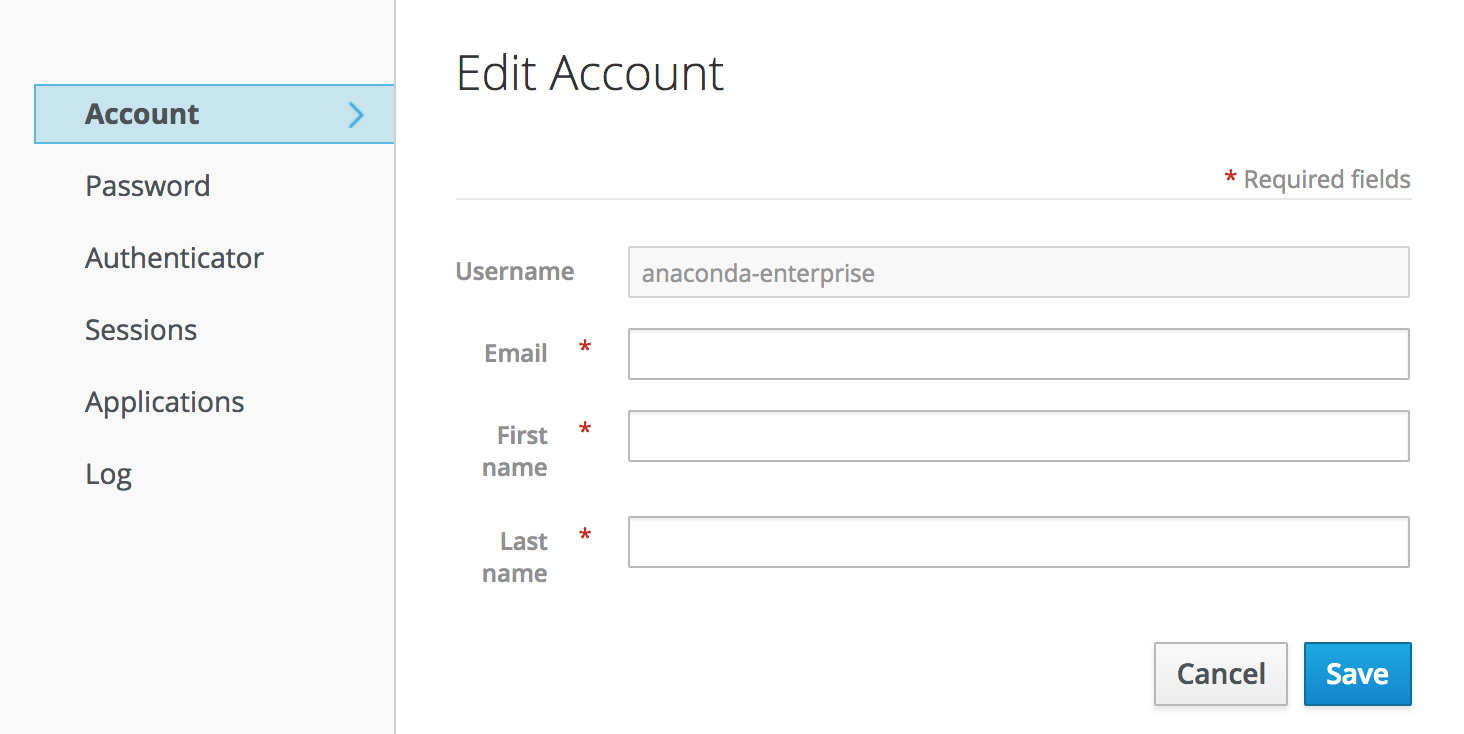
- Account–Change your email address, first name or last name.
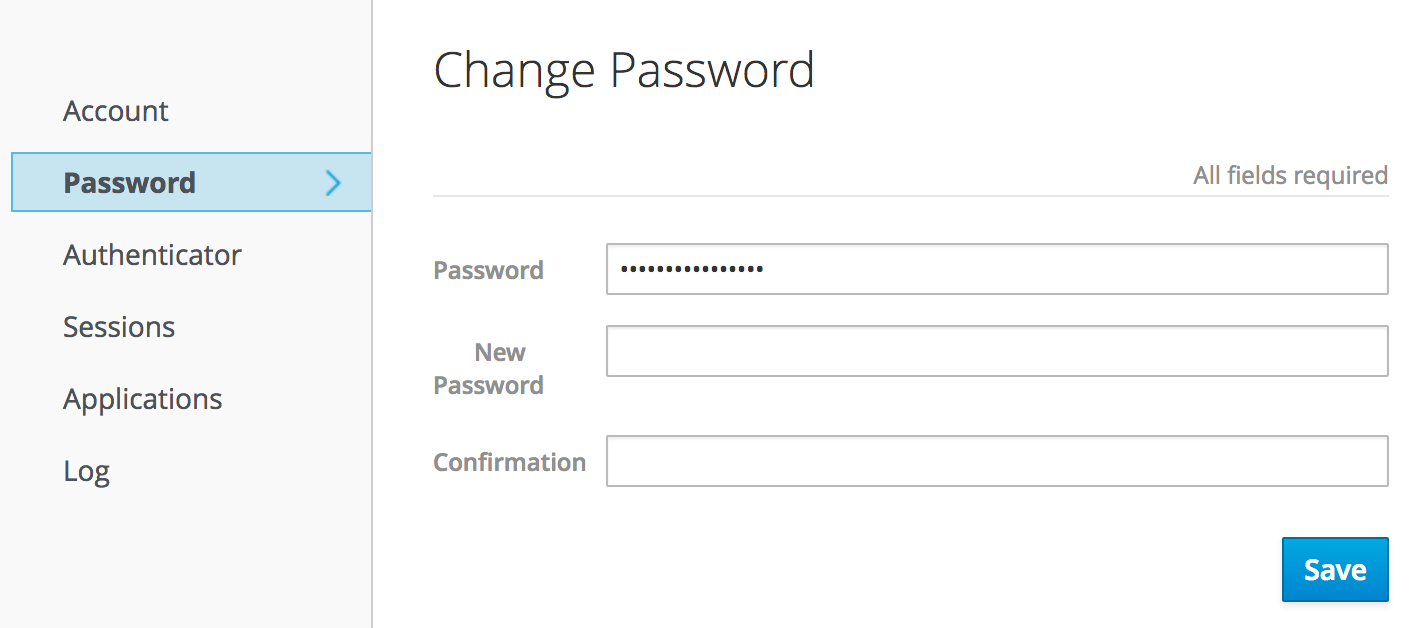
- Password–Change your password.
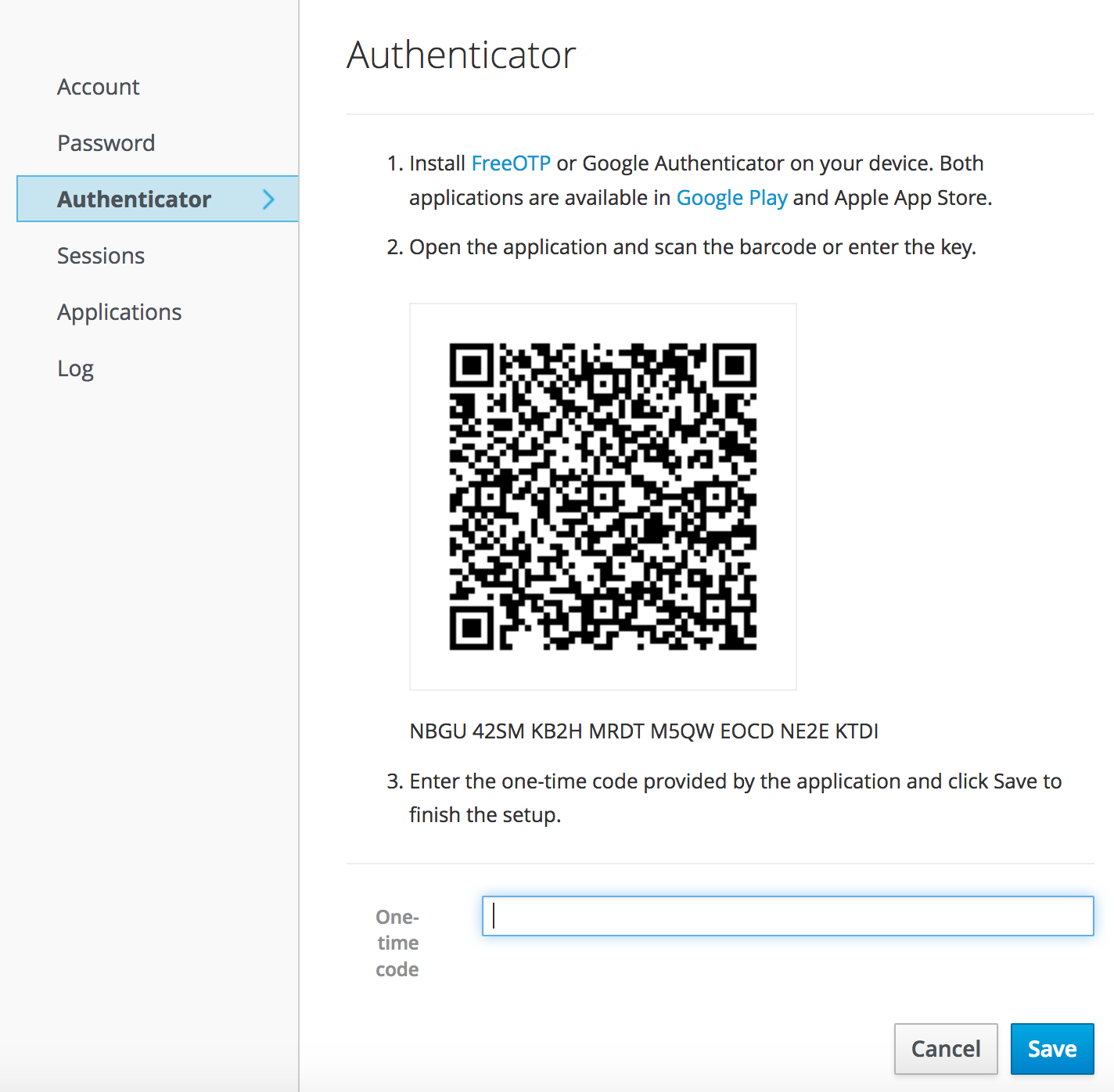
- Authenticator–Enable 2-step verification with FreeOTP or Google Authenticator.
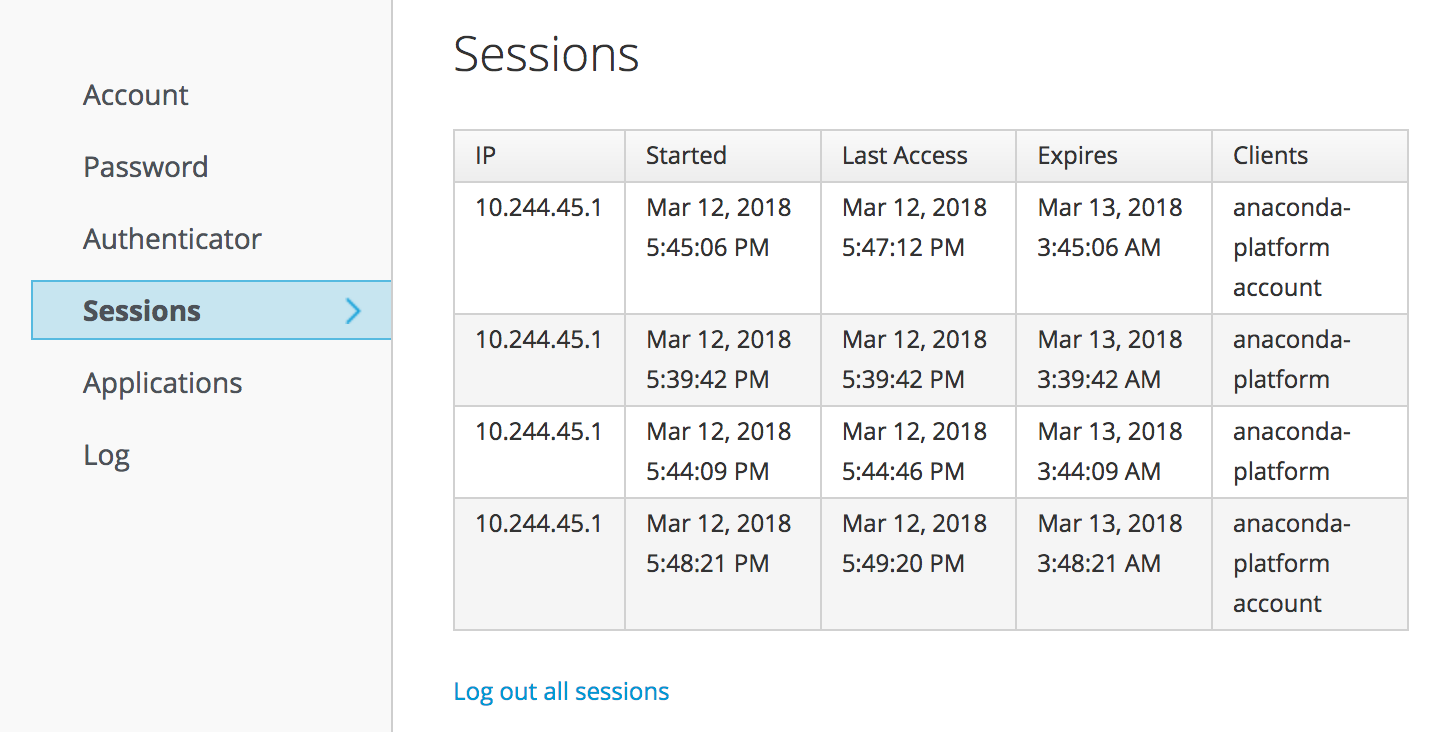
- Sessions–View a list of when sessions started, last access, IP address, and log out of all sessions.
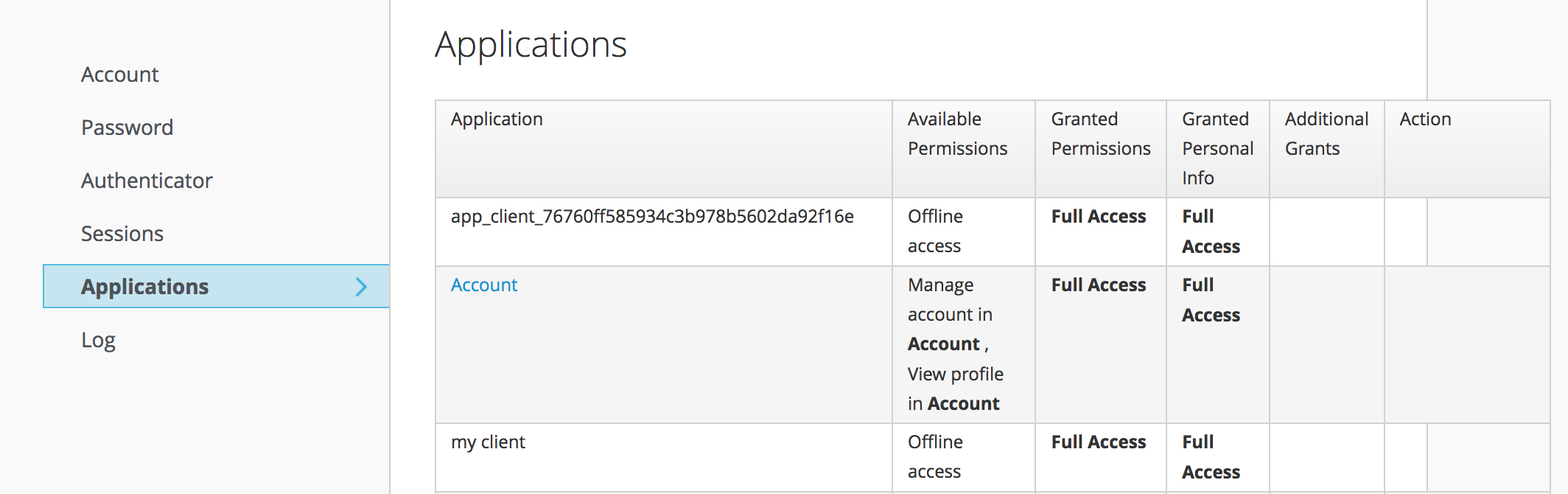
- Applications–View a list of running applications, their permissions and further info.
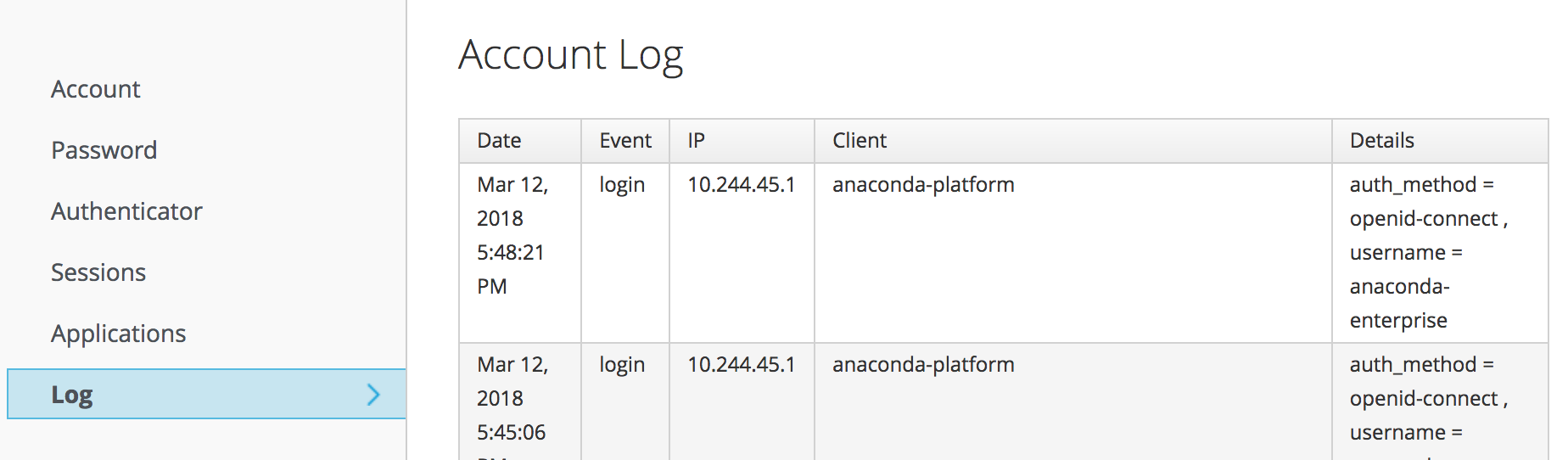
- Log–View the history of all account actions with date, event, IP address used, client and details.
Account
Edit your email address, first or last name, then click the Save button.
Password
Enter your current password, then a new password and the new password again in the Confirmation box. Click the Save button.
Authenticator
You will need to have FreeOTP or Google Authenticator previously installed. You can get both in Google Play and in the Apple App Store.
After downloading, open the application and scan the barcode or enter the key.
Then paste the one-time code into the box and click the Save button.
Sessions
View a list of when sessions started, when you last accessed your account, view your IP address or log out of all sessions.
Applications
View a list of all of your running applications, their available and granted permissions, the personal information granted to them and any additional grants.
If a grant is revocable, you will see a “Revoke Grant” button in the Action column. Click it to revoke access.
Log
View the history of all account actions with date, event, IP address used, the client and details.