

|
|
|
The Log Process Display screen appears when you select Processes from the Log Info Menu screen. As shown below, this screen displays the current processes in the logging system and their states and statistics.
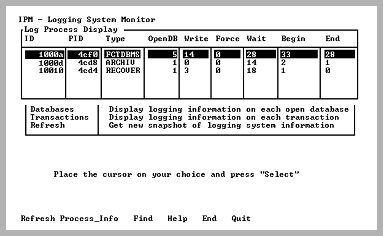
The processes include DBMS servers, the archiver and recovery processes. Information available includes number of open databases and log write requests. By viewing this data you can, for example, determine how much logging activity (by process) is occurring for a DBMS server.
The Log Process Display screen has the following information:
The internal process ID (PID) of processes in the logging system. This is not the operating system PID.
The operating system process ID (PID) for this process
The type of process. Valid types are as follows:
Archiver processor for the current installation (ACP)
Online backup
DBMS server process
DBMS server process running with fast commit
Recovery process (RCP)
Server is attached to a shared data buffer.
The number of different databases currently opened
The number of log file write requests made by this process
The number of log forces
Indicates how many times the current process waited to use the logging system
The number of transactions started by this process
The number of transactions ended. The difference between the value in this column and the value in the Begin column is the number of current transactions for this process.
|
|
|
The Log Process Display has the following menu items:
Queries the logging system for logging information. Process, database, and transaction information are obtained together to ensure a consistent snapshot of the logging system.
Appears on VMS.
Displays the Detailed Process Information screen. This screen shows various job-process information for the process on which the cursor is positioned. Such information includes CPU time, Direct I/O, Buffered I/O, Enqueue limit, etc. This display automatically refreshes.
For details on this screen, see Detailed Process Information Screen (VMS Only).
Searches any column in the scrolling area. To initiate the search, tab to the desired column and select Find. If you are searching a text column, Find locates all occurrences in the column.
Displays help screens.
Returns to the Log Info Menu screen.
Exits IPM.