Use sprites
Intermediate Programmer
To add a sprite to a scene, add a sprite component to an entity. Afterwards, you can control the sprite with a script.
Add a sprite component
In the Scene Editor, select the entity you want to add a sprite to.
Tip
To create an entity, right-click the scene or entity tree and select Empty entity.
In the property grid, click Add component and select Sprite.
Game Studio adds a Sprite component to the entity.
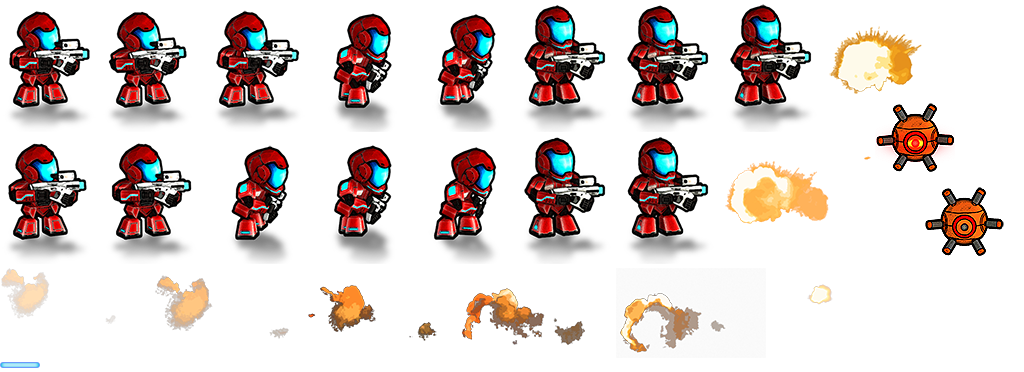
From the asset view, drag the sprite sheet to the Source field in the Sprite component:
Alternatively, click
 (Pick an asset up):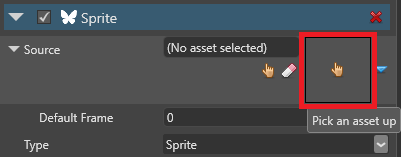
Then choose a sprite sheet:
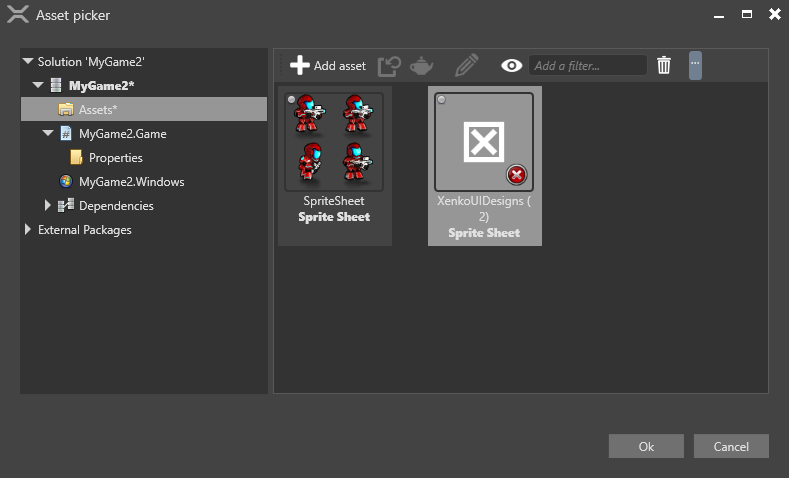
Game Studio adds the sprite to the entity.
Use sprites in a script
You can use scripts to render sprites at runtime. To do this, attach the script to an entity with a sprite component.
For information about how to add scripts to entities, see Use a script.
Code sample
This script displays a sprite that advances to the next sprite in the index every second. After it reaches the end of the sprite index, it loops.
using SiliconStudio.Xenko.Rendering.Sprites;

public class Animation : SyncScript
{
   // Declared public member fields and properties are displayed in Game Studio.
   private SpriteFromSheet sprite;
   private DateTime lastFrame;

   public override void Start()
   {
       // Initialize the script.
       sprite = Entity.Get<SpriteComponent>().SpriteProvider as SpriteFromSheet;
       lastFrame = DateTime.Now;
   }

   public override void Update()
   {
      // Do something every new frame.
      if ((DateTime.Now - lastFrame) > new TimeSpan(0, 0, 1))
      {
         sprite.CurrentFrame += 1;
         lastFrame = DateTime.Now;
      }
   }
}