
Configuring SSL
After initial configuration, configuring SSL certificates for Anaconda Enterprise is done from the Anaconda Enterprise Administrative Settings menu.
This page explains how to change administrative settings through the Anaconda Platform web UI.
In the top-right corner of the Anaconda Enterprise screen, click the user icon.
In the menu that appears, select Administrative Settings.

Configuring SSL certificates
Assemble the following:
- Registered domain name
- SSL certificate for
servername.domain.tld, filenameserver.crt- SSL private key for
servername.domain.tld, filenameserver.key- Root SSL certificate (such as this default Root CA), filename
rootca.crt. A root certificate is optional but recommended.- SSL intermediate chain/bundle, filename
intermediate.pem- Wildcard domain name
- SSL wildcard certificate for
*.servername.domain.tld, filenamewildcard.crt. A wildcard certificate is not necessary if the existing SSL certificate has a Subject Alternative Name for the wildcard domain. If you’re not sure, ask your network administrator.- SSL private key for
*.servername.domain.tld, filenamewildcard.key. An SSL private key is not necessary if the existing SSL certificate has a Subject Alternative Name for the wildcard domain. If you’re not sure, ask your network administrator.
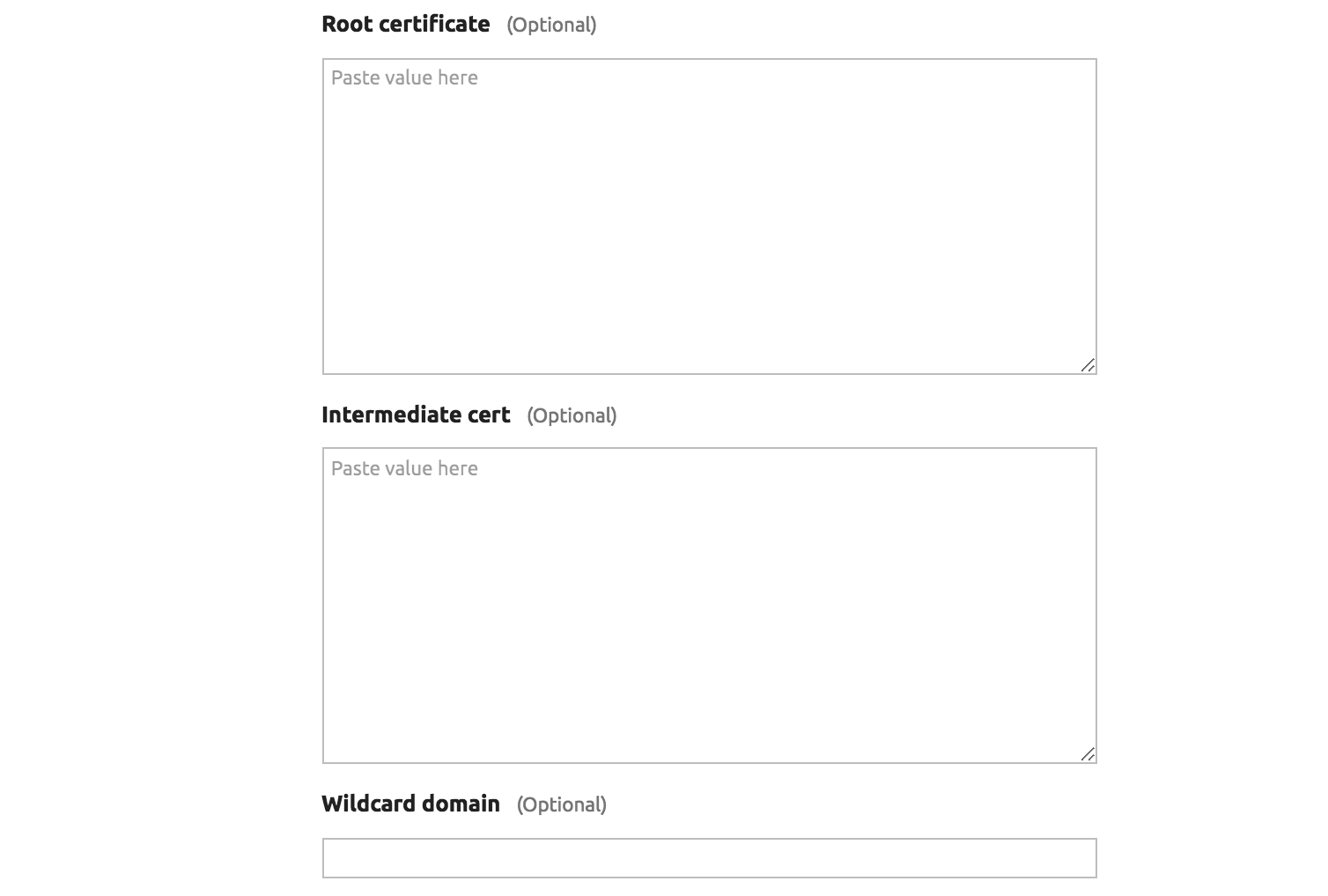
Copy and paste the files from the previous step as shown:


NOTE: If you have upgraded from a previous version of Anaconda Enterprise, you may need to update your configuration to make sure all services are referencing the correct SSL certificate filenames.
In Anaconda Enterprise 5.1.0 and newer, the default SSL certificate filenames provided by the installer are different than in previous versions. We recommend that you update any Kubernetes secrets you created and update the Anaconda Enterprise configuration to match the new filenames.
Previous Updated rootca.pemrootca.crtcert.pemserver.crtprivkey.pemserver.keytls.crtwildcard.crttls.keywildcard.key
NOTE: the keystore.jks filename is unchanged.