
View or change HTTPS Certificate
NOTE: The configuration of TLS/SSL certificates in the Operations Center applies only to the Operations Center web endpoint (on port 32009). Configuration of TLS/SSL certificates for all other Anaconda Enterprise services is a separate configuration process that is documented in the configuration section.
To add a new HTTPS certificate for the Operations Center, from any page of the Operations Center open the Settings menu by clicking the icon next to your username, then from the drop-down menu that appears, select Settings.
From the left navigation menu, click the HTTPS Certificate link.
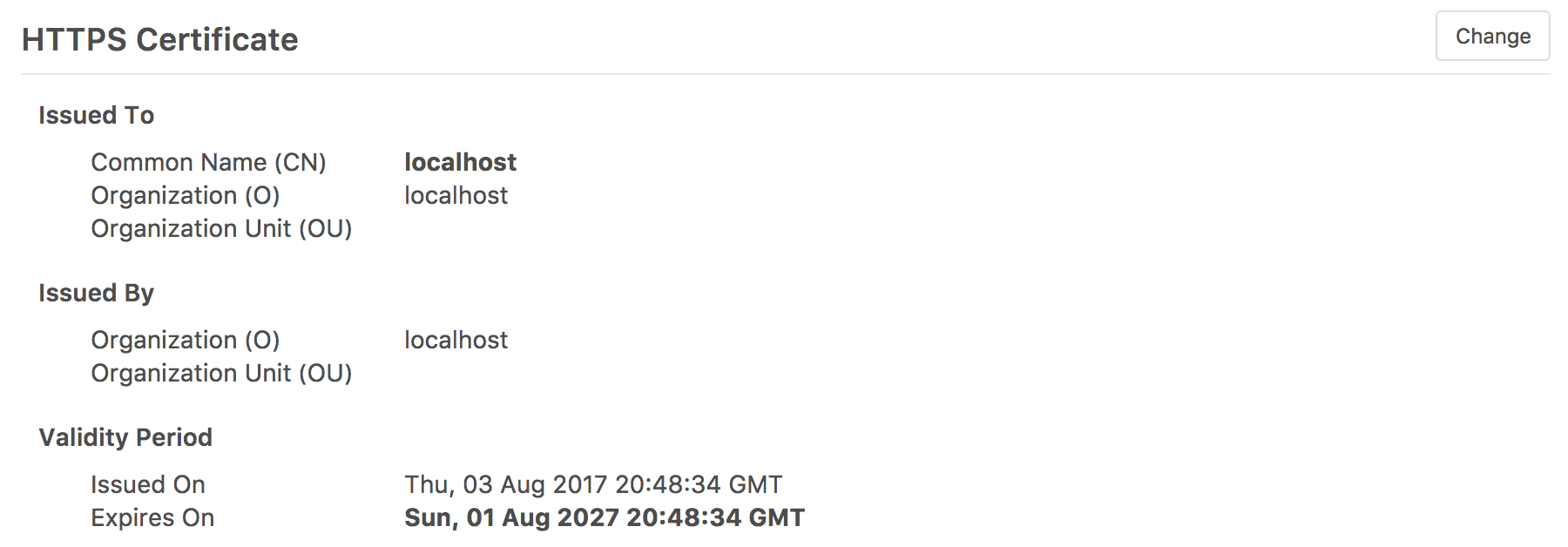
To change any of the settings, click the Change button in the upper right, then follow the directions below for each field.
Add private key
After you have received a Private Key from an SSL provider, save the file to your local computer. Then from the Operations Center’s HTTPS Certificate page, click the Browse… button next to the Private Key form box, locate the SSL file on your computer, and click the Upload or Open button.
Click the Save button for the file to be uploaded.
Add HTTPS certificate
After you have received the HTTPS Certificate from an SSL provider, save the file to your local computer. Then from the Operations Center’s HTTPS Certificate page, click the Browse… button next to the HTTPS Certificate form box, locate the Certificate file on your computer, and click the Upload or Open button.
Click the Save button for the file to be uploaded.
Add intermediary certificate
If you are using an Intermediate Certificate, save the certificate file to your local computer. Then from the Operations Center’s Intermediate Certificate page, click the Browse… button next to the HTTPS Certificate form box, locate the Certificate file on your computer, and click the Upload or Open button.
Click the Save button for the file to be uploaded.