
Federating Users with LDAP
Anaconda Enterprise comes with out-of-the-box support for LDAP / Active Directory. As each enterprise configuration of LDAP / AD is different, this section offers general guidance only. We strongly recommend coordinating with your LDAP administrator.
NOTE: You must have pagination turned off before starting.
Adding a Provider
If you are not logged in as an administrator, do so.
In the right-hand user menu click the Admin Console entry.
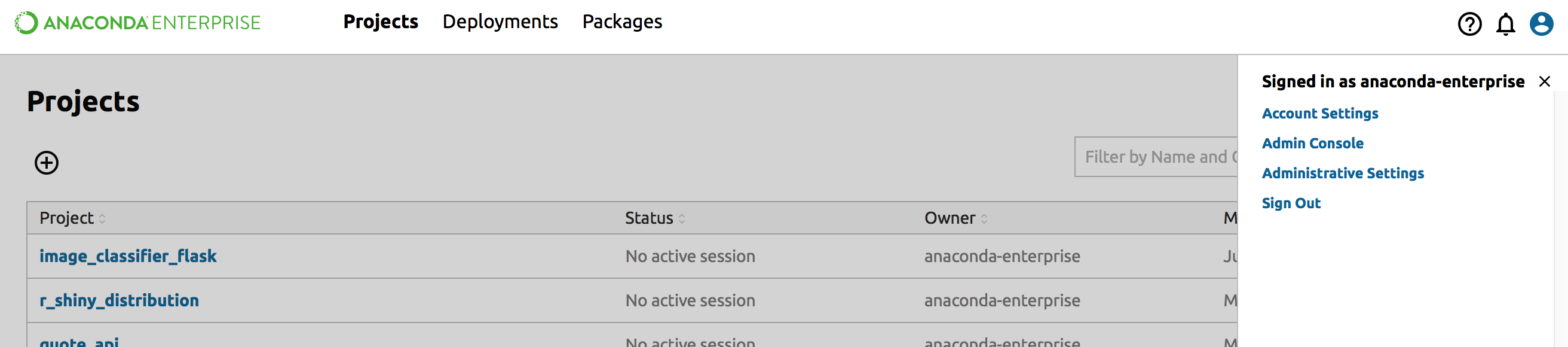
The login screen displays. Log in again as the admin.
In the Admin Console select the User Federation left menu item.
To begin configuring an LDAP identity provider, go to the right side to the Add Provider list box and choose the “ldap” provider type.
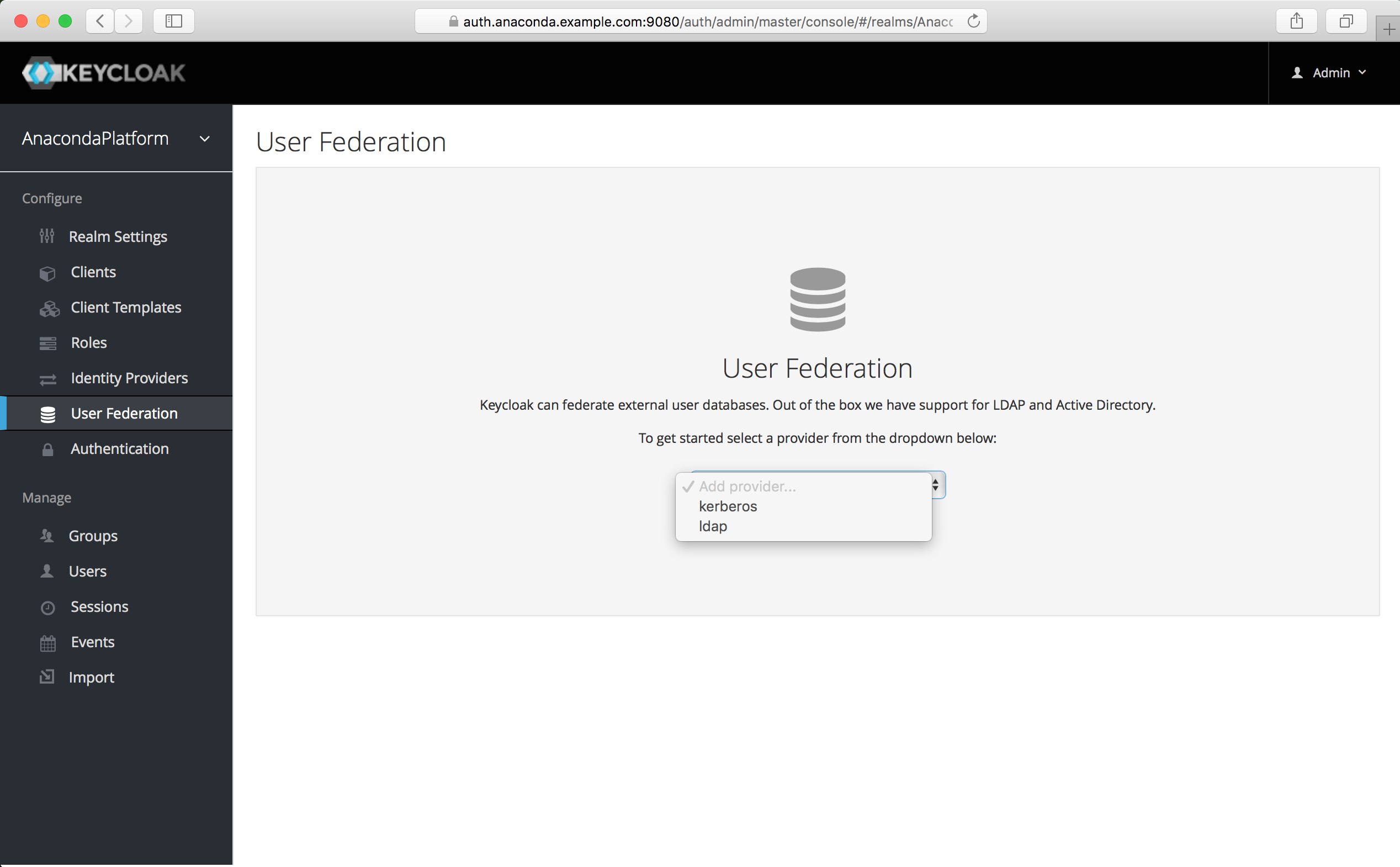
The initial required settings screen for your LDAP provider displays:
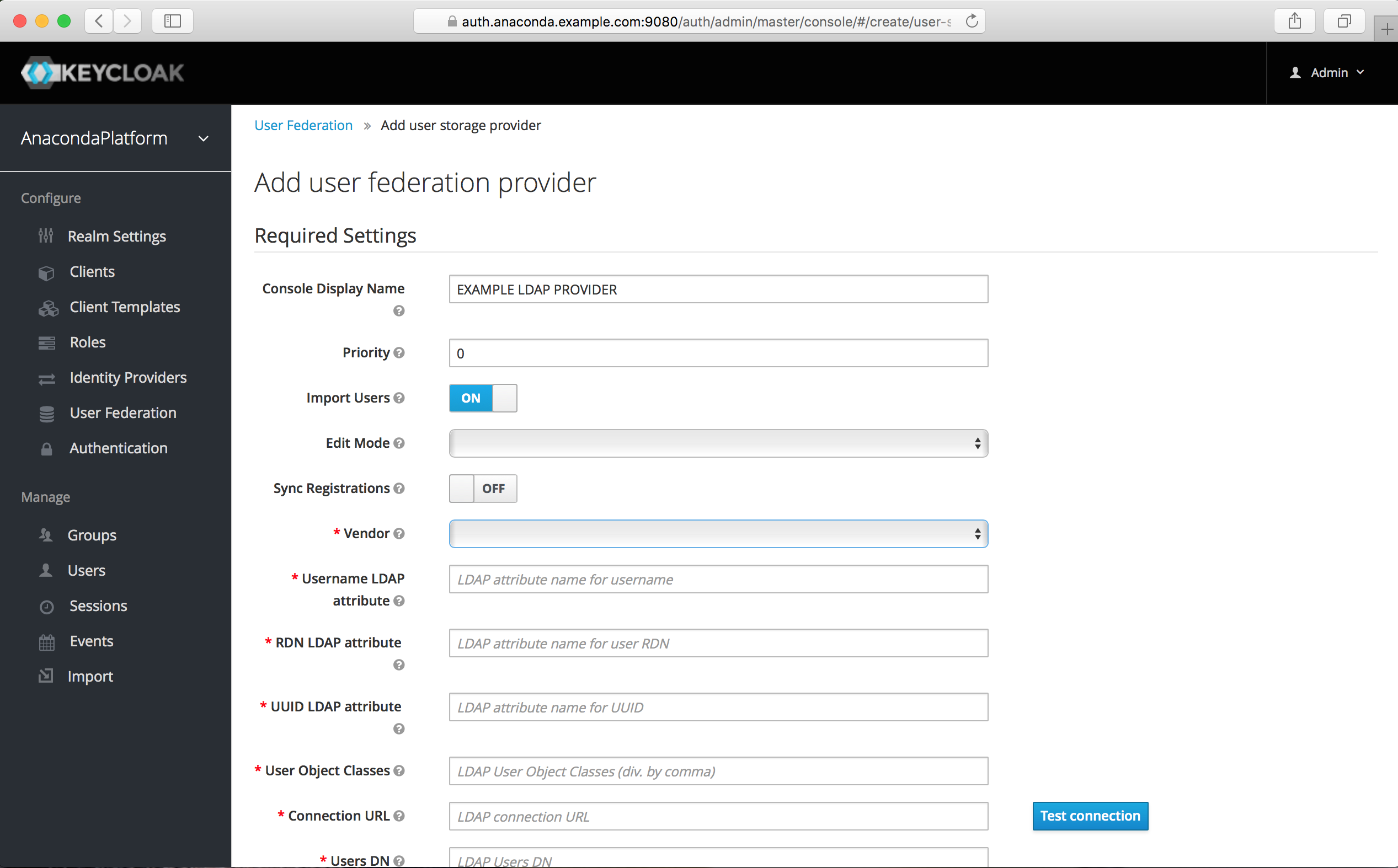
Multiple fields are required. The most important is the Vendor dropdown, which allows settings to be pre-filled to the defaults for different LDAP providers. Options include Active Directory, Red Hat Directory Server, Tivoli, and Novell eDirectory.

Make sure you select the correct one. If none of these matches, select Other and coordinate with your LDAP administrator when filling out this list of required fields:
- Username LDAP attribute
- Name of the LDAP attribute that will be mapped to the username. Active Directory installations
may use
cnorsAMAccountName. Others often useuid. - RDN LDAP attribute
- Name of the LDAP attribute that will be used as the RDN for a typical user DN lookup. This is often the
same as the above “Username LDAP attribute”, but does not have to be. For example, Active Directory
installations may use
cnfor this attribute while usingsAMAccountNamefor the “Username LDAP attribute”. - UUID LDAP attribute
- Name of an LDAP attribute that will be unique across all users in the tree. For example, Active Directory
installations should use
objectGUID. Other LDAP vendors typically define a UUID attribute, but if your implementation does not have one, any other unique attribute (such asuidorentryDN) may be used. - User Object Classes
- Values of the LDAP
objectClassattribute for users, separated by a comma. This is used in the search term for looking up existing LDAP users, and if read-write sync is enabled, new users will be added to LDAP with theseobjectClassvalues as well.
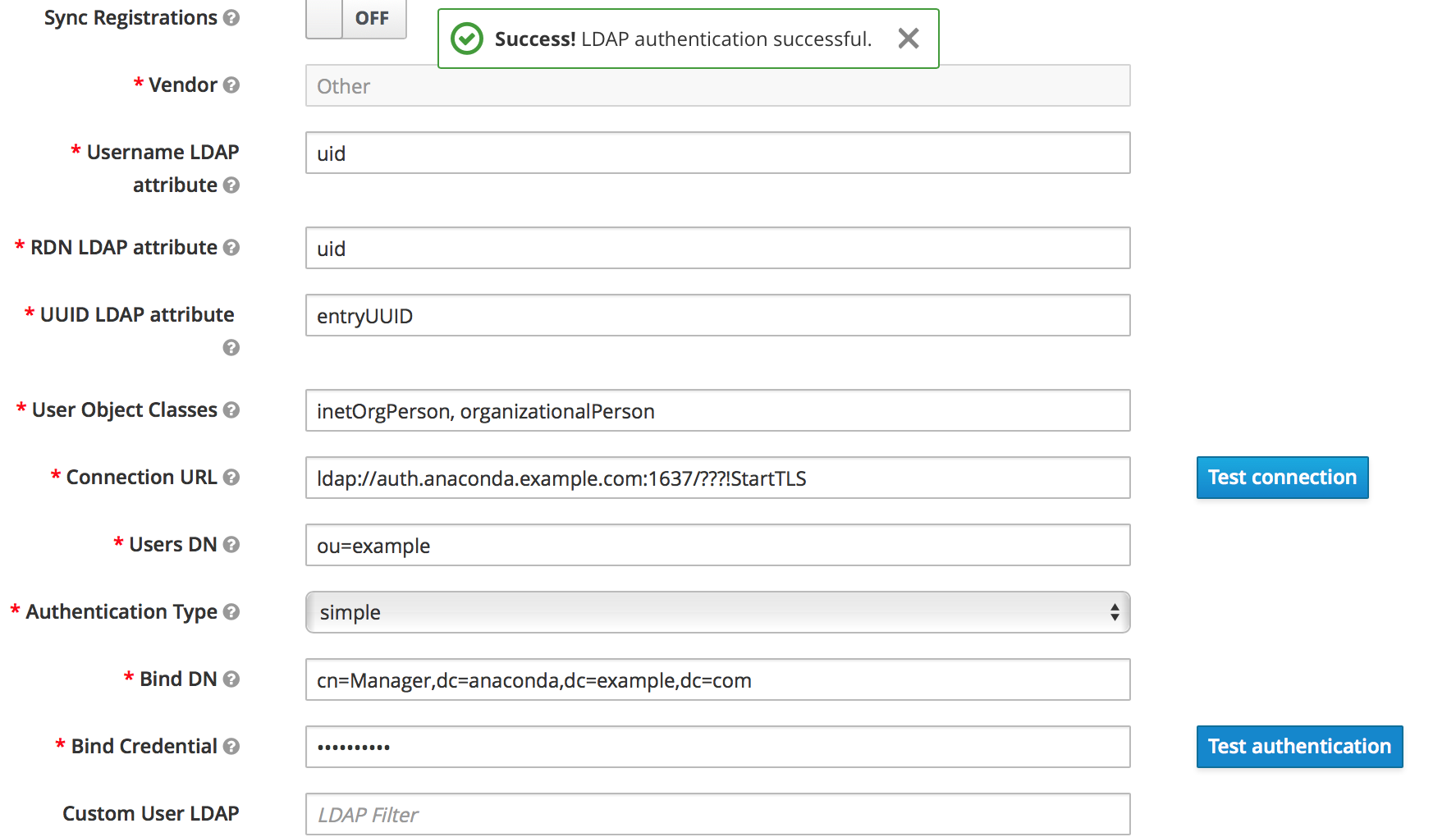
Make sure your connection to the LDAP server is correctly configured. The settings screen provides convenient buttons to test that a connection is working and is correctly authenticated:
Syncing Settings
By default, users will not be synced from the LDAP / Active Directory store until they log in. If you have a large number of users to import, it can be helpful to set up batch syncing and periodic updates.

Configuring Mappers
After you complete the initial setup the auth system generates a set of “mappers” for your
configuration. Each mapper takes a value from LDAP and maps it to a value in the internal auth database.
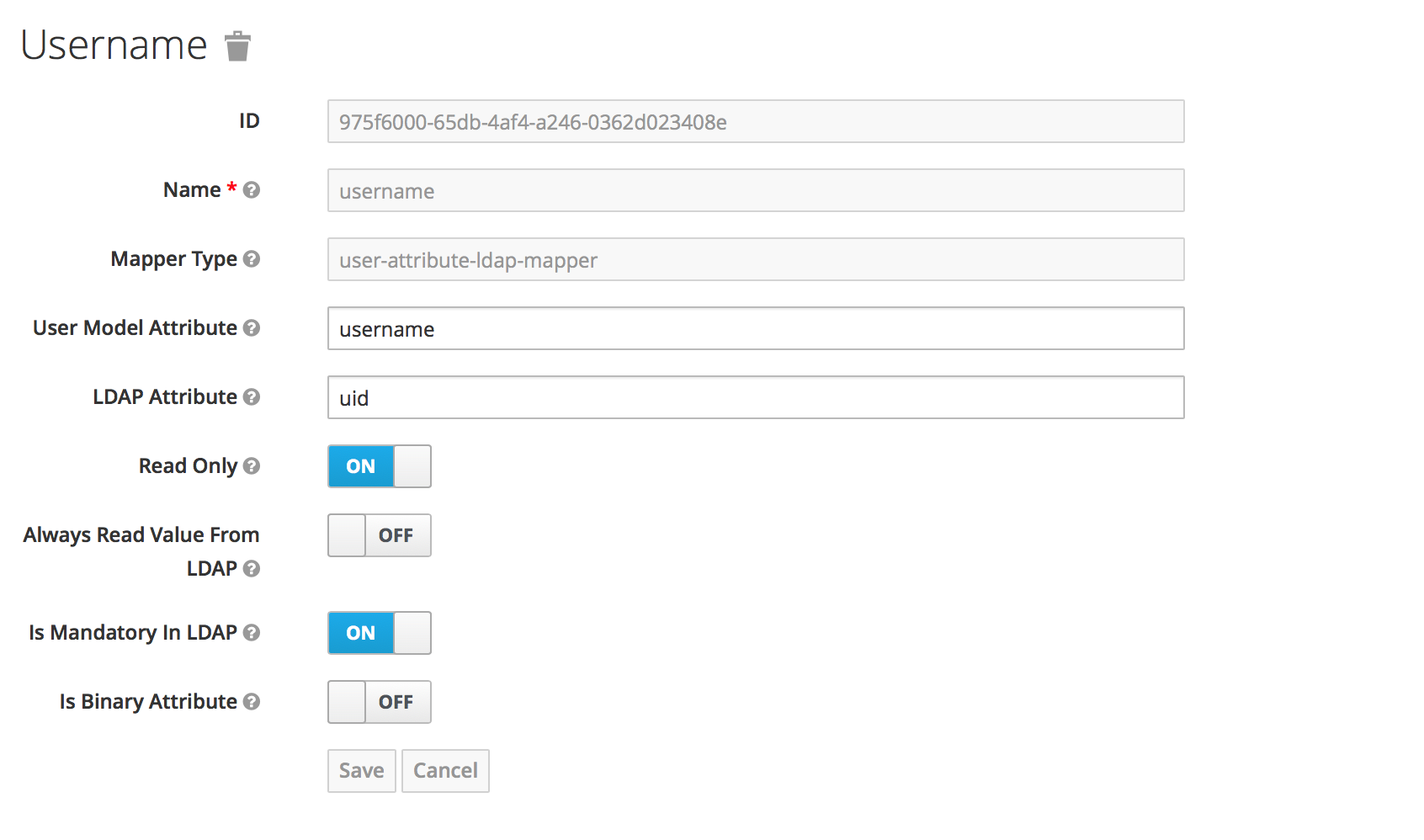
For example, the username mapper sets the Anaconda Enterprise username from the LDAP attribute
configured.
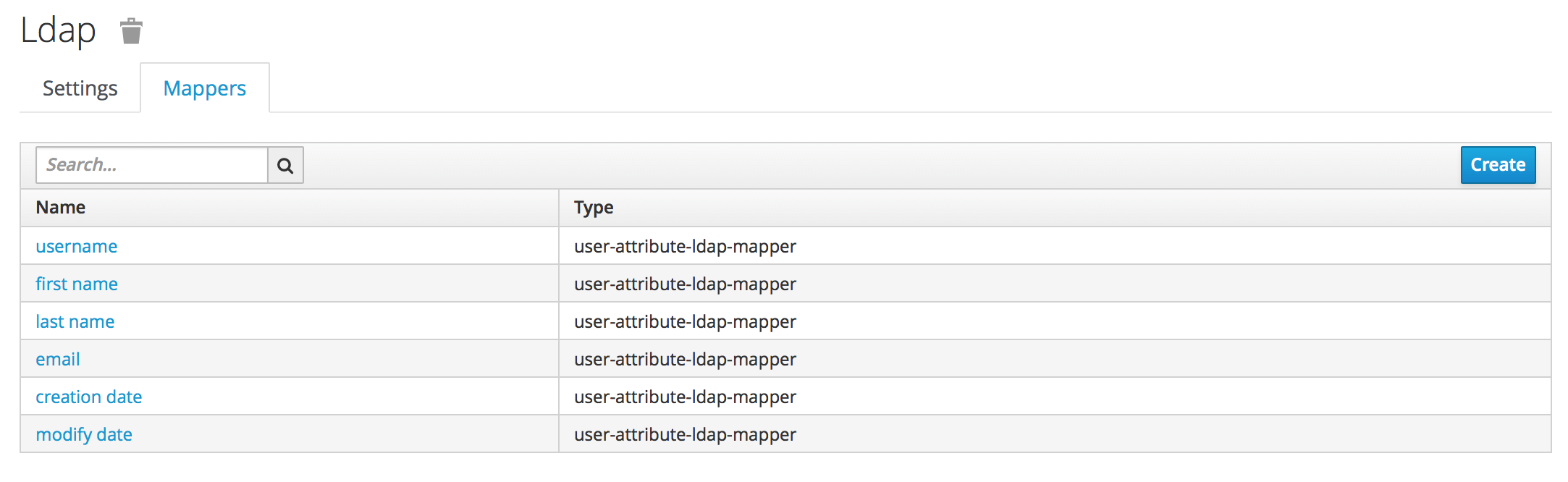
Go through each mapper and make sure it is set up appropriately.
- Most important, check that each mapper reads the correct “LDAP attribute” and maps it to the right “User Model Attribute”.
- Check that the attribute’s “read-only” setting is correct.
- Check whether the attribute should always be read from the LDAP store and not from the internal database.
LDAP Authorization
To authorize LDAP group members, or roles synced from LDAP, to perform various functions, add them
to the anaconda-platform.yml configmap.
EXAMPLE: To give users in the LDAP group “AE5”, and users with the LDAP-synced role “Publisher”, permission to deploy apps, the deploy section would look like this:
deploy:
  port: 8081
  prefix: ''
  url: https://abc.demo.anaconda.com:30081/
  https:
    key: /etc/secrets/certs/privkey.pem
    certificate: /etc/secrets/certs/cert.pem
  hosts:
    - abc.demo.anaconda.com:30081
  db:
    database: anaconda_deploy
  users: '*'
  deployers:
    users: []
    groups:
      - developers
      - AE5
    roles:
      - Publisher
As always when editing the configmap, delete the appropriate pods for changes to take effect.
Advanced Mapper Configuration
Instead of manually configuring each user, you can automatically import user data from LDAP using additional mappers. The following mappers are available:
- User Attribute Mapper (
user-attribute-ldap-mapper) - Maps LDAP attributes to attributes on the user. These are the default mappers set up in the initial configuration.
- FullName Mapper (
full-name-ldap-mapper) - Maps the full name of the user from LDAP into the internal database.
- Role Mapper (
role-ldap-mapper) Sets role mappings from LDAP into realm role mappings. One role mapper can be used to map LDAP roles (usually groups from a particular branch of an LDAP tree) into realm roles with corresponding names.
Multiple role mappers can be configured for the same provider. It’s possible to map roles to a particular client (such as the
anaconda-deployservice), but it’s usually best to map in realm-wide roles.- Hardcoded Role Mapper (
hardcoded-ldap-role-mapper) - Grants a specified role to each user linked with LDAP.
- Hardcoded Attribute Mapper (
hardcoded-ldap-attribute-mapper) - Sets a specified attribute to each user linked with LDAP.
- Group Mapper (
group-ldap-mapper) - Sets group mappings from LDAP. Can map LDAP groups from
a branch of an LDAP tree into groups in the Anaconda Platform realm. It will also propagate
user-group membership from LDAP. We generally recommend using roles and not groups, so the
role mapper may be more useful.
CAUTION: The group mapper provides a setting
Drop non-existing groups during sync. If this setting is turned on, existing groups in Anaconda Enterprise Authentication Center will be erased. - MSAD User Account Mapper (
msad-user-account-control-mapper) Microsoft Active Directory (MSAD) specific mapper. Can tightly integrate the MSAD user account state into the platform account state, including whether the account is enabled, whether the password is expired, and so on. Uses the
userAccountControlandpwdLastSetLDAP attributes.For example if
pwdLastSetis0, the user is required to update their password and there will be anUPDATE_PASSWORDrequired action added to the user. IfuserAccountControlis514(disabled account), the platform user is also disabled.
Mapper Configuration Example
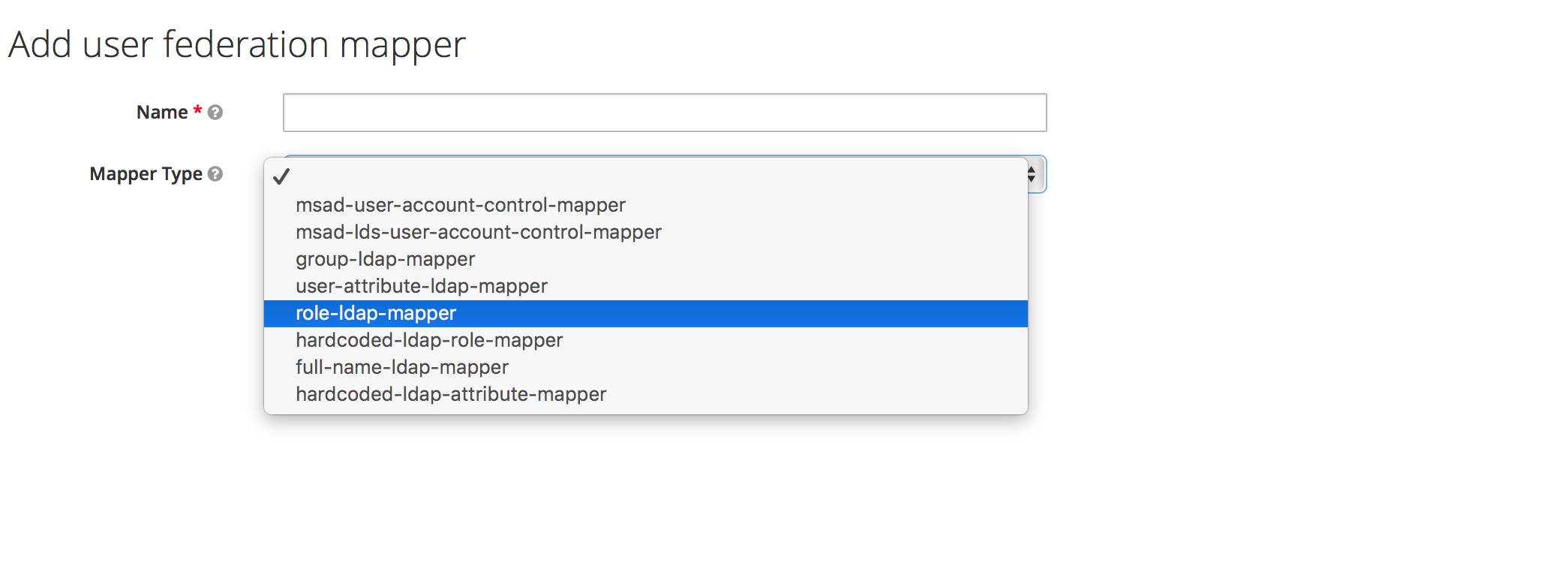
To map LDAP group membership to Anaconda Platform roles, use a role mapper.
Add a mapper of the role-ldap-mapper type:
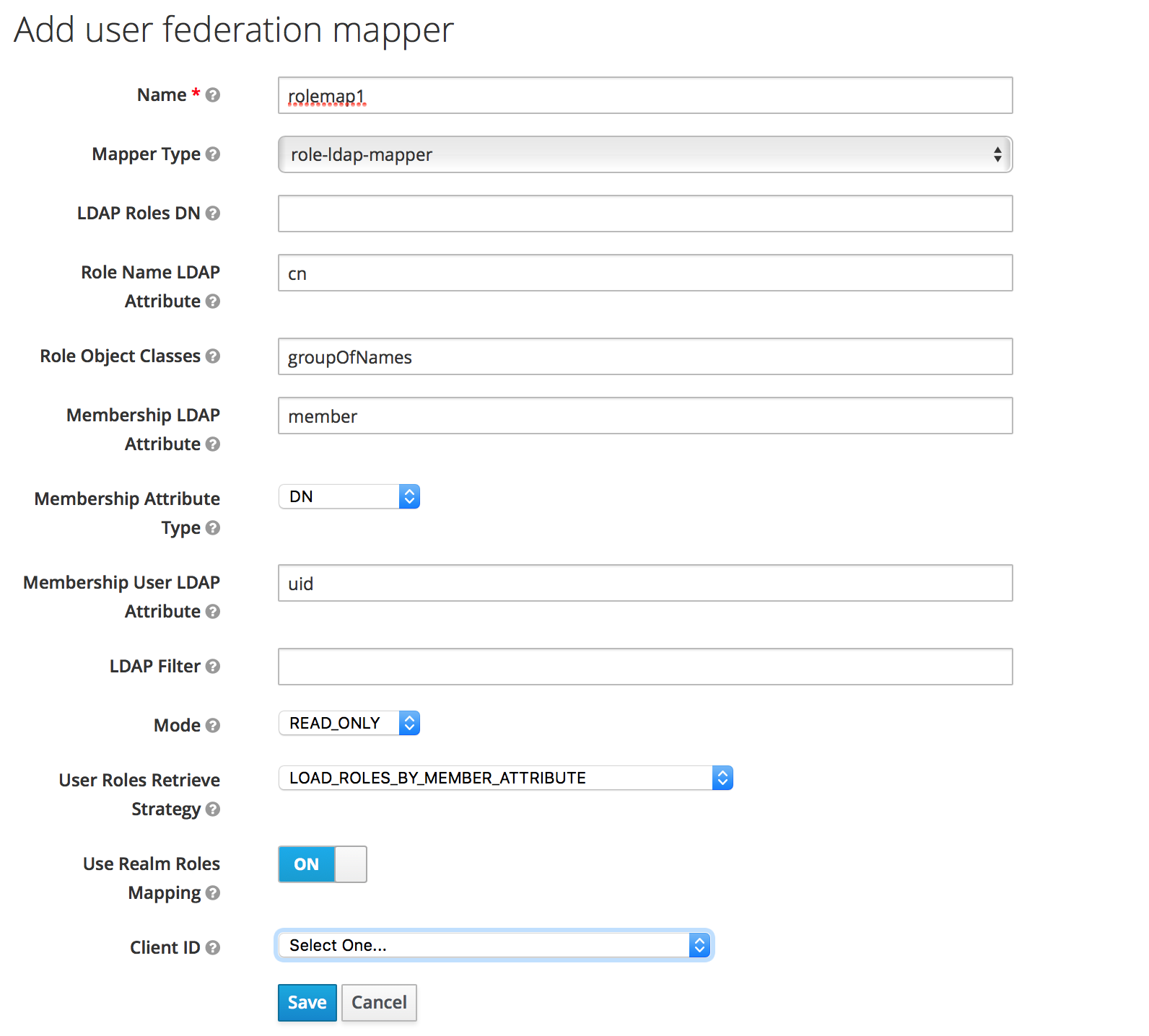
In consultation with your LDAP administrator and internal LDAP documentation, define which LDAP group
tree will be mapped into roles in the Anaconda Platform realm. The roles are mapped directly by
name, so an LDAP membership of ae-deployer will map to the role of the same name in Anaconda Platform.
Configuring LDAPS (Outbound SSL)
To make correct requests to secure internal resources such as internal enterprise LDAP servers using corporate SSL certificates, you must configure a “trust store”. This is entirely optional. If your internal servers instead use certificates issued by a public root CA, then the default trust store will work fine.
To create a trust store, you must have the public certificates you wish to trust available.
There are two methods described below. Select the option that is right for you.
NOTE: These are certificates for your trusted server such as Secure LDAP, not for Anaconda Enterprise.
Option 1
The simplest procedure is if you have the CA certificates available directly. In that case, you can issue:
keytool -import -file CAFILE.cert -alias auth -keystore OUTPUT.jks
NOTE: Replace CAFILE.cert with your CA certificate file,
and replace OUTPUT.jks with the desired output file name.
Now continue on to For both methods.
Option 2
Alternatively, if you have the server certificate and key as well, you can construct a full trust chain in the store.
First, convert the files to PKCS12 format, if they are not in that form already:
openssl pkcs12 -export -chain -in CERT.pem -inkey CERT-KEY.pem -out PKCS-CHAIN.p12 -name auth -CAfile CA-CHAIN.pem
In this example, replace CERT.pem with the server’s certificate, CERT-KEY.pem with the server’s key,
PKCS-CHAIN.p12 with your desired temporary file name and CA-CHAIN.pem with the trust chain file (such as up to
the root certificate of your internal CA).
Then, create a Java Keystore to store the trusted certs:
keytool -importkeystore -destkeystore OUTPUT.jks -srckeystore PKCS-CHAIN.p12 -alias auth
Now continue on to For both methods.
For both methods
You will be asked to set a password. You must record the password selected.
Edit the platform configuration.
Set the auth.https.truststore configuration key to the full path to the
created OUTPUT.jks file. Set auth.https.truststore-password to the
matching password.
Restart the auth service:
sudo gravity enter
kubectl get pods | grep ap-auth | cut -d' ' -f1 | xargs kubectl delete pods