
Connect to a Remote SAS Server
With Anaconda Enterprise, you can connect to a remote SAS server process using the official sas_kernel and saspy. This allows you to merge SAS and python/R work-flows in a single interface, and to share your SAS-based work with your colleagues within the Enterprise platform.
NOTE: SAS sessions are currently available in interactive development mode only, not in deployments.
sas_kernel is distributed under the Apache 2.0 Licence, and requires
SAS version 9.4, or later. SAS is (c) SAS Institute, Inc..
Anaconda Enterprise and sas_kernel
Anaconda connects to a remote SAS server application over a secure SSH connection.
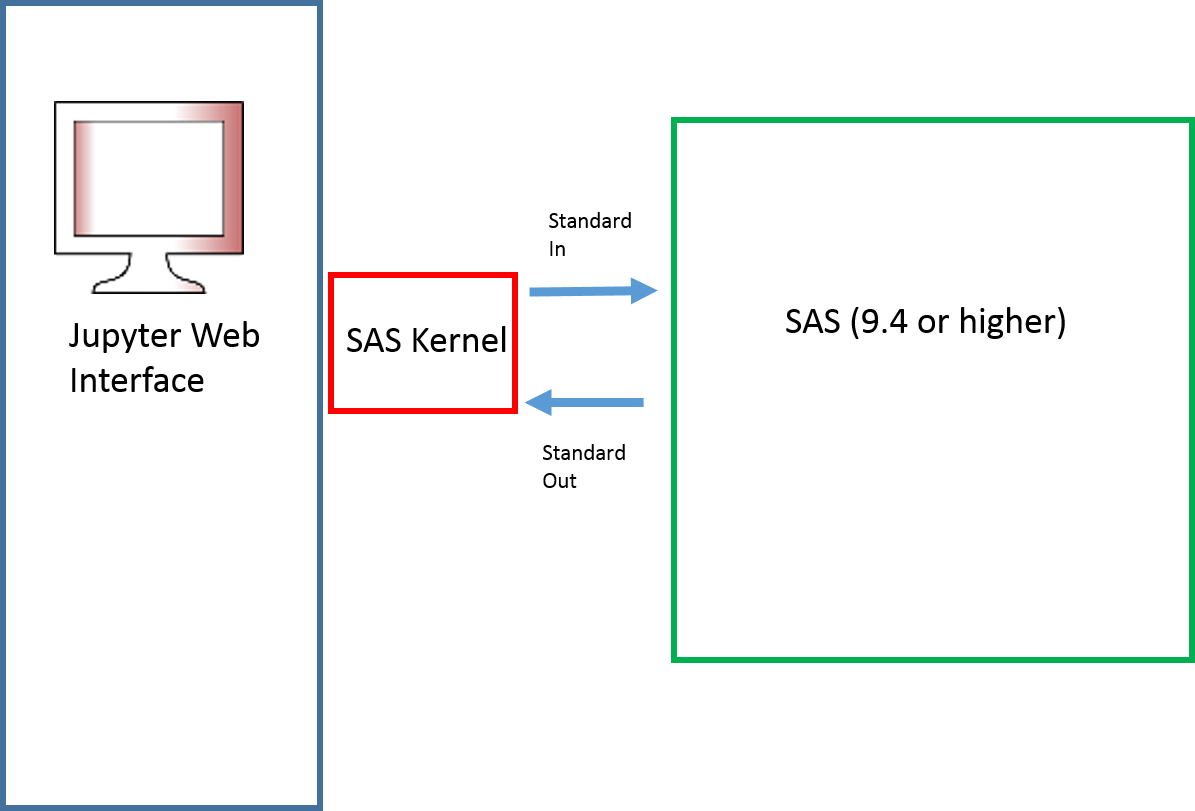
After a connection is established with the provided SAS kernel, SAS commands are sent to the remote server, and results appear in your notebook. All you need to do is ensure a correct configuration. Note that each open notebook starts a new SAS session on the server, which stays alive while the notebook is being used. This may have implications for your SAS license utilization.
Configuration
The file sascfg_personal.py in the project root directory provides the
configuration for the SAS kernel to run.
The connection information is stored in a block like the following.
default = {
    'saspath' : '/opt/sas9.4/install/SASHome/SASFoundation/9.4/bin/sas_u8',
    'ssh'     : '/usr/bin/ssh',
    'host'    : '[email protected]',
    'options' : ["-fullstimer"]
}
Here, the entry for 'saspath'
must match the exact full path of the SAS binary on the remote system. 'host'
must be a connection string that SSH can understand - note that it includes
both login username and IP/hostname parts, and both must be correct for a successful
connection; there may also be a port number suffixed after a colon, e.g., :2022.
The values to be entered here will normally be provided by your systems administration.
Establishing a Connection
The SAS server machine must allow SSH with password-less login.
Before starting, you will need a secure key (.pem) file installed on the SAS server machine. This will normally be done for you by your organization, but if you have username/password access to the machine, you can make your own. See the section below on Installing a .pem File.
Whenever you start a new editing session, you must perform the following steps before creating or running a notebook with a SAS kernel:
Upload your .pem file to your editing session. In a JupyterLab or Jupyter notebook, click the left Files tab, then at the top of the pane click the
uploadbutton and navigate to the file on your system.Open a terminal from the New/Launcher pane. Execute the following commands:
chmod 0400 <myfile.pem> ssh-add <myfile.pem> ssh <connection-string> -o StrictHostKeyChecking=no echo OK
where you replace <connection-string> with the
hostentry insascfg_prsonal.pyand <myfile.pem> with the name of your key file.
Now you can the start notebooks with the SAS kernel from the launcher pane, or switch the kernel of any notebook that is already open.
Installing a .pem File
You can create your own .pem file within Anaconda Enterprise 5, or any local machine with openSSH installed. Run the following:
ssh-keygen
Give your key-file a name (typically with extension .pem), and optional password (it is fine to leave this empty).
The above command will create two files: one with the exact name you specified,
which is the one you upload into your SAS kernel editing session; and one with
.pub suffixed, which needs to be known to the SAS server. You can view this
file in the terminal with the cat command:
cat <myfile.pem.pub>
Next, log into the SSH server using your username/password. Edit the file
~/.ssh/authorized_keys and append the contents of your .pem.pub file here.
The program for editing will vary by system, but nano and vi are common
possibilities.