
User Credentials
When viewing a user if you go to the Credentials tab you can manage
a user’s credentials.
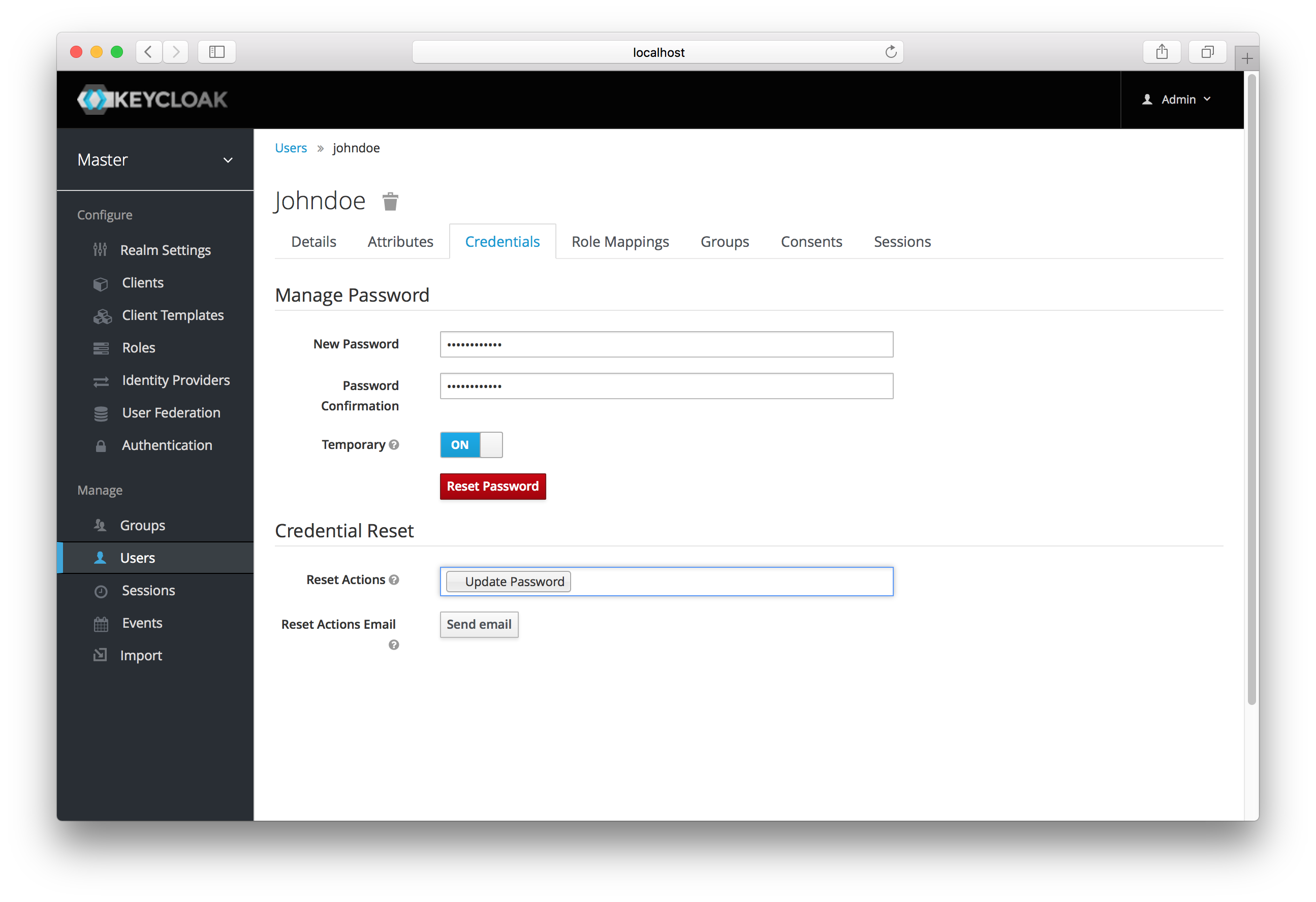
Credential Management
Changing Passwords
To change a user’s password, type in a new one. A Reset Password
button will show up that you click after you’ve typed everything in. If
the Temporary switch is on, this new password can only be used once
and the user will be asked to change their password after they have
logged in.
Alternatively, if you have email set up, you can send an
email to the user that asks them to reset their password. Choose
Update Password from the Reset Actions list box and click
Send Email. You can optionally set the validity of the e-mail link
which defaults to the one preset in Tokens tab in the realm
settings. The sent email contains a link that will bring the user to the
update password screen.
Changing OTPs
You cannot configure One-Time Passwords for a specific user within the
Admin Console. This is the responsibility of the user. If the user has
lost their OTP generator all you can do is disable OTP for them on the
Credentials tab. If OTP is optional in your realm, the user will
have to go to the User Account Management service to re-configure a new
OTP generator. If OTP is required, then the user will be asked to
re-configure a new OTP generator when they log in.
Like passwords, you can alternatively send an email to the user that
will ask them to reset their OTP generator. Choose Configure OTP in
the Reset Actions list box and click the Send Email button. The
sent email contains a link that will bring the user to the OTP setup
screen.