
Required Actions
Required Actions are tasks that a user must finish before they are allowed to log in. A user must provide their credentials before required actions are executed. Once a required action is completed, the user will not have to perform the action again. Here are an explanation of some of the built-in required action types:
- Update Password
- When set, a user must change their password.
- Configure OTP
- When set, a user must configure a one-time password generator on their mobile device using either the Free OTP or Google Authenticator application.
- Verify Email
- When set, a user must verify that they have a valid email account. An email will be sent to the user with a link they have to click. Once this workflow is successfully completed, they will be allowed to log in.
- Update Profile
- This required action asks the user to update their profile information, i.e. their name, address, email, and/or phone number.
Admins can add required actions for each individual user within the
user’s Details tab in the Admin Console.
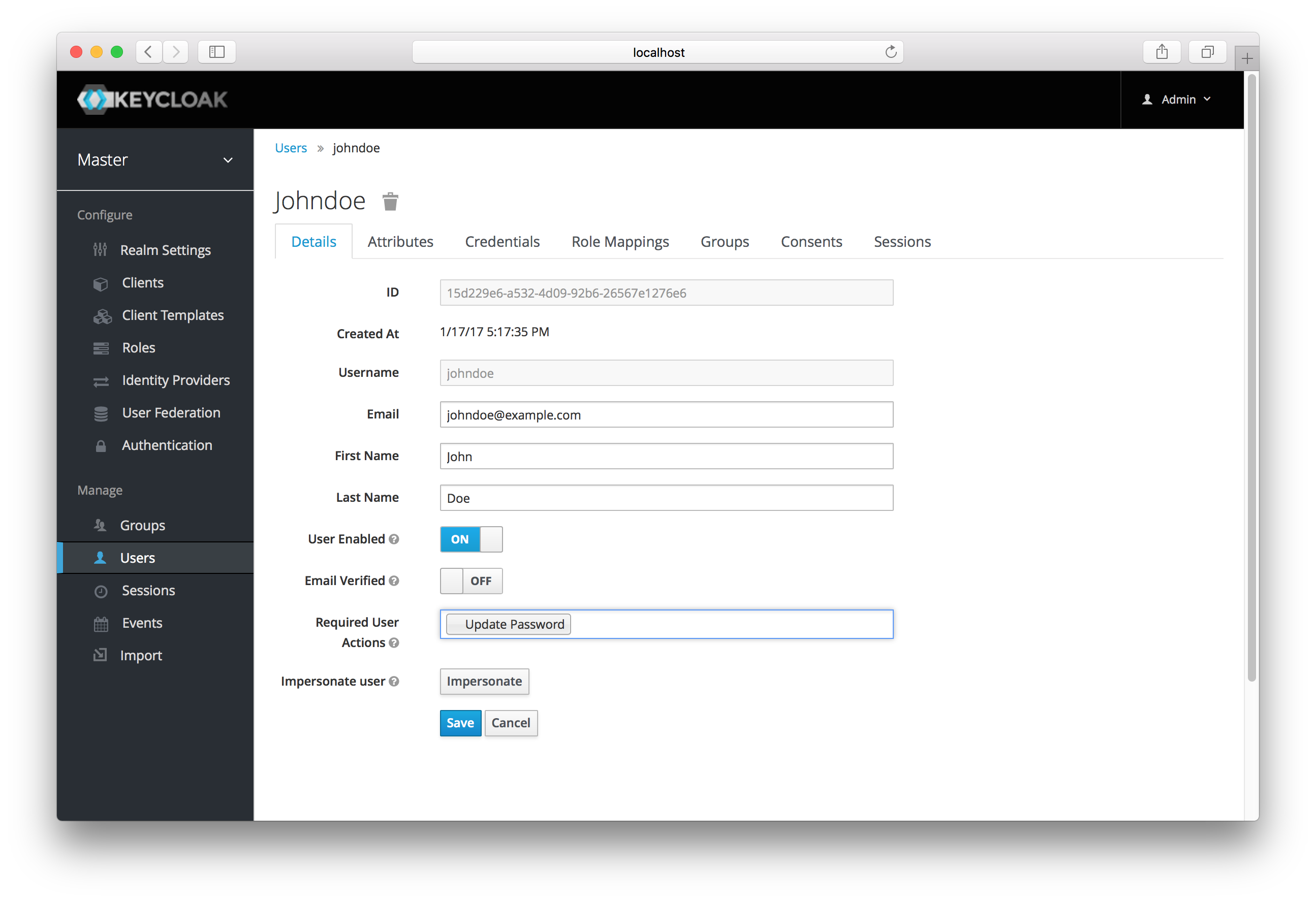
Setting Required Action
In the Required User Actions list box, select all the actions you
want to add to the account. If you want to remove one, click the X
next to the action name. Also remember to click the Save button
after you’ve decided what actions to add.
Default Required Actions
You can also specify required actions that will be added to an account
whenever a new user is created with the Add User button on the
user list screen or the user registration
link on the login page. To specify the default required actions go to
the Authentication left menu item and click on the
Required Actions tab.
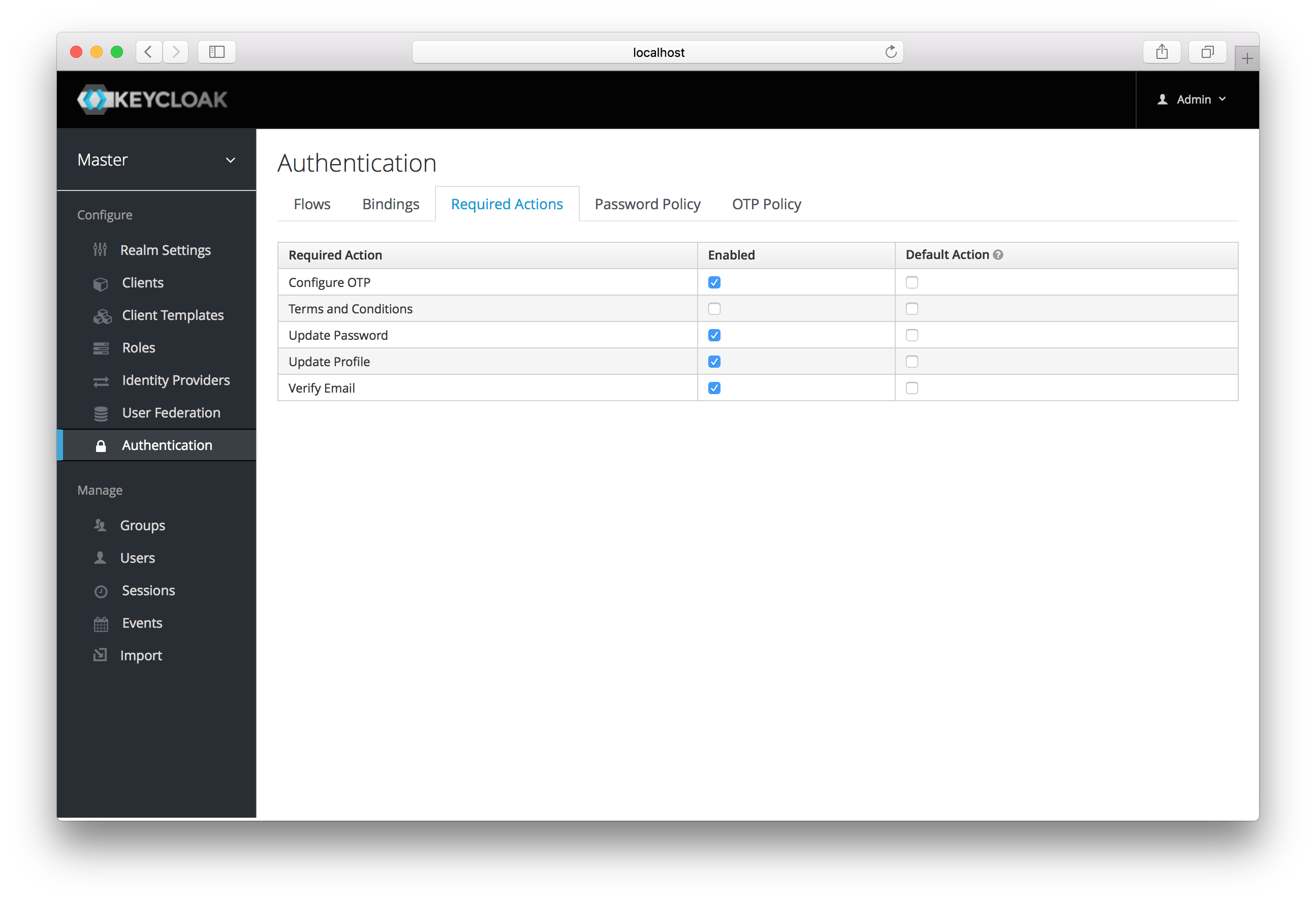
Default Required Actions
Simply click the checkbox in the Default Action column of the
required actions that you want to be executed when a brand new user logs
in.
Terms and Conditions
Many organizations have a requirement that when a new user logs in for
the first time, they need to agree to the terms and conditions of the
website. This functionality can be implemented as a
required action, but it requires some configuration. For one, you have
to go to the Required Actions tab described earlier and enable the
Terms and Conditions action. You must also edit the terms.ftl file
in the base login theme. See the Server Developer Guide
for more information on extending and creating themes.