
View or edit configuration
You can view or edit your configuration files directly from the Operations Center.
Open the Operations Center, then from the left navigation click the Configuration link.
From the top right “Config Maps” box, select the name of the configuration file that you want to view or edit.
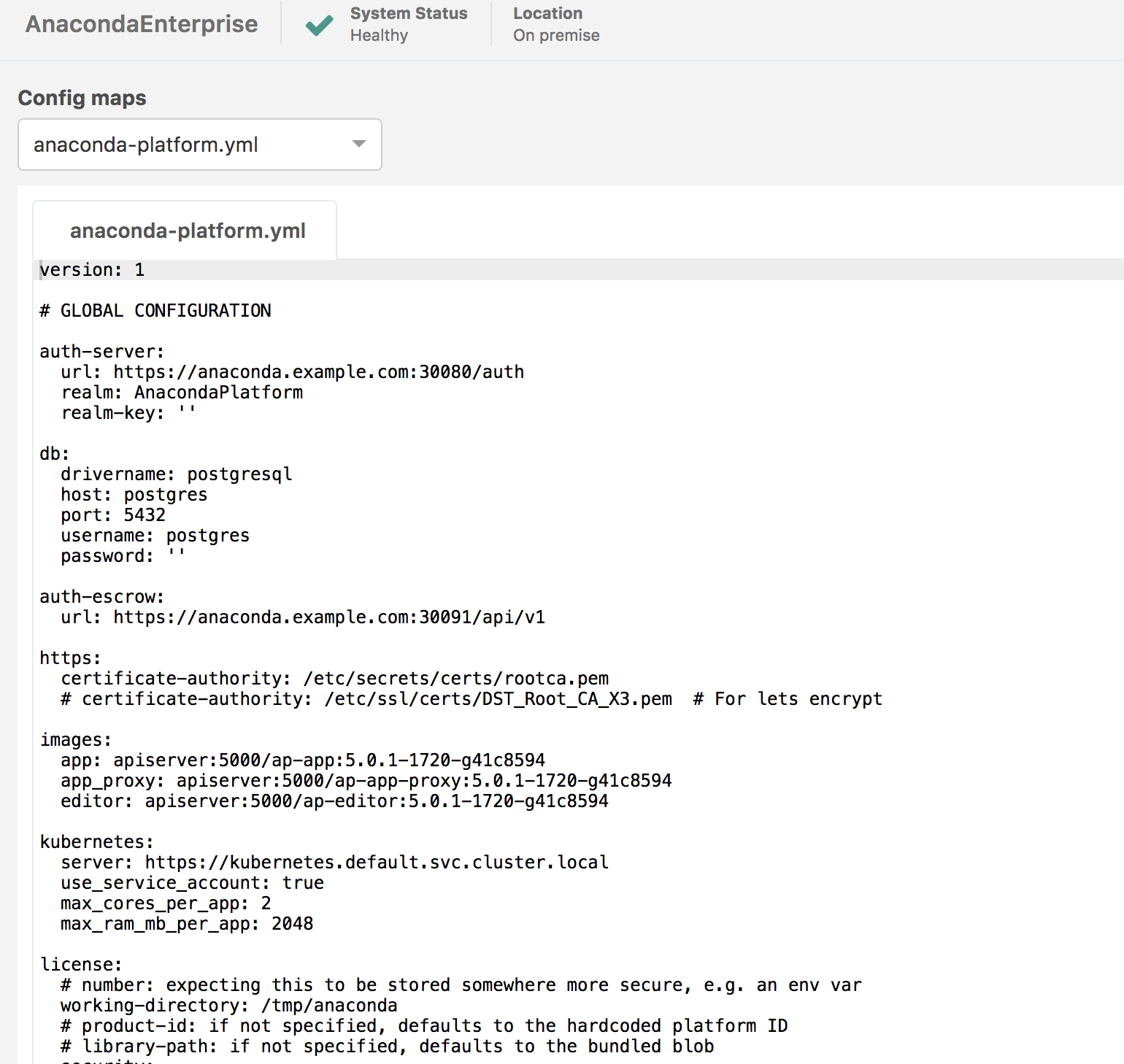
The default configuration file anaconda-platform.yml is displayed.
All the configuration of Anaconda Enterprise and the underlying Kubernetes system can be accessed and changed in this view.
Anaconda Enterprise configuration is available in the “default” Namespace:
- anaconda-platform.yml– main Anaconda Enterprise configuration file
- nginx-config– modify configuration of nginx web server
Kubernetes specific configuration is available in the “kube-system” Namespace:
- alerting-addresses–modify email alerts
- dashboard-default–modify default dashboard configuration
- extension-apiserver-authentication– modify client-ca-file
- grafana–modify grafana.ini
- gravity-opscenter–modify gravity.yaml, proxy.cert, proxy.key or teleport.yaml
Edit configuration file
NOTE: Edits are made directly to the configuration file. We strongly recommend that you copy and save a copy of the original file before making any edits.
To edit any of the above configuration files, after selecting the file from the “Config Maps” box, begin typing in the in-page text editor.
After editing, at the bottom left an Apply button appears. Click the Apply button to save your work.