
Manage Operations Center users
From the Users Settings menu, you can:
- View a list of all Operations Center users
- Add a new Operations Center user
- Resend an Operations Center user invitation
- Revoke an invitation
- Edit an Operations Center user
- Delete an Operations Center user
To manage Operations Center users, from any page of the Operations Center open the Settings menu by clicking the icon next to your username, then from the drop-down menu that appears, select Settings.
Then from the Settings left navigation menu, click the Users link.
View list of Operations Center users
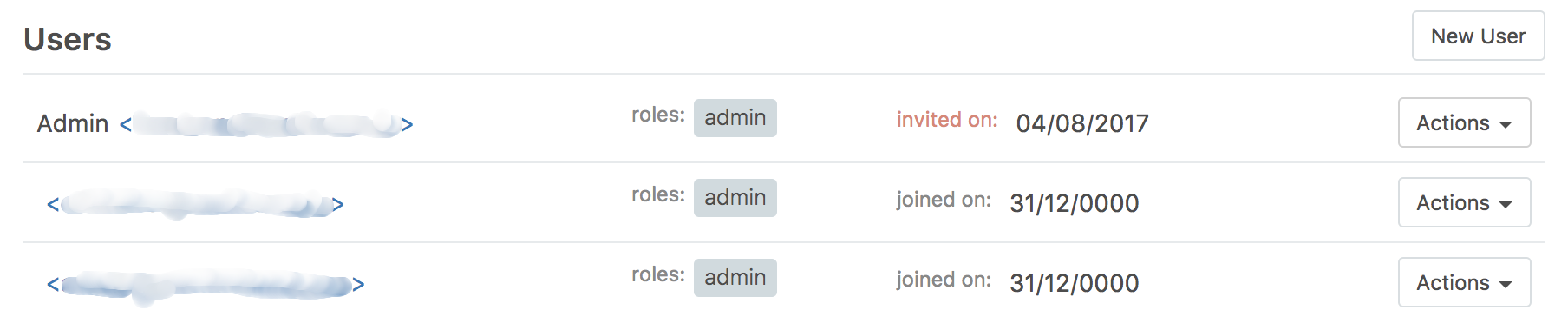
The list of Operations Center users is displayed in the body of the page.
The list contains their username and email address, roles, and date the user was invited or joined.
Add new Operations Center user
To add a new Operations Center user, on the Users page at the top right, click the New User button.
Enter the new user’s full name and email, and select the role you wish to assign to them, then click the Invite button.
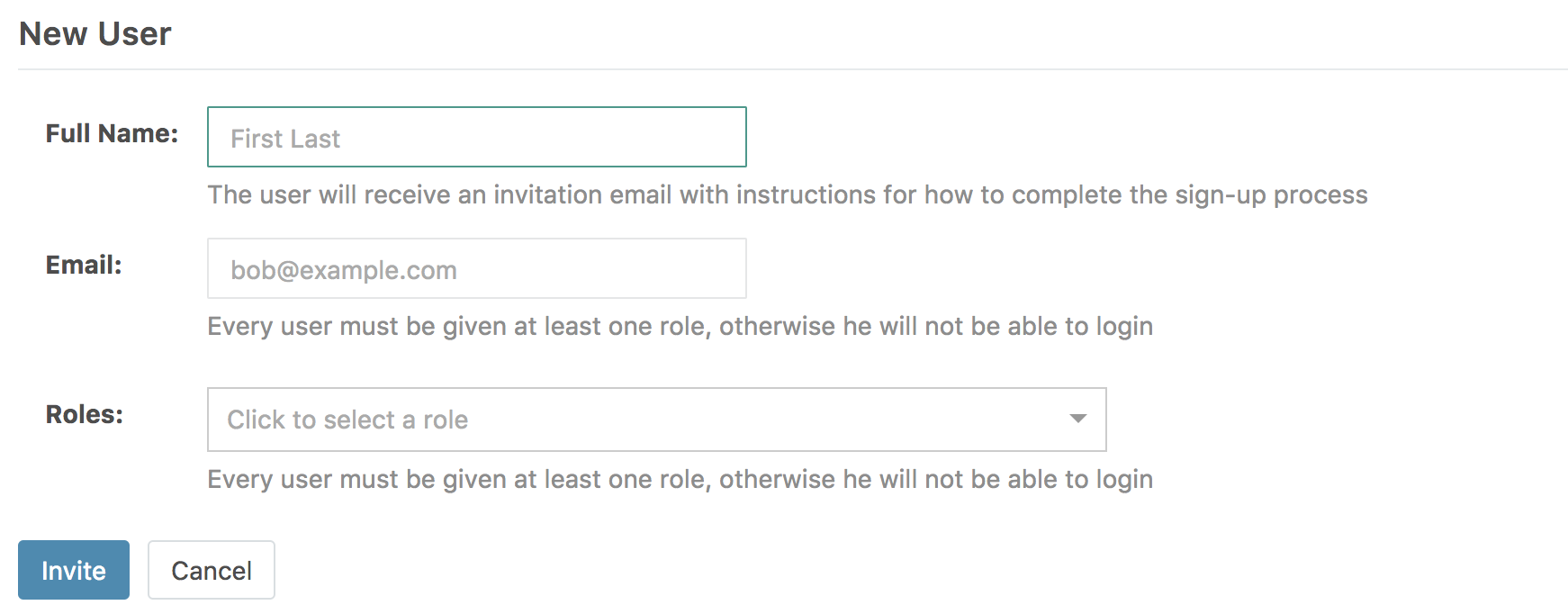
An invitation is sent to the email address you specified. The user must click the link in the email to complete the sign-up process.
NOTE: If you prefer to use the command line interface, open a terminal and run the following command:
gravity --insecure user create --type=admin --email=<email> --password=<yourpass> --ops-url=https://gravity-site.kube-system.svc.cluster.local:3009
Resend an Operations Center user invitation
This can also be used to reset the password of an Operations Center user who forgot their password.
To resent an invitation to an Operations Center user, on the Users page, click the Actions icon to the far right of their name. Then from the drop-down menu that appears, select Re-send email, then click the Send button.
Revoke an invitation
To revoke an invitation you have sent to a prospective Operations Center user, on the Users page, click the Actions icon to the far right of their name. Then from the drop-down menu that appears, select Revoke invitation.
In the Are you sure? dialog box, click the Delete button.
Edit Operations Center user
You can edit an Operations Center user’s name, email and/or roles at any time.
To edit an Operations Center user, on the Users page, click the Actions icon to the far right of their name. Then from the drop-down menu that appears, select Edit.
Make the changes as necessary, then click the Save button.
Delete Operations Center user
To delete an Operations Center user, on the Users page, click the Actions icon to the far right of their name. Then from the drop-down menu that appears, select Delete.
In the Are you sure? dialog box, click the Delete button.