
Working with collaborators
While you are actively working on a project with other collaborators, your collaborators can edit the same project and commit changes to the master copy on the Git server.
Enterprise tracks the changes and lets you know when files have been changed, so you can choose which version to use.
You can pull changes from the Git server to your local working copy of the project, to get updates from your collaborators. If they conflict with changes you have made, you can choose to cancel the pull, or to discard your local changes, or to save the conflicting files from the Git server with different filenames.
You can change and save files locally and then commit your changes to the Git server. If they conflict with changes made by your collaborators, you can choose either to cancel the commit or to overwrite your collaborators’ changes.
Committing changes to the Git server includes a full sync, and pulls changes from the Git server that do not conflict. After committing changes your local copy will match the master copy on the Git server exactly.
Pulling changes from the Git server
To pull changes from the master copy on the Git server to your local project, click the down arrow icon in the top right.
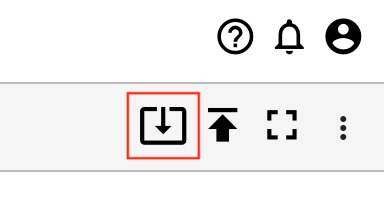
You will see the Pull Changes dialog box. If there are no conflicts, click the Pull Changes button to pull the changes from the Git server to your local project.
When your collaborators make changes, a badge will appear beside the Pull icon.
Conflicting files
If you have changed a file in your local copy of the project, and your collaborators have changed that file in their version of the project and have already committed their changes to the master copy on the Git server, then the file has conflicting changes.
If any files have conflicting changes, then the Pull Changes dialog box will show a list of those files and a red field in the dialog box. This field will offer a checkbox to discard your local changes. You may choose from three options:
Click the Cancel button to cancel the pull.
Check the box to discard your local changes and click the Pull Changes button. Your local copy will match the master copy on the Git server. Your local changes will be gone.
Leave the box unchecked and click the Pull Changes button. The versions of the files with conflicting changes from the master copy on the Git server will be pulled to your local project, and they will be renamed so that they do not interfere with your local versions.
EXAMPLE: If a file is named
Some Data.txtand a user Alice has committed updates to that file on the Git server, then your new local copy of the file from the Git server with Alice’s changes will be namedSome Data.txt (Alice's conflicted file). Your local copy namedSome Data.txtwill not change.
NOTE: If you have a file open that has been modified by pulling changes, close and reopen the file for the changes to be reflected. Otherwise, the next time you save the file, you may see an alert in JupyterLab “File has been overwritten on disk”. This alert lets you choose whether to cancel the save, discard the current version and open the version of the file on disk, or overwrite the file on disk with the current version.
NOTE: If your collaborators have updated a file and committed to the Git server, and you have not changed the file, this is not a conflict. Pulling the latest changes from the Git server will include pulling the changes to this file, and will not show any warnings about conflicts. These changes from your collaborators can overwrite or delete local files.
EXAMPLE:
- Alice and Bob share a project that includes
file1.txt. - Alice deletes
file1.txtand commits her changes. - Bob pulls the latest changes. No warnings about conflicts are shown.
file1.txtis deleted from Bob’s local version. Bob’s local project and the version on the Git server match exactly.
Committing changes to the Git server
In a JupyterLab or Jupyter Notebook editing session, add, edit or delete one or more files, then click the Save button. This saves your project locally.
To commit changes from your local project to the master copy on the Git server, click the up arrow icon in the top right.
You will see the Commit Changes dialog box with a list of files that you have changed, and when they were last saved in the local editor session:
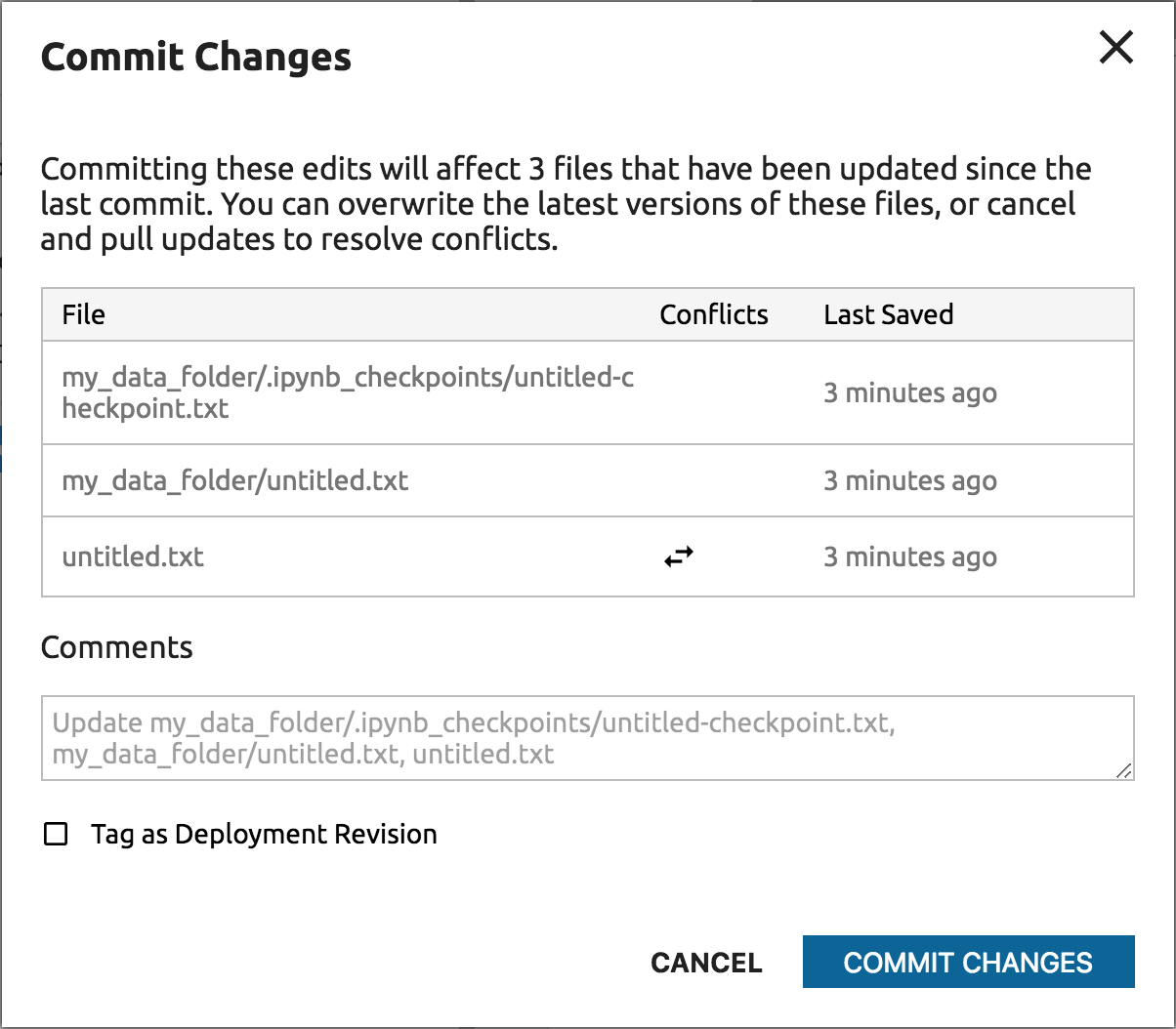
Write an optional commit comment in the Comments box.
If you want to commit this version as a new deployable revision, check the Tag as Deployment Revision box.
Check for file conflicts.
If you have changed a file in your local copy of the project, and your collaborators have changed that file in their version of the project and have already committed their changes to the master copy on the Git server, then the file has conflicting changes.
If any files have conflicting changes, then the Commit Changes dialog box shows a conflict icon with left and right arrows next to the file name in the Conflicts column.
If any files have conflicting changes and you press the Commit Changes button, you will overwrite your collaborators’ changes with your copies of the files. Your collaborators’ changes will be gone from the master copy on the Git server.
NOTE: Committing changes to the Git server includes a full sync, and pulls changes from your collaborators that do not conflict. After committing changes your local copy will match the master copy on the Git server exactly.
EXAMPLE:
- Alice and Bob share a project that includes
file1.txt. - Alice deletes
file1.txtand commits her changes. - Bob creates
file2.txtand commits it. file1.txtis deleted from Bob’s local version. Bob’s local project and the master version on the Git server match exactly.
- Alice and Bob share a project that includes
Either press the Cancel button to cancel the commit, or press the Commit Changes button to commit your changes to the Git server.