
Running deployment commands on a project
After saving a deployment command, you can test and run it from inside an editing session (JupyterLab shown).
Click the left Project tab, then look in the COMMANDS section to see a list of the deployable commands in your project.
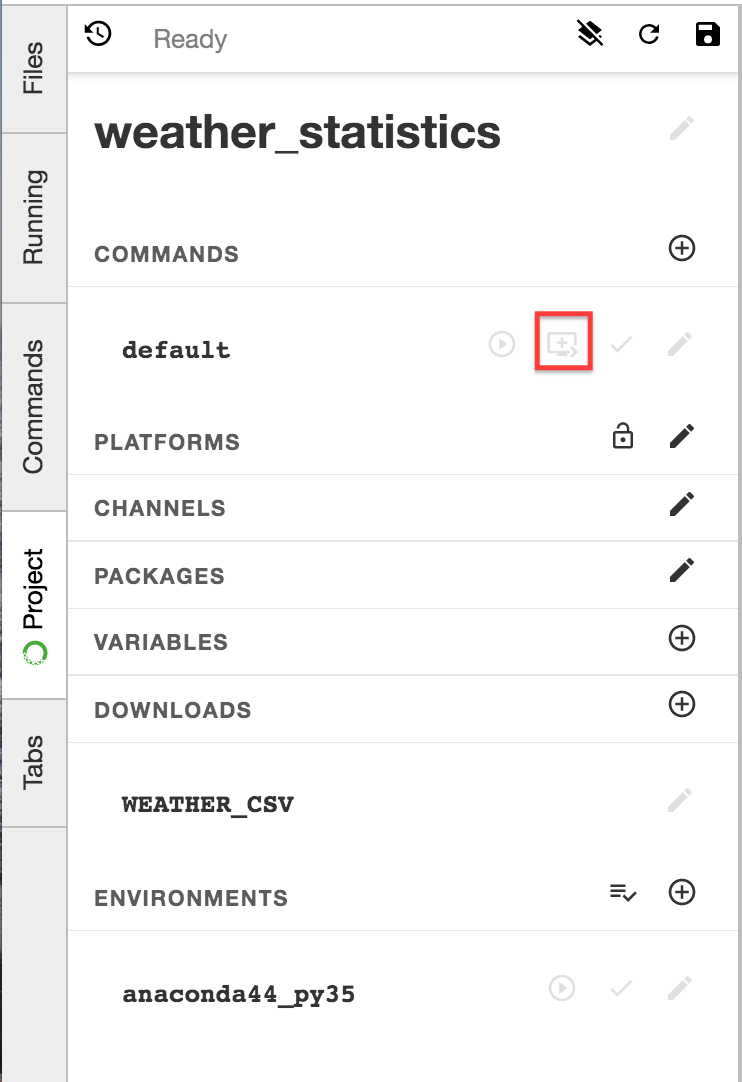
For shell commands use the Run in a Terminal button (arrow pointing right) to run the command in a terminal window.
For bokeh apps and notebooks use the Run as a Web App button (screen icon with a +) to run the command inside JupyterLab. Click the Stop button next to the command name or at the top of the output window to stop the app.
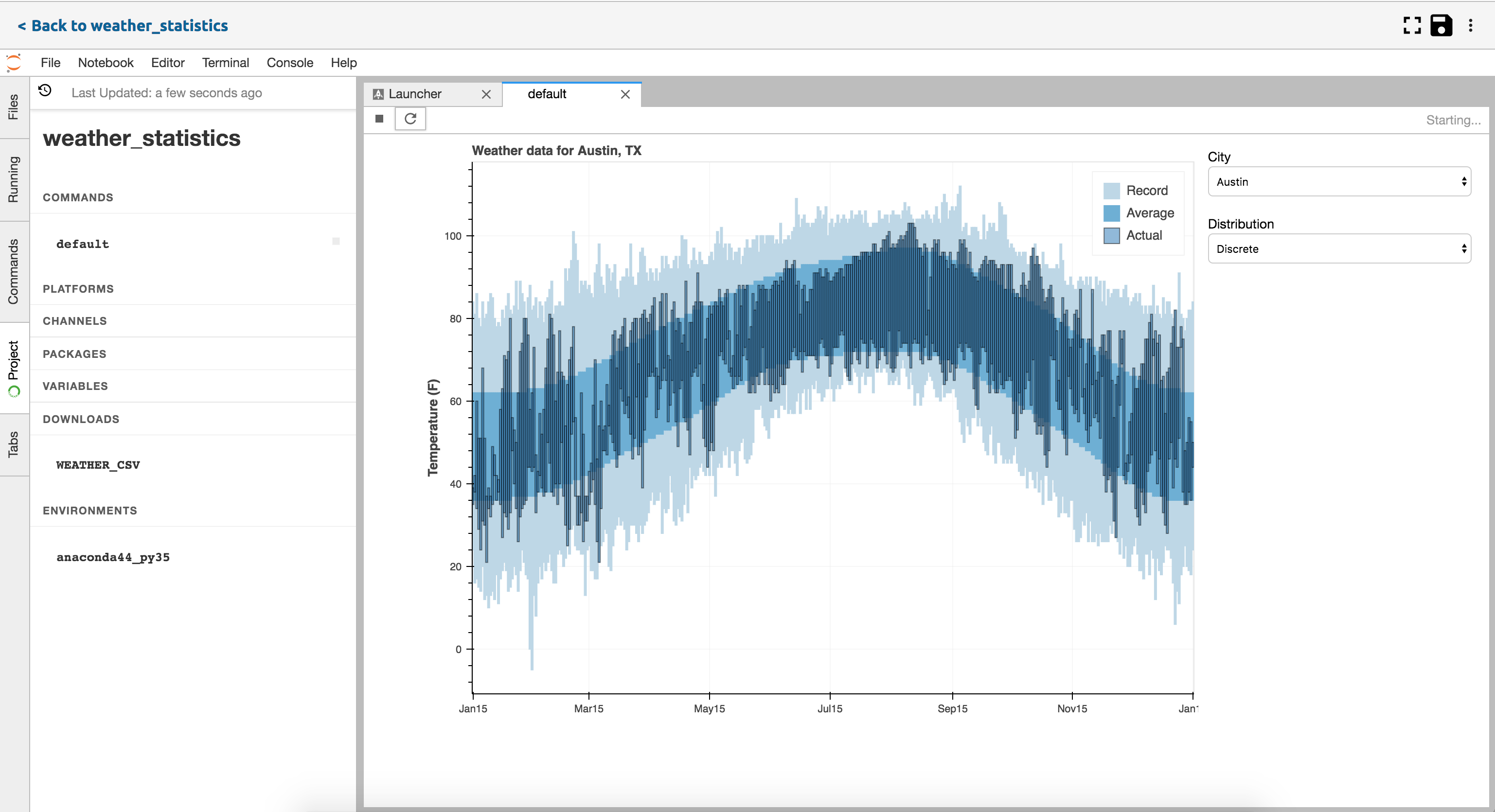
TIP: Click the Refresh button at the top of the output to re-render the app.
In Jupyter Classic or using the CLI
If you are working in Jupyter Classic notebook or prefer to run commands using
the command line interface (CLI),
open a terminal and run the command anaconda-project run followed by the
command name.
EXAMPLE: To run the default command:
anaconda-project run default
NOTE: This will only work well for shell commands. For Bokeh and Notebook apps, commit changes to the project and deploy it.