
Adding a deployment command to a project
Anaconda Enterprise can deploy projects including notebooks, Bokeh applications, and generic scripts or web frameworks (Python, R, etc).
In order to deploy any of these projects, the project needs to have a deployable command, such as the name of the notebook to run.
You can create a deployment command from the web interface in an editing session by typing the command into a form box.
You can also choose to directly edit your anaconda-project.yml file, or use
the command line interface.
Each of these methods will produce the same changes to your
anaconda-project.yml file.
In a JupyterLab editing session
Add a deployment command to your project from inside a JupyterLab editing session.
In this example, the deployment command is the name of the notebook we want to run (Hello.ipynb).
Click the left Project tab and in the Commands field, click the edit pencil icon.
Add a descriptive name, an optional description, select the command type (notebook shown), enter deployment command and check “Web App”.
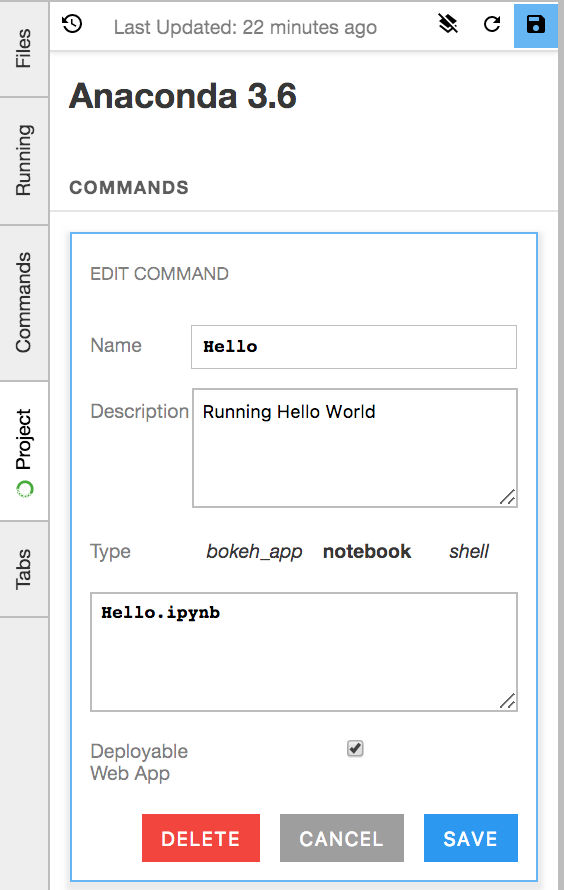
Click the Save button.
Confirm that the deployment command has been added to your
anaconda-project.ymlby clicking the left Files tab, then opening the fileanaconda-project.yml.TIP: If
anaconda-project.ymlis already open, close and reopen it to refresh and see changes.Your
anaconda-project.ymlwill now contain a new section like:commands: default: notebook: data-science-notebook.ipynb
Next you can try running your deployment commands or you can commit changes to your project.
In Jupyter Classic or using the CLI
If you are working in classic Jupyter notebook or prefer to work at the command
line interface, open a terminal window and run anaconda-project add-command
followed by the type, command label and file name.
EXAMPLE: To add the data-science-notebook with name default as a deployable command:
anaconda-project add-command --type notebook default data-science-notebook.ipynb
Confirm that the deployment command has been added to your anaconda-project.yml.
TIP: If anaconda-project.yml is already open, close and reopen it to see changes.
You can also choose to directly edit your anaconda-project.yml file.
Whether you use the web interface, the CLI or directly editing the file, the
same changes are made in your anaconda-project.yml file.
Example deployment commands
Below are a few examples for different types of deployment commands.
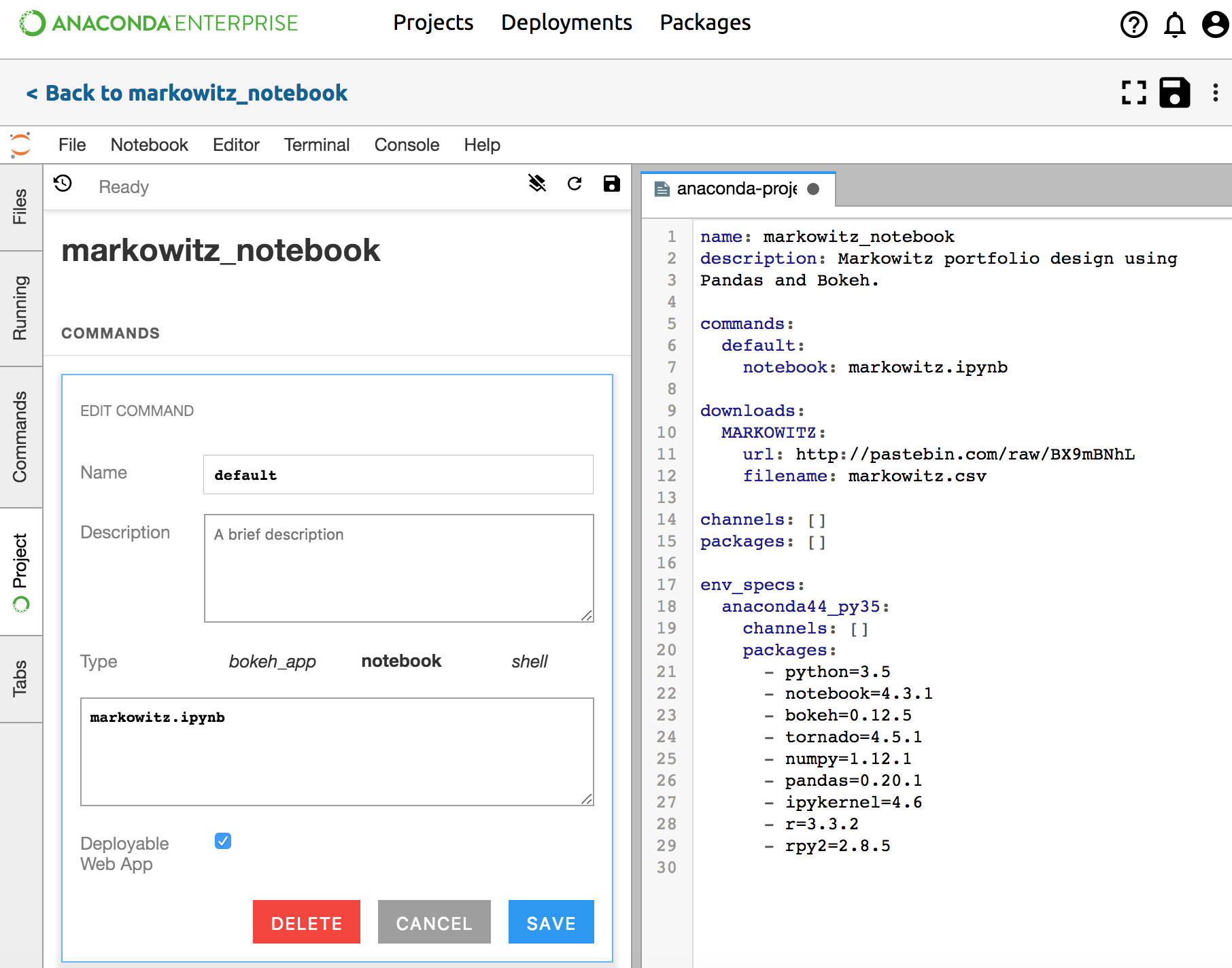
For a Bokeh application
Deployment command for a Bokeh app (assuming you have a main.py):
commands:
  default:
    bokeh_app: .
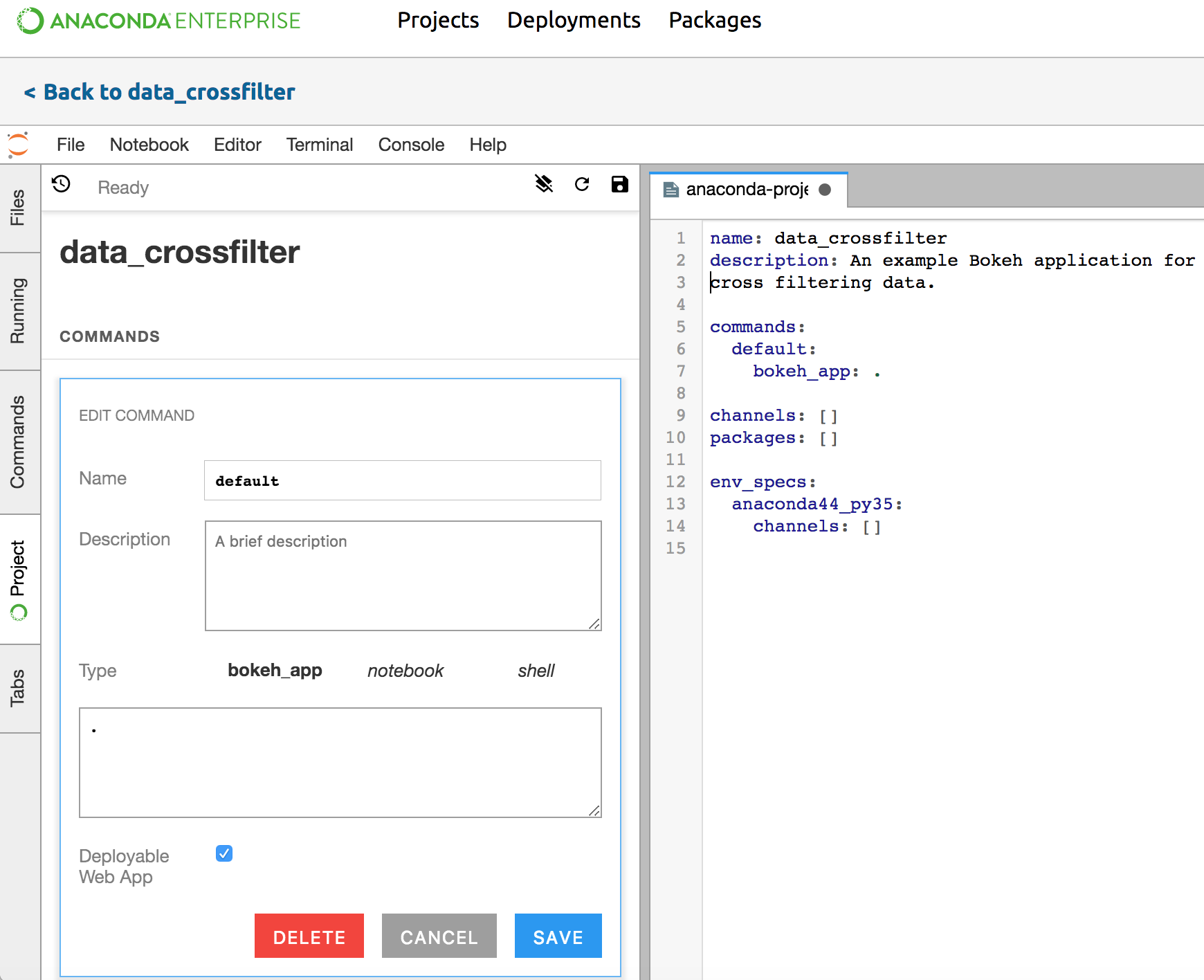
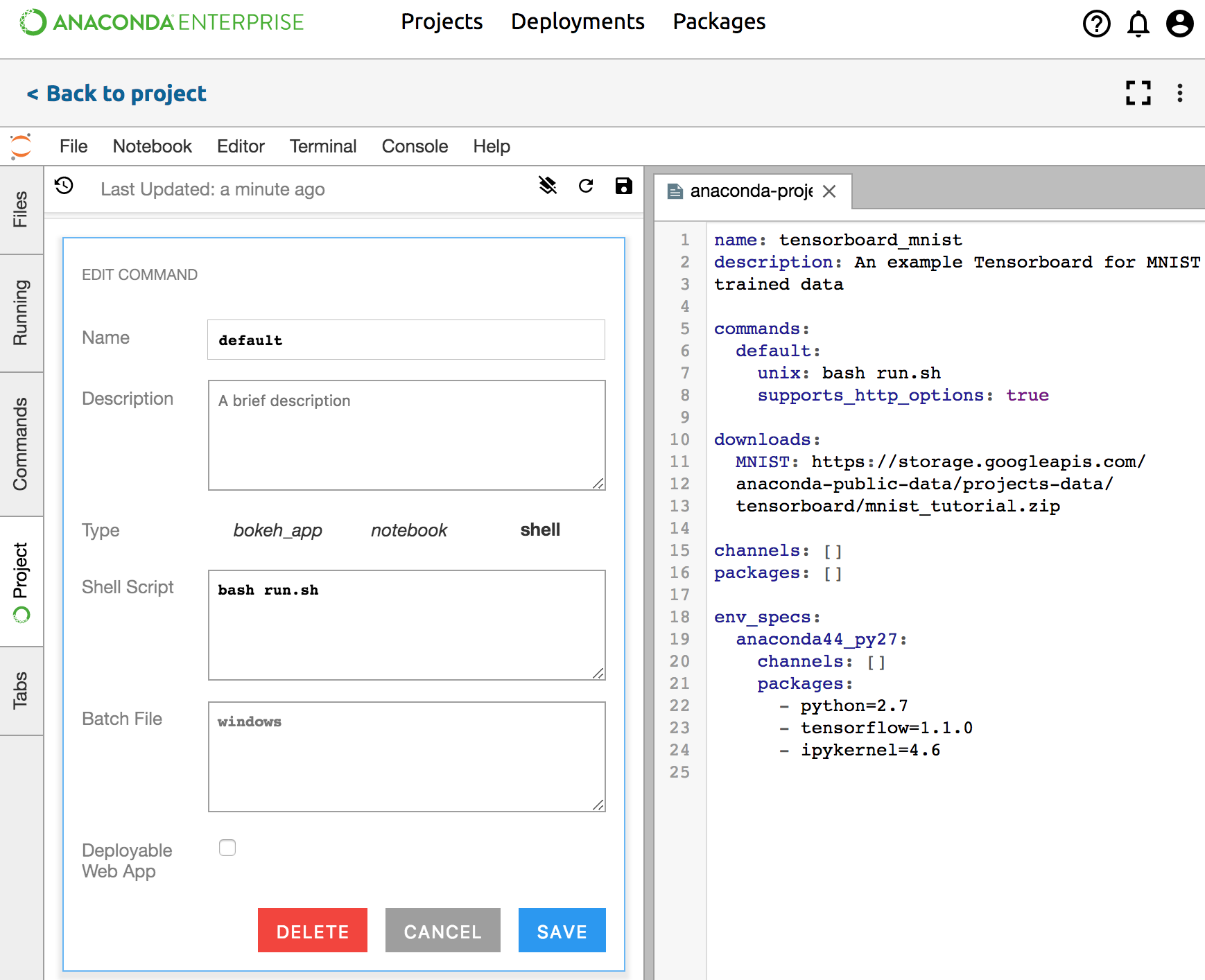
For a generic script or web framework
Deployment command for a script or web framework, including Python, R, etc
commands:
  default:
    unix: bash run.sh
    supports_http_options: true
or:
commands:
  default:
    unix: python your-script.py
    supports_http_options: true
or:
commands:
  default:
    unix: Rscript your-script.R
    supports_http_options: true